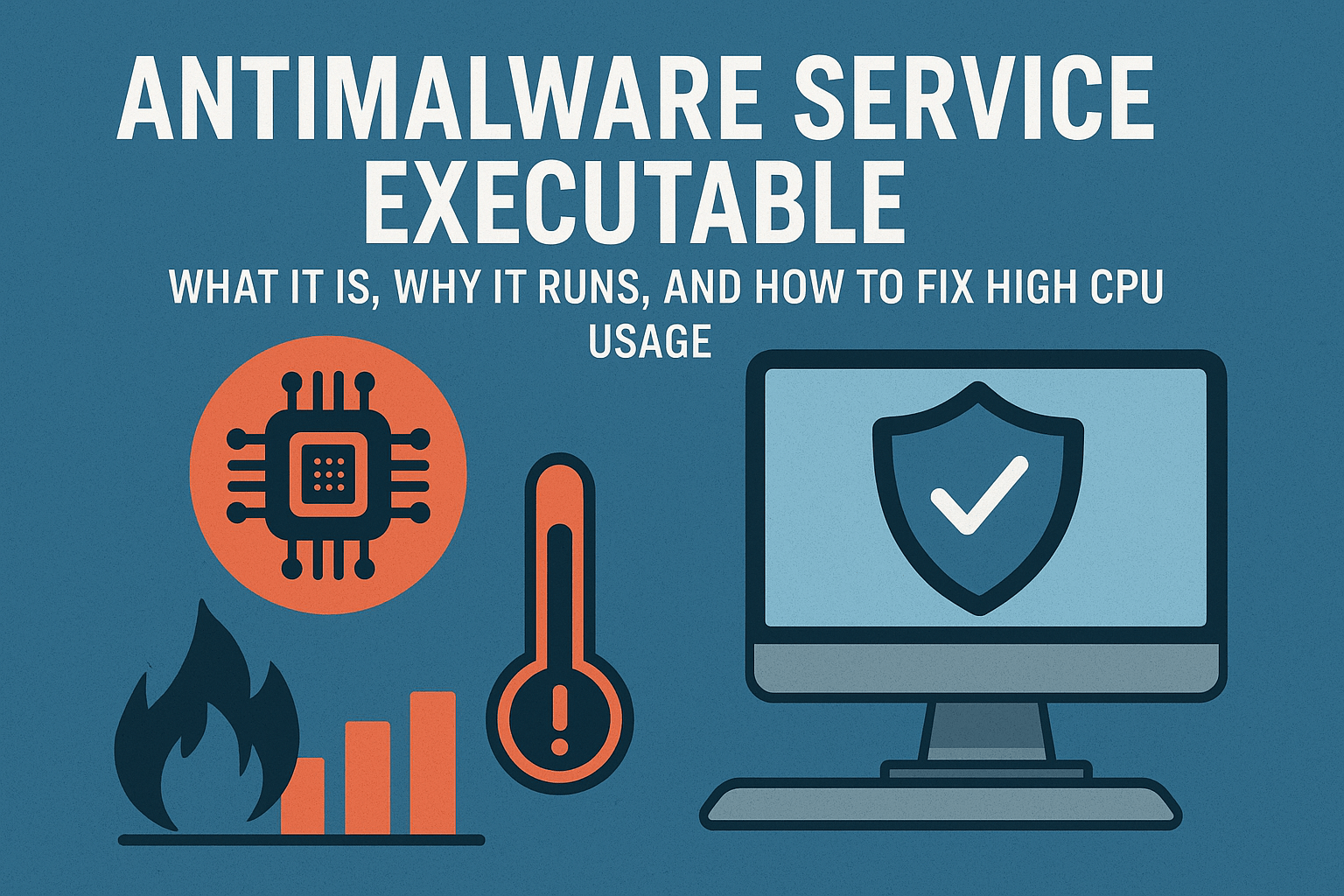
Antimalware Service Executable: What It Is, Why It Runs, and How to Fix High CPU Usage

If you’ve ever opened the Task Manager on your Windows PC and noticed a process called Antimalware Service Executable (or MsMpEng.exe) running, you may have wondered, “What is Antimalware Service Executable?” or even, “Why is my Antimalware Service Executable using so much CPU?”

This process is a part of Windows Defender, also known as Microsoft Defender Antivirus, and it plays a crucial role in keeping your computer safe from viruses, malware, and other security threats. However, many users report issues like Antimalware Service Executable high CPU, high memory usage, or even high disk usage, which can slow down your PC.

In this guide, we’ll break down everything you need to know about Antimalware Service Executable, why it runs, and how to fix problems without compromising your computer’s security.

What Is Antimalware Service Executable?

Antimalware Service Executable, also known as MsMpEng.exe, is a background process that runs as part of Windows Defender Antivirus. Its main job is to:

  • Monitor your PC for malware and spyware.

  • Scan files and programs in real-time.

  • Ensure that Windows stays protected against security threats.

When you see Antimalware Service Executable always running, it’s usually because Windows is actively scanning your system or updating virus definitions.

Features of Antimalware Service Executable

Real-Time Protection
It scans programs and files as you access them, preventing malware infections before they spread.

Scheduled Scans
Windows Defender uses this process to run regular system scans.

Automatic Updates
Antimalware Service Executable ensures that virus definitions stay up to date, keeping your PC safe from new threats.

Integration with Windows Security
Works seamlessly with Windows Security Health Service to protect your system without additional software.

Low Maintenance
Runs in the background without needing manual intervention under normal conditions.

Why Antimalware Service Executable Uses High CPU or Memory

If your Antimalware Service Executable (MsMpEng.exe) process is using a lot of CPU or memory, it’s usually normal, but sometimes it can indicate an issue. Here are the common reasons and how to check them:

1. Full System Scan in Progress

When Windows Defender runs a scheduled full system scan, it temporarily uses more CPU and memory. This is normal and usually resolves itself after the scan is complete.

How to check:

  • Press Ctrl + Shift + Esc to open Task Manager.

  • Look for Antimalware Service Executable under Processes.

  • If the CPU spikes, wait for the scan to finish or schedule it for a time when you’re not actively using your PC.

2. Large Files or External Drives

Scanning large files or connected external drives can increase resource usage. For example, copying or opening a large folder might trigger Defender to scan it, causing high CPU or memory usage.

Tip:

  • Consider adding trusted folders or external drives to Windows Defender Exclusions:

    • Go to Windows Security → Virus & Threat Protection → Manage Settings → Add or Remove Exclusions.

3. Conflicts With Other Security Software

Running a third-party antivirus alongside Windows Defender can make Antimalware Service Executable high CPU. Two programs scanning simultaneously can overload your system.

Solution:

  • Disable or uninstall the other antivirus software, leaving Windows Defender active.

4. Windows Updates

During updates, Windows 10 or Windows 11 Antimalware Service Executable may temporarily use more resources. This happens because Defender scans new or updated files for threats.

Command to check update status:

  • Press Windows + I → Update & Security → Windows Update

  • Make sure your updates are complete to reduce CPU spikes.

5. Corrupted System Files

Damaged or missing Windows files can cause Antimalware Service Executable CPU usage to remain high.

How to fix:

  • Open Command Prompt as Administrator and run:

    sfc /scannow

    This scans and repairs corrupted system files.

  • After that, run:

    DISM /Online /Cleanup-Image /RestoreHealth

    This restores Windows system health.

How to Fix Antimalware Service Executable High CPU

If your Antimalware Service Executable or MsMpEng.exe process is using too much CPU or memory, it can slow down your PC. Here are simple, effective ways to fix it without turning off Windows Defender and compromising your security.

1. Adjust Windows Defender Scheduled Scans

Sometimes Antimalware Service Executable high CPU happens because Windows Defender is running a scan when you’re actively using your PC. You can schedule scans for a more convenient time:

  1. Open Windows Security.

  2. Go to Virus & Threat Protection → Manage Settings.

  3. Adjust the scan schedule to occur during hours when your PC is idle.

This reduces the load during work or gaming, helping your PC run smoothly.

2. Add Antimalware Service Executable to Exclusions

Large files or frequently used programs can make Antimalware Service Executable high memory or CPU usage worse. Adding safe folders to exclusions prevents unnecessary scanning:

  1. Open Windows Security → Virus & Threat Protection → Manage Settings → Add or Remove Exclusions.

  2. Add files, folders, or game directories that you know are safe.

This prevents repeated scanning of large files and lowers CPU usage.

3. Perform a Disk Cleanup

Temporary files, system cache, and unused data can slow down your PC and increase Antimalware Service Executable CPU usage. Using Disk Cleanup is easy:

  1. Press Windows + S, type Disk Cleanup, and open it.

  2. Select your system drive (usually C:).

  3. Check Temporary Files, Recycle Bin, and System Cache, then click OK.

Cleaning unnecessary files reduces the workload for Antimalware Service Executable, helping your PC run faster.

4. Use a Reliable PC Cleaner

A trusted PC cleaner can optimize startup programs, remove junk files, and fix minor registry issues. This can prevent:

  • Antimalware Service Executable slowing down PC

  • High memory usage

  • Unexpected performance drops

Always download PC cleaners from reputable sources to avoid malware.

5. Check for Conflicting Software

Running another antivirus program alongside Windows Defender may cause Antimalware Service Executable high CPU. To avoid conflicts:

  • Disable or uninstall third-party antivirus software if you rely on Windows Defender.

  • Restart your PC and monitor CPU usage.

This ensures that Windows Defender can run efficiently without interference.

6. Update Windows

Keeping your system updated ensures Antimalware Service Executable Windows 10 or Windows 11 runs smoothly:

  1. Go to Settings → Update & Security → Windows Update.

  2. Click Check for Updates and install any pending updates.

  3. Restart your PC if required.

Updates often fix bugs and optimize background processes, reducing CPU and memory usage.

Benefits of Keeping Antimalware Service Executable Active

  • Real-time protection from viruses and malware.

  • Automatic updates to defend against new threats.

  • Integration with Windows Security without needing extra software.

  • Maintains system integrity and prevents data loss.

Uses of Antimalware Service Executable

  • Protects personal files, photos, and documents.

  • Keeps your gaming PC safe from malware.

  • Ensures corporate or work PCs comply with security standards.

  • Works in the background to prevent ransomware attacks.

Specifications

While Antimalware Service Executable is a software process rather than a physical product, its system requirements include:

  • Operating System: Windows 10, Windows 11

  • CPU: Minimum 1 GHz processor

  • RAM: Minimum 1 GB (32-bit) or 2 GB (64-bit)

  • Storage: At least 2 GB free disk space for virus definitions and updates

  • Network: Internet connection for updates

FAQs

Q: Is Antimalware Service Executable a virus?
A: No. It is a legitimate Windows process that runs Windows Defender Antivirus.

Q: Why is Antimalware Service Executable always running?
A: This is normal. Windows Defender runs continuously to protect your PC.

Q: Can I disable Antimalware Service Executable?
A: You can temporarily disable it, but it’s not recommended because your PC will be vulnerable to malware.

Q: How do I reduce high CPU usage by Antimalware Service Executable?
A: Schedule scans during low usage, add safe folders to exclusions, perform Disk Cleanup, and update Windows.

Q: My Antimalware Service Executable is using 100% CPU. What should I do?
A: Restart your PC, update Windows, check for conflicting antivirus software, and consider running a system scan to ensure there are no corrupted files.

Conclusion

The Antimalware Service Executable is an essential part of Windows Defender, helping protect your PC from viruses and malware. While it can occasionally cause high CPU or memory usage, following steps like scheduling scans, performing Disk Cleanup, and using a PC Cleaner can keep your system running smoothly.

Understanding what is Antimalware Service Executable and how it works ensures you maintain both PC security and performance. So, don’t panic when you see it running; instead, use these tips to optimize your system and stay protected.
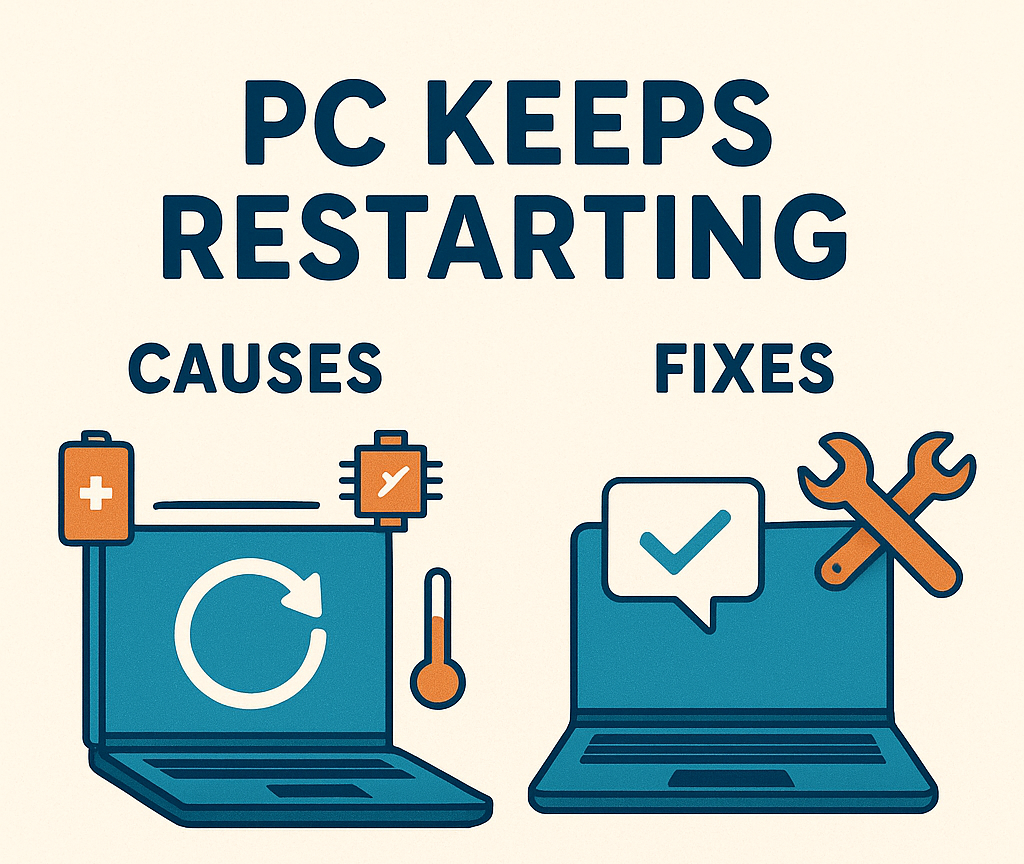

PC Keeps Restarting: Causes, Fixes, and Prevention Tips

If your PC keeps restarting, it can be incredibly frustrating. Whether it’s a desktop or a laptop, unexpected restarts interrupt your work, gaming, or streaming, and can even risk data loss. Many users ask, “Why does my PC keep restarting?” or “Why does my computer randomly restart?” In this guide, we’ll explore the common reasons behind this problem, practical fixes, and ways to prevent your computer from constantly restarting in the future.

Understanding the Problem: Why Does My PC Keep Restarting?

When your computer keeps restarting, it’s usually a sign of hardware issues, software conflicts, or system errors. Sometimes, your PC keeps rebooting itself after updates, or it could be a more serious problem like overheating or a failing component.

Common symptoms include:

  • Laptop keeps restarting randomly during use.

  • Windows PC keeps restarting after booting.

  • PC constantly restarting in a loop, sometimes called a computer restart loop.

  • Sudden computer just randomly restarted without warning.

Common Causes of a PC That Keeps Restarting

  1. Windows Updates or Software Glitches
    Often, your PC keeps restarting on its own due to incomplete Windows updates or software conflicts. This is especially common with Windows 10 PC keeps restarting issues.

  2. Overheating
    If your gaming PC keeps restarting, overheating could be the culprit. CPUs and GPUs have thermal limits, and exceeding them can trigger a safety shutdown.

  3. Faulty Hardware

    • RAM errors can cause your computer randomly restarting.

    • Failing power supply units (PSUs) may cause your PC suddenly restarts.

    • Hard drive or SSD issues can lead to computer restarting before Windows loads.

  4. Driver Issues
    Outdated or incompatible drivers can make your laptop randomly restart or a desktop keep restarting.

  5. Virus or Malware
    Malicious software can force your PC to restart randomly or create automatic restart PC loops.

  6. BIOS or Firmware Problems
    A misconfigured BIOS can make your new PC keep restarting immediately after startup.

How to Fix a PC That Keeps Restarting

If your computer keeps restarting, don’t worry. You can try these easy steps to fix it. Follow them one by one, and you’ll often find the solution.

1. Check for Windows Updates

Sometimes, your PC keeps restarting because Windows needs updates. Here’s how to check:

  1. Click Start, then go to Settings.

  2. Select Update & Security, then Windows Update.

  3. Click Check for updates.

  4. Install any updates that appear and restart your PC manually.

Updating Windows can fix bugs that cause your computer to restart unexpectedly.

2. Turn Off Automatic Restart

Windows sometimes restarts automatically when it finds an error, which can make it hard to see what’s wrong. You can stop this:

  1. Right-click This PC on your desktop, then click Properties.

  2. Click Advanced system settings.

  3. Under Startup and Recovery, click Settings.

  4. Uncheck Automatically restart under System failure.

  5. Click OK to save.

Now, if an error happens, your PC will show an error message instead of restarting right away, which helps in finding the cause.

3. Scan for Viruses and Malware

Malware or viruses can make your PC keep restarting randomly. To check:

  1. Open your antivirus software (Windows Defender works too).

  2. Run a full system scan.

  3. Remove any threats it finds.

Cleaning your PC from malware often stops unexpected restarts.

4. Test Your Hardware

Sometimes, your computer restarts because a part inside is failing. You can check:

  • RAM (Memory): Use a free tool like MemTest86 to test your RAM. Faulty RAM can cause random restarts.

  • Overheating: Make sure your CPU and graphics card aren’t too hot. Clean dust from fans and check that your PC is properly ventilated.

  • Hard Drive: Open Command Prompt and type chkdsk /f to check your hard drive for errors.

Fixing or replacing faulty hardware can stop the constant restarts.

5. Update Drivers

Drivers are programs that help your PC talk to hardware. Old or broken drivers can cause your PC to keep restarting.

  1. Press Windows + X and choose Device Manager.

  2. Look for graphics cards, network adapters, and other devices.

  3. Right-click → Update driverSearch automatically for updates.

Keeping drivers up to date improves stability and stops crashes.

6. Perform a Clean Boot

A clean boot starts Windows with only the essential programs. This helps find if software is causing your computer to restart:

  1. Press Windows + R, type msconfig, and press Enter.

  2. Under Selective startup, uncheck Load startup items.

  3. Go to the Services tab, check Hide all Microsoft services, then click Disable all.

  4. Click OK and restart your PC.

If your PC stops restarting, you know a program or service was causing the problem. You can then enable items one by one to find the culprit.

7. Use System Restore

If your PC keeps restarting after recent changes, restoring it to an earlier point can fix it:

  1. Press Windows + S and type System Restore.

  2. Select Create a restore point, then click System Restore.

  3. Choose a date when your PC was working fine.

  4. Follow the instructions to restore.

This can fix software problems without affecting your personal files.

Benefits of Fixing a PC That Keeps Restarting

  • Prevents data loss and file corruption.

  • Improves overall system stability and performance.

  • Ensures a smooth gaming or work experience.

  • Reduces frustration from repeated unexpected shutdowns.

Specifications to Check on Your PC

If your desktop keeps restarting, verify the following:

  • Operating System: Windows 10 or 11, fully updated.

  • RAM: Minimum 4GB; 8GB recommended for gaming or heavy tasks.

  • Processor: Intel i3/i5/i7 or AMD equivalent.

  • Storage: SSD recommended for faster boot times.

  • Power Supply Unit (PSU): Sufficient wattage for your components.

  • Cooling System: Proper CPU/GPU cooling to prevent overheating.

What’s in the Box

When you buy a new PC or laptop and it keeps restarting, ensure all components are included:

  • Desktop tower or laptop.

  • Power cable and adapter.

  • User manual and warranty card.

  • Accessories like keyboard, mouse, or cooling pads.

Uses of a Stable PC

A PC that doesn’t restart randomly can be used for:

  • Gaming without crashes.

  • Office work and productivity.

  • Video editing or streaming.

  • Safe online browsing.

  • Learning, coding, and professional work.

FAQs

Q: Why does my computer restart every time I close it?
A: This may be due to power settings or driver issues. Adjust shutdown settings and update drivers.

Q: How to stop computer restarting randomly?
A: Check for overheating, scan for malware, update drivers, and disable automatic restart.

Q: My PC keeps restarting after Windows update. What should I do?
A: Boot in safe mode, uninstall the update, and reinstall it carefully.

Q: Why does my laptop keep restarting on boot?
A: Often caused by BIOS settings, hardware failure, or corrupted Windows installation.

Q: Is it normal for a new PC to keep restarting?
A: No. If a new PC keeps restarting, check hardware installation, BIOS, and power supply.

Q: How can I stop my PC from constantly restarting?
A: Check for Windows updates, scan for viruses, update drivers, and clean your system using Disk Cleanup or a PC Cleaner.

Q: Can a PC Cleaner fix my laptop that keeps restarting?
A: Yes, a reliable PC cleaner can remove junk files and optimize startup programs, which often stops random restarts.

Q: Why does my computer keep restarting after Windows updates?
A: Sometimes updates cause conflicts. Try uninstalling recent updates, performing a clean boot, or using System Restore.

Q: Will Disk Cleanup help if my computer keeps restarting?
A: Yes. Removing temporary files and system cache can prevent errors that cause your PC to keep restarting on its own.

Q: My gaming PC keeps restarting. Can cleaning help?
A: Absolutely. Overloaded cache and temporary files can stress the system. Use Disk Cleanup, optimize startup programs, and check drivers.

Conclusion

Experiencing a PC that keeps restarting can be stressful, but most issues have clear solutions. From software glitches to hardware failures, identifying the root cause is key. Always keep your Windows PC updated, maintain proper cooling, and check your hardware regularly. By following the tips above, you can prevent your computer from constantly restarting, ensure stability, and enjoy a smooth computing experience. Remember, whether your laptop keeps rebooting, your desktop keeps restarting, or your gaming PC keeps restarting, careful troubleshooting will usually solve the problem and prevent future issues.

Video TDR Failure: What It Is, Why It Happens, and How to Fix It Easily

If you’ve ever been interrupted by a sudden blue screen while working, watching a movie, or gaming on your Windows PC, you’ve probably seen an error message that reads “Video TDR Failure.” It’s a frustrating experience that can make you worry something serious is wrong with your computer.

The good news? The Video TDR Failure error is common—and in most cases, it can be fixed easily with the right approach.

In this article, we’ll explain what the Video TDR Failure means, why it happens, how to fix it, and what you can do to prevent it from returning. Whether you’re dealing with the Video TDR Failure blue screen, the Windows stop code Video TDR Failure, or the Video DXGKRNL fatal error, this guide covers it all in simple terms.

What Is Video TDR Failure?

The term TDR stands for Timeout, Detection, and Recovery. It’s a feature in Windows designed to prevent your computer from freezing completely when your graphics card (GPU) stops responding.

When Windows detects that the GPU is taking too long to respond, it restarts the driver to recover the system. But if this process fails, you see the Video TDR Failure error or a blue screen of death (BSOD).

This error is usually linked to problems with your graphics driver, hardware acceleration, or video card hardware itself.

Common error messages include:

  • “Stop code: VIDEO_TDR_FAILURE”

  • “Video_TDR_Failure (atikmpag.sys / nvlddmkm.sys / igdkmd64.sys)”

  • “Video DXGKRNL Fatal Error”

Each file in parentheses represents a different graphics driver (for AMD, NVIDIA, or Intel).

Why Does the Video TDR Failure Error Happen?

There are several reasons why your system might run into this problem. Let’s look at the most common causes:

  1. Outdated or Corrupt Graphics Drivers
    If your GPU driver is outdated or has become corrupted, it may stop communicating properly with Windows.

  2. Overheating GPU
    A graphics card that runs too hot can cause instability and eventually trigger this blue screen error.

  3. Hardware Acceleration Issues
    Some applications (especially browsers or video players) use hardware acceleration, which can overload the GPU.

  4. Faulty GPU Hardware
    Damaged or defective graphics cards can cause the system to hang during rendering or video playback.

  5. System File Corruption
    Damaged Windows system files can lead to driver communication errors.

  6. Overclocking or Power Supply Problems
    If your GPU is overclocked or your PSU isn’t supplying enough power, the GPU may time out during high load tasks.

Common Signs of Video TDR Failure

Before your system shows the blue screen, you might notice a few warning signs:

  • Screen flickering or freezing during gaming or video playback

  • Display driver crashes or sudden restarts

  • Blue screen with “Video_TDR_Failure” or “Video DXGKRNL Fatal Error”

  • Unusual fan noise or overheating

  • Graphics glitches or lag

Recognizing these early symptoms can help you prevent a full crash.

How to Fix Video TDR Failure on Windows

Let’s go through the most effective ways to fix this issue. You don’t need to be a tech expert—just follow the steps carefully.

1. Update or Reinstall Your Graphics Driver

This is the most common solution.

Steps:

  1. Press Windows + X → select Device Manager.

  2. Expand Display adapters.

  3. Right-click your graphics card and choose Update driver.

  4. Select Search automatically for drivers.

If the problem persists, uninstall the driver and reinstall it manually from your GPU manufacturer’s website:

  • Intel: intel.com

  • AMD: amd.com

  • NVIDIA: nvidia.com

2. Clean Install Your GPU Drivers

Sometimes, leftover driver files cause conflicts. Use a free tool like Display Driver Uninstaller (DDU) to completely remove the old driver before installing a new one.

Tip: Always restart your computer after reinstalling drivers.

3. Check for Overheating

Overheating can easily trigger TDR errors.

How to check:

  • Use tools like HWMonitor or MSI Afterburner to monitor GPU temperature.

  • Clean the inside of your PC to remove dust buildup.

  • Ensure fans are spinning properly and airflow isn’t blocked.

If temperatures exceed 85°C, consider reapplying thermal paste or improving cooling.

4. Disable Hardware Acceleration

If the issue occurs mostly while watching videos or using browsers, hardware acceleration may be the culprit.

For Google Chrome:

  • Go to Settings → System.

  • Turn off Use hardware acceleration when available.

For Firefox:

  • Open Settings → General.

  • Scroll to Performance and uncheck hardware acceleration.

Restart the browser after changing the setting.

5. Run System File Checker

Corrupt system files can trigger a Windows stop code Video TDR Failure.

Steps:

  1. Open Command Prompt as administrator.

  2. Type:

    sfc /scannow
  3. Wait for the scan to complete and follow the on-screen instructions.

6. Update BIOS and Windows

Outdated BIOS or Windows versions can cause driver compatibility issues.

  • Go to Settings → Windows Update and install any available updates.

  • Check your motherboard manufacturer’s website for BIOS updates.

7. Check Power Supply and Overclocking Settings

If you’ve overclocked your GPU, revert to default settings using your GPU software.
Also, ensure your power supply unit (PSU) meets your GPU’s power requirements.

8. Perform a Clean Boot

A clean boot helps you find if a background program is causing the issue.

Steps:

  1. Press Windows + R, type msconfig, and hit Enter.

  2. Under Services, check Hide all Microsoft services.

  3. Click Disable all.

  4. Under Startup, open Task Manager and disable all startup apps.

  5. Restart your PC.

9. Repair Windows Registry (Optional Advanced Fix)

If the Video TDR Failure or Video DXGKRNL fatal error keeps returning, it might be due to broken or corrupted registry entries that affect your display drivers.

Here’s how to repair the Windows registry safely:

  1. Press Windows + R and type cmd, then run Command Prompt as Administrator.

  2. Enter the command:

    DISM /Online /Cleanup-Image /RestoreHealth

    This will check and repair system components related to the registry.

  3. After that, run:

    sfc /scannow

    The System File Checker will automatically fix any corrupted registry or system files.

  4. Restart your PC to apply changes.

Tip: Avoid using third-party “registry cleaner” tools, as they can sometimes remove essential entries and make things worse. Stick to the built-in Windows tools for safety.

Specifications of the Issue (Technical Overview)

Component Description
Error Code VIDEO_TDR_FAILURE
Associated Files atikmpag.sys (AMD), nvlddmkm.sys (NVIDIA), igdkmd64.sys (Intel)
Type of Error Blue Screen of Death (BSOD)
Operating System Affected Windows 10, Windows 11
Primary Cause GPU Timeout or Driver Crash
Common Fix Reinstall or update graphics drivers

Benefits of Fixing the Video TDR Failure

Fixing this error isn’t just about avoiding crashes—it also improves your system’s overall performance.

Key benefits include:

  • Smoother gaming and video playback

  • Better system stability

  • Reduced blue screen errors

  • Longer GPU lifespan

  • Enhanced productivity without random interruptions

Why You Should Fix It Early

Ignoring the Video TDR Failure blue screen can lead to:

  • Permanent GPU damage

  • Frequent crashes and file loss

  • System instability

  • Reduced performance in graphics-heavy tasks

Fixing it early ensures your PC stays fast, cool, and reliable.

What’s in the Box (If You’re Replacing a GPU)

If your old graphics card is faulty and you decide to replace it, here’s what you typically get in the box with a new GPU:

  • Graphics card unit

  • Driver installation guide

  • Quick start manual

  • Power adapter cables (in some models)

  • Manufacturer warranty information

Uses and Applications

Your GPU does much more than just power games—it handles:

  • Video rendering and editing

  • 3D modeling and CAD design

  • AI computation

  • Video playback and streaming

  • Multi-monitor setups

That’s why keeping your GPU driver healthy and up-to-date is essential for all types of users—from casual streamers to professionals.

FAQs About Video TDR Failure

Q1: What does Video TDR Failure mean?
It means Windows tried to reset your graphics driver after it stopped responding but failed to recover successfully.

Q2: Can a bad GPU cause Video TDR Failure?
Yes. A failing or overheating GPU can cause timeouts that lead to this error.

Q3: How do I know which driver is responsible?
The blue screen usually mentions a file like nvlddmkm.sys (NVIDIA), atikmpag.sys (AMD), or igdkmd64.sys (Intel).

Q4: Is Video TDR Failure a hardware or software problem?
Usually, it’s a software issue (driver-related), but in rare cases, it can be hardware-related if the GPU is damaged.

Q5: Will reinstalling Windows fix the error?
Yes, if all else fails. A clean Windows installation removes conflicting software and corrupted drivers.

Run Disk Cleanup to Free Up Space and Remove Corrupt Files

Sometimes, unnecessary files, temporary data, and cached driver files can cause conflicts that lead to the Video TDR Failure blue screen or the Windows stop code Video TDR Failure. Running a Disk Cleanup helps remove these cluttered files and improve your system’s stability.

Here’s how to do it:

  1. Press Windows + S and type Disk Cleanup, then open it.

  2. Choose your system drive (usually C:) and click OK.

  3. The tool will calculate how much space can be freed.

  4. Check the boxes next to:

    • Temporary Internet Files

    • Delivery Optimization Files

    • Device Driver Packages

    • Temporary Files

    • Thumbnails

  5. Click OK, then choose Delete Files to confirm.

  6. Once cleanup is done, restart your computer.

Optional tip:
You can also use Storage Sense in Windows 10 or 11 for automatic cleanups. Go to Settings → System → Storage → Storage Sense and toggle it on.

Conclusion

The Video TDR Failure error can look alarming, but it’s one of the most common and fixable Windows blue screen problems. By updating your drivers, checking your hardware, and ensuring your system runs cool and stable, you can eliminate this issue permanently.

Whether it’s the Video TDR Failure blue screen, Windows stop code Video TDR Failure, or Video DXGKRNL Fatal Error, the steps above will help you get your PC back to normal performance. Take a few minutes to apply these fixes—you’ll save hours of frustration in the long run.

msvcp140.dll Was Not Found – How to Fix It Easily (A Simple Guide for Everyone)

Have you ever tried to open a game or app on your computer and suddenly seen an error saying “msvcp140.dll was not found” or “The code execution cannot proceed because msvcp140.dll is missing”?
If yes, you’re not alone. This is one of the most common Windows errors that can appear when a certain system file goes missing or gets corrupted. The good news is — it’s easy to fix, and you don’t need to be a tech expert to do it.

The msvcp140.dll file is part of the Microsoft Visual C++ Redistributable package, which helps many applications and games run properly on Windows. When this file is missing, those programs can’t start because Windows doesn’t have what it needs to run them.

In this blog, we’ll walk through what msvcp140.dll is, why it goes missing, and how you can fix it step-by-step for Windows 10, Windows 11, and even older versions like Windows 7.
We’ll keep everything simple, clear, and practical — just the way you like it.

What Is msvcp140.dll?

Before fixing the problem, let’s understand what this mysterious file does.

The msvcp140.dll is a Dynamic Link Library (DLL) file developed by Microsoft. It’s included in the Microsoft Visual C++ Redistributable package and is required by many modern software programs — including games, design tools, and productivity apps.
This file contains small pieces of code that programs use to perform tasks without having to write those functions from scratch.

If the msvcp140.dll file is missing or damaged, your system will show an error like:

  • “msvcp140.dll was not found”

  • “The code execution cannot proceed because msvcp140.dll”

  • “msvcp140.dll is either not designed to run on Windows”

Without this file, your software simply can’t start.

So, in short — msvcp140.dll is essential for running many Windows applications, and its absence causes your PC to throw this error.

Common Causes of the msvcp140.dll Error

There are several reasons why this error might appear on your screen. Let’s look at the most common ones in simple terms:

  1. You accidentally deleted or moved the file.
    Sometimes, antivirus software or manual cleanups can remove the DLL file by mistake.

  2. Incomplete software installation.
    If an app didn’t install properly, the required Visual C++ component might be missing.

  3. Windows updates went wrong.
    An interrupted or corrupted update can lead to system file mismatches.

  4. Virus or malware infection.
    Harmful programs can delete or corrupt important system files like msvcp140.dll.

  5. The Visual C++ Redistributable is outdated or damaged.
    Many programs rely on the latest version of this package to work properly.

These are the main reasons behind the msvcp140.dll missing error on Windows 7, Windows 10, and Windows 11.

How to Fix “msvcp140.dll Was Not Found”

Now that we know why it happens, let’s fix it. Here are the most effective and safest ways to solve this issue.

Step 1: Reinstall Microsoft Visual C++ Redistributable

The simplest and most reliable fix is to reinstall the Visual C++ package that includes the msvcp140.dll file.

  1. Go to the official Microsoft download page for Visual C++ Redistributables.

  2. Download the latest versions (both x64 and x86 if you have a 64-bit PC).

  3. Install them and restart your computer.

This process replaces any missing or corrupted DLL files.
After restarting, try reopening the program — in most cases, the msvcp140.dll not found error will be gone.

(Keyword used: msvcp140.dll download Microsoft, msvcp140.dll download Windows 10)

Step 2: Use Windows System File Checker (SFC)

If reinstalling didn’t work, your system files might be corrupted. Luckily, Windows has a built-in tool to fix this.

  1. Press the Start button and type cmd.

  2. Right-click on Command Prompt and select Run as administrator.

  3. Type the command below and press Enter:

    sfc /scannow
  4. Wait for Windows to scan and repair your files.

Once it’s done, restart your computer. The missing msvcp140.dll issue should be fixed.

Step 3: Repair or Reinstall the Problematic Program

Sometimes, the app showing the error is the problem itself. Try uninstalling and reinstalling it.

  • Go to Control Panel > Programs and Features.

  • Find the program that shows the msvcp140.dll error.

  • Click Uninstall, then reinstall it from the official source.

This ensures the app includes all necessary components.

Step 4: Run a Virus Scan

Viruses can remove or damage important system files. Run a full system scan using Windows Security or a trusted antivirus program.
After removing threats, reinstall the Visual C++ Redistributable again just to be safe.

Step 5: Download msvcp140.dll (Safely)

If you still see errors like “msvcp140.dll download 64 bit” or “msvcp140.dll missing Windows 11”, you can manually replace the file.

⚠️ Important:
Only download the DLL file from Microsoft’s official website — never from third-party sites. Many of those offer infected or modified files that can harm your PC.

Step 6: Update Windows

Make sure your Windows is up to date:

  • Open Settings > Windows Update > Check for updates.
    Updates often include patches and fixes for missing DLL problems.

Step 7: Reinstall Windows (Last Option)

If all else fails, reinstalling or resetting Windows can fix deep system-level corruption.
Before doing this, back up your data.

When Does the Error Appear Most Often?

You may see the msvcp140.dll is missing error while launching:

  • Games like Fortnite, PUBG, or GTA

  • Design software such as Photoshop or AutoCAD

  • Business tools like TurboTax or Origin

For example, users have reported messages like “TurboTax msvcp140.dll not found” or “msvcp140.dll missing Origin”.
In each of these cases, reinstalling Visual C++ Redistributable usually fixes it.

Why You Should Avoid Unofficial DLL Download Sites

You might find websites offering “free DLL downloads” — but beware.
These files can contain malware, viruses, or unstable versions that crash your PC.

Always download from Microsoft’s official site, which ensures that the file is safe and compatible.
Trusting unknown websites could cause even more serious problems than the original error.

Benefits of Fixing the msvcp140.dll Error

Fixing this issue gives you multiple benefits:

  • Your programs run smoothly again without crashes.

  • Improved system stability, especially for games and software that depend on Visual C++.

  • Better Windows performance because there are no missing components.

  • Peace of mind, knowing your system files are complete and secure.

So, even though it’s a small file, it plays a big role in keeping your PC healthy.

msvcp140.dll File Details (Specifications)

File Name msvcp140.dll
Type Dynamic Link Library (DLL)
Developer Microsoft Corporation
File Size Around 600–700 KB
Associated Software Microsoft Visual C++ Redistributable
Supported OS Windows 7, Windows 10, Windows 11 (32-bit and 64-bit)

What’s in the Download / Installer

When you download and install the Microsoft Visual C++ Redistributable, it includes:

  • All necessary runtime components

  • The msvcp140.dll file

  • Other related files like vcruntime140.dll, mfc140.dll, and msvcp140d.dll

So, you don’t need to search for individual files — installing this package automatically restores everything your apps need.

Frequently Asked Questions (FAQs)

1. What is msvcp140.dll?

It’s a core system file that helps Windows run software built using Visual C++. If it’s missing, you’ll see “msvcp140.dll was not found” or similar errors.

2. Why do I get the message “The code execution cannot proceed because msvcp140.dll”?

This means Windows can’t find the file required to start your program. It’s usually fixed by reinstalling Visual C++ Redistributable.

3. How do I fix msvcp140.dll missing in Windows 11 or Windows 7?

Just download and install the latest Microsoft Visual C++ Redistributable package from Microsoft’s website.

4. Is it safe to download msvcp140.dll manually?

Only from Microsoft’s official website. Never trust third-party DLL download sites.

5. What is msvcp140d.dll — is it different?

Yes, msvcp140d.dll is the “debug” version of the file used by developers. Regular users usually need msvcp140.dll.

6. What if msvcp140.dll is either not designed to run on Windows?

This means the file is corrupted or incompatible. Reinstall Visual C++ or perform an SFC scan to fix it.

7. Do I need to install both 32-bit and 64-bit Visual C++ packages?

Yes, if you have a 64-bit system, install both versions — some apps use the 32-bit library even on 64-bit Windows.

Conclusion

The “msvcp140.dll was not found” error might look scary, but it’s actually one of the easiest Windows issues to fix.
This problem usually happens when the Microsoft Visual C++ Redistributable is missing or corrupted — and reinstalling it solves the issue for most people.

Remember these quick takeaways:

  • Always download DLL files and redistributables from Microsoft’s official site.

  • Avoid shady “free DLL” websites.

  • Keep your system updated and protected from malware.

Once fixed, your apps, games, and programs should launch smoothly again — no more “The code execution cannot proceed because msvcp140.dll” messages.

System Service Exception in Windows 10 & 11: Causes, Fixes, and Easy Prevention Tips

System Service ExceptionIf you’ve ever been working on your computer and suddenly saw a blue screen with the message “System Service Exception”, don’t panic — you’re not alone. This error is one of the most common Windows issues that can appear out of nowhere.

It might look scary, but it usually means your system has hit a small roadblock — something in your Windows setup, drivers, or memory caused the system to stop working properly for a moment. The good news? You can fix it easily by following the right steps.

In this article, we’ll explain what the System Service Exception error is, why it happens, and most importantly, how to fix it safely without losing your data. Let’s get started.

What Is a System Service Exception?

The System Service Exception is a type of Blue Screen of Death (BSOD) error that appears when your Windows system runs into something it can’t process safely. When that happens, your computer automatically shuts down or restarts to protect itself.

In simple terms, it’s like your system saying, “Something went wrong, and I need to stop before I break something.”

This error can appear on both Windows 10 and Windows 11 with messages such as:

  • “Stop Code: System Service Exception”

  • “System Service Exception BSOD”

  • “Windows Stop Code System Service Exception”

It usually points to a problem with a driver, system file, or hardware component that’s behaving unexpectedly.

Common Causes of System Service Exception Errors

Let’s look at what typically triggers this problem. Understanding the cause makes it easier to apply the right fix.

1. Outdated or Corrupted Drivers

Drivers are small programs that help your hardware (like your graphics card, keyboard, or sound system) talk to Windows. If one becomes outdated or corrupt, it can cause conflicts that trigger the System Service Exception error.

2. Corrupt System Files

If important Windows system files get damaged, your computer might crash unexpectedly, leading to the blue screen error.

3. Incompatible or Faulty Software

Sometimes a recently installed app, antivirus, or even a Windows update can conflict with your system files. This can also trigger the Windows System Service Exception.

4. Memory (RAM) or Hardware Problems

Faulty RAM sticks or overheating components can cause data errors that confuse your operating system.

5. Graphics Card or Video Drivers

One common cause of the System Service Exception Windows 10 error is related to graphics drivers — especially files like dxgmms2.sys or ks.sys, which manage your display.

6. Third-Party Antivirus Software

Some antivirus tools can interfere with system-level operations, causing a System Service Exception Stop Code to appear after updates or scans.

How to Fix the System Service Exception Error (Step-by-Step)

You don’t need to be a tech expert to solve this issue. Follow these simple steps one by one.

Step 1: Update or Reinstall Device Drivers

Outdated drivers are one of the top reasons for BSOD errors.

How to do it:

  1. Press Windows + X and select Device Manager.

  2. Expand each device category (especially Display Adapters, Network Adapters, and Sound).

  3. Right-click the device and choose Update driverSearch automatically for drivers.

  4. Restart your computer after updates.

If the issue persists, uninstall and reinstall the driver manually by visiting your device manufacturer’s website.

Step 2: Run Windows Update

Microsoft regularly releases patches that fix bugs and compatibility issues.

How to check for updates:

  1. Open Settings → Windows Update.

  2. Click Check for updates.

  3. Install everything available and restart your system.

This helps fix Windows Blue Screen System Service Exception errors caused by old software versions.

Step 3: Scan and Repair System Files

Windows includes built-in tools to fix damaged or missing files.

Run the SFC command:

  1. Type cmd in the search box, right-click Command Prompt, and select Run as Administrator.

  2. Type:

    sfc /scannow
  3. Press Enter and wait for the process to finish.

Run DISM if needed:
If SFC doesn’t fix everything, type:

DISM /Online /Cleanup-Image /RestoreHealth

This will repair deeper Windows issues causing System Service Exception BSOD.

Step 4: Check for Faulty Memory (RAM)

Faulty RAM can trigger system exception errors frequently.

To check your memory:

  1. Press Windows + R, type mdsched.exe, and hit Enter.

  2. Choose Restart now and check for problems.

  3. Windows will scan and fix any detected issues.

Step 5: Disable Third-Party Antivirus Software

Temporarily turn off or uninstall your antivirus program. Many users find that disabling certain antivirus tools (like McAfee or Avast) resolves the System Service Exception Windows 10 keeps restarting problem.

After disabling, restart your computer and check if the blue screen disappears.

Step 6: Perform a Clean Boot

A clean boot helps you start Windows with only essential services, helping you spot conflicting apps.

How to do it:

  1. Type msconfig in the search box and open System Configuration.

  2. Go to the Services tab → check Hide all Microsoft services → click Disable all.

  3. In the Startup tab, open Task Manager and disable all startup programs.

  4. Restart your PC.

If your PC runs smoothly after this, re-enable services one by one to find the culprit.

Step 7: Restore or Reset Windows

If nothing else works, restore your system to an earlier point before the error began.

Steps:

  1. Type System Restore in the search box.

  2. Choose a restore point when your PC was working fine.

  3. Follow the prompts to complete the process.

If you don’t have a restore point, consider resetting Windows — this reinstalls the system without deleting your personal files.

Advanced Tips for Troubleshooting System Service Exception

If the issue still happens, you can try some more advanced options:

Use BlueScreenView or Event Viewer

These tools show detailed crash information so you can identify which file caused the issue — like ks.sys or ntfs.sys.

Check System Memory and Disk Health

Sometimes the message “An operating system exception was caused by system memory” means your RAM or storage device has errors. Use Windows Memory Diagnostic or CHKDSK to verify.

Update BIOS or Chipset Drivers

Outdated BIOS firmware or chipset drivers can cause BSOD errors. Check your computer manufacturer’s website for the latest versions.

How to Prevent System Service Exception Errors

Prevention is always better than cure. Here are some ways to avoid facing this blue screen again:

  1. Keep Windows Updated – Regular updates include important patches for stability.

  2. Update Drivers Regularly – Use tools like Windows Update or manufacturer apps.

  3. Avoid Overclocking – It may boost performance, but it can cause instability.

  4. Install Trusted Software Only – Avoid pirated or unverified downloads.

  5. Run Regular Virus Scans – Malware can corrupt system files leading to system service exception errors.

  6. Maintain System Health – Use built-in tools like Disk Cleanup and defragment drives if needed.

  7. Backup Your Data Often – This ensures you don’t lose files if the system crashes unexpectedly.

Frequently Asked Questions (FAQs)

Q1. What is a System Service Exception error?
It’s a blue screen error that appears when Windows detects a problem with system processes, drivers, or memory.

Q2. How do I fix the System Service Exception in Windows 10 or 11?
You can fix it by updating drivers, running SFC/DISM scans, checking RAM, and disabling third-party antivirus software.

Q3. Can hardware cause this error?
Yes, faulty RAM or overheating components can trigger system service exception BSOD.

Q4. Does a virus cause System Service Exception?
Sometimes malware can corrupt system files, leading to Windows error System Service Exception.

Q5. What if my PC keeps restarting with this error?
Try starting in Safe Mode, uninstalling recent updates, and performing a system restore.

Q6. What is ks.sys or dxgmms2.sys?
These are Windows system files linked to graphics drivers. If they get corrupted, they can trigger a system service exception blue screen.

Conclusion

The System Service Exception error may look intimidating, but it’s usually caused by simple issues like outdated drivers or corrupted system files.

By following the easy steps in this guide — updating drivers, scanning for system errors, and checking hardware — you can fix this problem quickly and prevent it from returning.

Remember, keeping your system clean and updated is the best way to avoid the Windows Blue Screen System Service Exception in the future. A few minutes of maintenance can save you from hours of frustration later.

No Power Options Available in Windows 11: Causes, Fixes, and Easy Troubleshooting Guide

No Power Options Available in Windows 11 Fix: Have you ever tried to shut down, restart, or put your Windows 11 computer to sleep, only to see a message that says There are currently no power options available?
If that sounds familiar, you are not alone. Many users run into this issue after an update, system change, or even out of nowhere. It can feel confusing and frustrating when simple options like shut down or restart suddenly disappear.

The good news is, this problem can usually be fixed with a few simple steps. In this friendly and easy-to-follow guide, we’ll help you understand what causes the “No Power Options Available” issue in Windows 11 and how to fix it quickly. You don’t need to be a tech expert—just follow along carefully.

What Does “No Power Options Available in Windows 11” Mean

When Windows 11 says “There are currently no power options available,” it means your computer is unable to access the power management settings that control shutting down, restarting, or sleeping.

This message usually appears on the Start menu, Lock screen, or Ctrl + Alt + Delete screen. You might notice that the power button icon is missing or greyed out.

Windows uses power plans—like Balanced, High Performance, and Power Saver—to control how it manages power. When these settings are missing or corrupted, Windows loses the ability to perform basic power actions, leading to the error.

Common Situations When This Error Appears

This issue can happen on laptops, desktops, and even hybrid tablets running Windows 11. Here are some common scenarios where users report this message:

  • After a recent Windows update or upgrade
  • When user account permissions are damaged or limited
  • If the power plan configuration files are missing or corrupted
  • When Group Policy or Registry settings block access to power options
  • If system files become damaged
  • When the Power service is stopped or disabled

It might also appear if you’re using a company-managed computer with restrictions applied by an administrator.

Why Windows 11 Shows “No Power Options Available”

There are several possible causes, but most fall into one of these categories:

1. Corrupted System Files

Sometimes, a system crash, improper shutdown, or interrupted update can damage important Windows files that manage power settings.

2. Missing or Disabled Power Plans

If the default Windows power plans—like Balanced, High Performance, or Power Saver—are deleted or corrupted, the system cannot show or use any power options.

3. Power Service Not Running

Windows uses a background service called Power Service (PowerSvc) to handle all power-related features. If it’s not running, power options will disappear.

4. Account or Permission Issues

Your current user account might not have the proper privileges to access power options. This is common if the account type changes or if you’re using a restricted profile.

5. Registry or Group Policy Changes

Sometimes, a Group Policy setting or registry value disables access to shutdown or restart buttons, especially on managed or shared computers.

6. Driver or Update Conflicts

A faulty driver installation or a bad Windows update can also cause this issue. The power configuration may get reset or blocked.

Step-by-Step Fixes for “No Power Options Available” in Windows 11

Below are several proven solutions. Start with the easiest and work your way through. You may not need all of them—just one or two often solve the problem.

Step 1: Run the Power Troubleshooter

Windows 11 includes a built-in Power Troubleshooter designed to automatically find and fix common power-related problems.

Here’s how to run it:

  1. Press Windows + I to open Settings.
  2. Go to SystemTroubleshootOther troubleshooters.
  3. Scroll down and find Power.
  4. Click Run next to it.

Windows will check your power settings and attempt to repair any issues automatically. Once done, restart your computer and check if the power options return.

Step 2: Check Power Service Status

If the Power service isn’t running, Windows can’t manage power settings properly.

To check and start the service:

  1. Press Windows + R, type services.msc, and press Enter.
  2. Scroll down and look for Power.
  3. Make sure the Startup type is set to Automatic.
  4. If it’s stopped, right-click it and choose Start.
  5. Then, click Apply and OK.

Restart your PC and see if the issue is fixed.

Step 3: Restore Default Power Plans

If the power plans were deleted or corrupted, you can restore them using Command Prompt.

Follow these steps:

  1. Type cmd in the search box.
  2. Right-click on Command Prompt and choose Run as administrator.
  3. Type the following command and press Enter:
powercfg -restoredefaultschemes

This command restores the default Balanced, Power Saver, and High Performance plans.
After running it, restart your computer and check if the options are back.

Step 4: Enable Power Options via Registry Editor

Sometimes, the power button options get disabled in the Windows registry.

Here’s how to check and fix that:

  1. Press Windows + R, type regedit, and hit Enter.
  2. Navigate to this path:
HKEY_LOCAL_MACHINE\SOFTWARE\Microsoft\PolicyManager\default\Start\HidePowerOptions
  1. If you see a value named value, double-click it and set it to 0.
  2. Close the Registry Editor and restart your computer.

Setting the value to 0 re-enables the Power Options in your Start menu.

Step 5: Check Group Policy Settings (For Windows Pro Users)

If you’re using Windows 11 Pro or Enterprise, the Group Policy Editor can control power button access.

To fix it:

  1. Press Windows + R, type gpedit.msc, and hit Enter.
  2. Go to User ConfigurationAdministrative TemplatesStart Menu and Taskbar.
  3. Find Remove and prevent access to the Shut Down, Restart, Sleep, and Hibernate commands.
  4. Double-click it and set it to Not Configured or Disabled.
  5. Click Apply and OK.

Restart your computer and the power options should reappear.

Step 6: Create a New User Account

If your user profile is damaged, it might not load power options properly.
Creating a new account helps check if that’s the cause.

To create a new user:

  1. Open SettingsAccountsFamily & other users.
  2. Click Add account and follow the prompts to create a new local or Microsoft account.
  3. Sign in with the new account and check if power options are available.

If they are, your old account may be corrupted. You can transfer your files to the new one.

Step 7: Scan for Corrupted Files

Windows has built-in tools to repair system file corruption.

Run System File Checker (SFC):

  1. Open Command Prompt as administrator.
  2. Type the following command and press Enter:
sfc /scannow

Wait until it completes, then restart your computer.

Run DISM (Deployment Image Servicing and Management):
If the issue persists, run these commands one by one:

DISM /Online /Cleanup-Image /CheckHealth
DISM /Online /Cleanup-Image /ScanHealth
DISM /Online /Cleanup-Image /RestoreHealth

Once done, restart your system and check if power options return.

Step 8: Reinstall or Update Windows

If none of the above methods work, you may be dealing with a deeper system problem.
Updating or reinstalling Windows 11 can fix missing system components.

To update Windows:

  1. Open SettingsWindows Update.
  2. Click Check for updates.
  3. Install any available updates and restart your PC.

If the problem continues, use Windows 11 Reset this PC option to reinstall the OS without losing your files.

Preventing the “No Power Options Available” Error

Once your power options are back, it’s good to prevent this issue from happening again. Here are a few tips:

Keep Windows Updated

Regular updates help patch bugs and prevent missing features.

Avoid Force Shutdowns

Always use proper shutdown procedures instead of forcing power off.

Create System Restore Points

Set up restore points so you can easily roll back if something goes wrong.

Don’t Delete Power Plans

Avoid using third-party software that modifies or deletes power settings.

Regularly Check Services

Make sure Power Service is running automatically in the background.

Fixing “High Performance Power Plan Missing” in Windows 11

Another common issue related to this topic is the High Performance power plan missing.
Even if your computer works fine, you might notice that only the Balanced plan is available.

Here’s how to bring back the High Performance plan:

  1. Open Command Prompt as administrator.
  2. Type this command and press Enter:
powercfg -duplicatescheme 8c5e7fda-e8bf-4a96-9a85-a6e23a8c635c

This duplicates the High Performance plan using its unique identifier.

  1. Go to Control PanelHardware and SoundPower Options.
  2. You should now see High Performance listed again.

If you prefer, you can also enable the Ultimate Performance plan (available on some systems) using this command:

powercfg -duplicatescheme e9a42b02-d5df-448d-aa00-03f14749eb61

What If Power Troubleshooter Is Missing in Windows 11

Some users report that the Power Troubleshooter itself is missing from the list of troubleshooters.
If that happens, you can run it manually using a command.

  1. Press Windows + R.
  2. Type this command and press Enter:
msdt.exe /id PowerDiagnostic

This opens the Power Troubleshooter directly, even if it doesn’t appear in Settings.

Fixing “There Are Currently No Power Options Available” from the Lock Screen

If this error appears on your lock screen or sign-in screen, it may mean your user account doesn’t have permission to use the power button.

Here’s a quick fix:

  1. Open Registry Editor.
  2. Navigate to:
HKEY_LOCAL_MACHINE\SOFTWARE\Microsoft\Windows\CurrentVersion\Policies\System
  1. Look for a value named shutdownwithoutlogon.
  2. Double-click it and set its value to 1.
  3. Restart your computer.

This restores the power button on the lock screen, allowing you to shut down or restart from there.

Troubleshooting “No Power Options Available” After Windows Update

If this problem started right after a Windows update, it may be due to a bug in the update itself.

Try these steps:

  1. Go to SettingsWindows UpdateUpdate HistoryUninstall updates.
  2. Remove the most recent update.
  3. Restart and see if the power options come back.

If it does, wait for Microsoft to release a fixed version before reinstalling that update.

When to Seek Professional Help

If you’ve tried all these fixes and your computer still says “There are currently no power options available,” it could be a deeper hardware or system management issue.

At that point, consider contacting Microsoft support or a professional technician. They can check for motherboard power management firmware issues or system-level restrictions that might not be visible in regular settings.

Final Thoughts

The “No Power Options Available” error in Windows 11 may seem alarming, but it’s often a software-level problem that can be fixed with patience and the right approach. Whether the cause is a corrupted power plan, a disabled service, or a registry misconfiguration, the steps above can help you bring your shutdown and restart options back in no time.

Here’s a quick summary of what to try:

  • Run the Power Troubleshooter
  • Restart the Power Service
  • Restore default power plans
  • Check registry and Group Policy settings
  • Scan for system file corruption
  • Update or reinstall Windows if needed

Keeping your Windows 11 installation healthy and up to date will prevent most of these problems in the future.

Remember, power management is a critical part of how your computer functions. By learning how to fix and maintain these settings, you’re not just solving one error—you’re helping your system run smoothly for the long term.

FAQ: No Power Options Available in Windows 11

Q1. What does “No Power Options Available in Windows 11” mean?
This message appears when Windows 11 cannot access the system’s power management settings. It means your computer is unable to show options like Shut Down, Restart, or Sleep in the Start menu or on the lock screen. This usually happens because the power plans are missing, the Power service is stopped, or some system settings are misconfigured.

Q2. Why does my computer say “No Power Options Available in Windows 11”?
It often happens after a Windows update, user account corruption, or registry changes that disable the power buttons. Sometimes, it can also be caused by damaged system files or missing default power plans.

Q3. How can I fix “No Power Options Available in Windows 11”?
You can fix it by running the Power Troubleshooter, restarting the Power service, restoring default power plans using a command, checking the registry settings, or scanning for corrupted files. These simple steps usually restore all power options.

Q4. Can I restore power plans if they are missing in Windows 11?
Yes. Open Command Prompt as Administrator and run the command:
powercfg -restoredefaultschemes
This will bring back the Balanced, Power Saver, and High Performance power plans.

Q5. Is this problem permanent or dangerous?
No, it’s not dangerous. The message only means Windows can’t access power settings temporarily. With the right troubleshooting steps, it can be fixed easily.

Q6. How do I prevent “No Power Options Available in Windows 11” from happening again?
Keep your Windows updated, avoid deleting power plans, and don’t use third-party tools that modify system settings. Also, make sure the Power service always starts automatically.

Stop Code Memory Management: Fix the Windows Error the Right Way

Few things frustrate Windows users more than seeing their computer suddenly freeze and show a blue screen. One of the most common messages that appears in this situation is Stop Code: Memory Management. This issue may look serious and technical, but the truth is, it can be fixed with the right approach and a bit of understanding.

In this guide, you will learn everything about the Memory Management stop code, including what causes it, what it means, and how to fix it effectively. The article is written in a simple and easy-to-understand manner, even for users who are not experts in technology.

What Is Stop Code Memory Management

The Stop Code Memory Management error is part of what Windows calls a Blue Screen of Death, or BSOD. It usually appears when the operating system encounters a problem that it cannot handle safely. Instead of continuing to run and possibly damaging system files or hardware, Windows stops the computer and shows a blue error screen.

The “Memory Management” part of the message points to a problem with how the computer handles memory, including physical memory (RAM) and virtual memory (the portion of the hard drive that Windows uses to store temporary data).

When this process goes wrong, the system becomes unstable, resulting in the blue screen error.

Why the Error Happens

Understanding the reason behind this error is the first step to solving it. The Stop Code Memory Management error can appear for many reasons, but most of them relate to the following areas.

Faulty RAM

The most common cause is damaged or failing RAM. When a memory stick begins to fail, it can cause data corruption, leading to serious system instability.

Corrupted System Files

Windows depends on thousands of small files to function correctly. If one or more of these files becomes damaged or goes missing, it can cause errors during startup or while running applications.

Outdated or Incompatible Drivers

Drivers are small software programs that help your computer communicate with hardware devices. If they are outdated or not compatible with your version of Windows, they can cause system crashes.

Software Conflicts

Sometimes, newly installed programs or updates can interfere with system processes. This type of software conflict can trigger a blue screen unexpectedly.

Overheating

Overheating components, especially the processor or RAM, can result in memory errors that lead to a stop code message.

Hard Drive Issues

Bad sectors, file system corruption, or a failing hard drive can also cause the memory management error to appear.

How to Fix Stop Code Memory Management

Now that you know what causes the problem, it is time to look at the most effective ways to fix it.

Step One: Restart the Computer

It may sound simple, but a quick restart can sometimes clear temporary issues. Restarting allows Windows to reload files and drivers properly, removing temporary memory errors.

Step Two: Check for Windows Updates

Keeping your system up to date is crucial. Updates often include bug fixes and improved drivers that can solve memory-related issues. Go to Settings, select Windows Update, and check for updates. If updates are available, install them and restart the computer.

Step Three: Run Windows Memory Diagnostic

This built-in tool checks your RAM for problems. To use it, open the Start menu and type “Windows Memory Diagnostic.” Choose the option to restart and check for problems. Once the system reboots, it will scan your memory modules and show if any issues are found.

If the tool reports an error, you may need to replace your RAM sticks.

Step Four: Update or Reinstall Drivers

Outdated or corrupt drivers can cause the blue screen error. Open Device Manager from the Start menu, expand the categories, and right-click any device to check for driver updates.

If the issue started after installing a specific driver, you can roll it back to the previous version.

Step Five: Run System File Checker

System File Checker (SFC) is a built-in Windows tool that scans and repairs missing or damaged system files. To use it, open Command Prompt as an administrator and type the following command:

sfc /scannow

After the process completes, restart your computer to apply the repairs.

Step Six: Check for Disk Errors

A failing hard drive can lead to the stop code memory management problem. Run the CHKDSK command to detect and fix disk errors.

Open Command Prompt as an administrator and type:

chkdsk /f /r

When asked to schedule a scan at the next restart, type Y and press Enter. Restart your system to allow the scan to run.

Step Seven: Scan for Malware

Malware infections can damage files and affect memory operations. Use Windows Security or another trusted antivirus program to run a full system scan. Remove any detected threats and restart your computer.

Step Eight: Check Hardware Connections

Loose hardware components, such as RAM sticks or hard drives, can cause this issue. Power down your computer completely, disconnect it from power, and open the case carefully. Reseat your memory modules and make sure all cables are securely attached.

Step Nine: Perform a Clean Boot

A clean boot helps identify software conflicts. Open the System Configuration tool by typing “msconfig” in the search bar. Under the Services tab, check “Hide all Microsoft services,” then click “Disable all.” Restart your system and see if the error still appears.

If it disappears, enable services one by one to identify which program caused the conflict.

Step Ten: Reset or Reinstall Windows

If none of the above steps work, you may need to reset or reinstall Windows. Before doing this, make sure to back up all your important files.

A reset reinstalls Windows but gives you the option to keep your personal data. It is a reliable way to remove deep system issues and restore stability.

Preventing Future Memory Management Errors

Once your computer is running smoothly again, you should take steps to prevent the error from coming back. Prevention is always easier than repair.

Keep Windows Updated

Always install the latest Windows updates as soon as they are available. These updates often fix memory-related bugs and security vulnerabilities.

Monitor System Temperature

Use a temperature monitoring tool to keep an eye on your CPU and GPU. Overheating can silently damage memory components over time.

Regularly Scan for Malware

Make it a habit to run periodic antivirus scans. Malware can slow down the system and corrupt files.

Maintain Adequate Free Space

When your hard drive or SSD becomes too full, Windows struggles to manage virtual memory efficiently. Keep at least fifteen to twenty percent of your disk space free for best performance.

Upgrade Hardware When Needed

Old or insufficient hardware can lead to memory issues. If you notice frequent crashes even after troubleshooting, it might be time to upgrade your RAM or replace the hard drive.

Avoid Unnecessary Software

Installing too many programs can create conflicts and increase system instability. Only install software you truly need.

Why Fixing the Memory Management Error Is Important

Ignoring this issue can lead to serious consequences. A single crash might not seem like a big deal, but repeated system failures can result in data loss, corrupted files, and even permanent damage to your hardware.

Fixing the error ensures that your system runs smoothly, programs operate correctly, and files remain safe. It also helps extend the lifespan of your computer by reducing stress on components.

Expert Tips for Stable System Performance

  • Schedule regular maintenance using built-in tools like Disk Cleanup and Defragmentation
  • Use reliable antivirus software to keep your system safe
  • Check RAM compatibility before upgrading or replacing
  • Always back up your data using an external drive or cloud storage
  • Keep drivers and BIOS updated through official manufacturer sources

These small steps can make a huge difference in preventing memory management issues and maintaining a healthy, efficient Windows environment.

When to Seek Professional Help

If you have tried all the solutions and still face the same stop code error, there might be deeper hardware damage. At this point, it is wise to contact a professional technician. An expert can run advanced diagnostics, test memory modules, and inspect the motherboard for any signs of physical failure.

Final Thoughts

The Stop Code Memory Management error is one of the most frustrating issues in Windows, but it is also one of the most fixable. By following the simple methods described above, you can identify the cause, repair your system, and prevent future blue screen errors.

Keeping your computer well maintained, updated, and protected against malware can go a long way in ensuring long-term stability. With proper care, your system can continue performing at its best without unexpected crashes or data loss.

Understanding how memory works and how Windows manages it helps you take control of your computer’s health. Once you resolve this issue, your PC will run faster, smoother, and more reliably.

Frequently Asked Questions (FAQ)

What is Stop Code Memory Management in Windows?

The Stop Code Memory Management error appears when Windows detects an issue in how your system handles memory. It’s part of the memory management blue screen problem, where the computer halts operations to prevent data corruption or system damage.

Why does the Memory Management blue screen appear?

The memory management blue screen often happens due to failing RAM, outdated drivers, or corrupted system files. In some cases, heavy software conflicts or overheating components can also trigger the Stop Code Memory Management error on Windows systems.

Is the Stop Code Memory Management error dangerous?

The Stop Code Memory Management message might look alarming, but it’s Windows’ way of protecting your system. It prevents deeper file or hardware damage when memory processes fail. However, if it occurs repeatedly, it’s important to investigate the cause.

Can I fix the Memory Management blue screen without professional help?

Yes, most users can resolve the memory management blue screen on their own. Running Windows Memory Diagnostic, updating drivers, scanning for malware, and repairing system files usually fix the Stop Code Memory Management issue effectively.

How can I check if RAM is causing the problem?

To find out if faulty RAM is behind the Stop Code Memory Management or memory management blue screen, use the Windows Memory Diagnostic tool. If the test finds errors, replacing or reseating the RAM modules often restores stability.

Does reinstalling Windows fix the Memory Management blue screen?

Reinstalling Windows can fix the Stop Code Memory Management error if it’s related to corrupted system files or software conflicts. However, if bad hardware is the cause, reinstalling will only provide temporary relief until the faulty part is replaced.

Can overheating cause a Stop Code Memory Management error?

Yes, overheating can trigger the Stop Code Memory Management message. High temperatures affect how memory functions, leading to a memory management blue screen. Keeping your system cool, clean, and well-ventilated helps prevent this.

What can I do to prevent the Memory Management blue screen in the future?

To avoid future memory management blue screen incidents, update your Windows system regularly, install official drivers, monitor hardware temperature, and keep your antivirus active. Routine maintenance helps prevent the Stop Code Memory Management error from returning.

Can viruses or malware trigger the Stop Code Memory Management error?

Yes. Malware can corrupt memory processes, interfere with Windows files, and result in a memory management blue screen. Regular virus scans and safe browsing practices can protect your system from these types of errors.

When should I seek professional help for the Memory Management blue screen?

If the Stop Code Memory Management message continues to appear even after trying all basic fixes, it’s time to consult a technician. Persistent memory management blue screen issues may indicate deeper hardware faults that need expert testing.


Registry Cleaner – Boost Your PC’s Health and Speed the Smart Way

When your Windows computer starts to slow down, freeze, or show annoying error messages, the culprit is often something you can’t see — your Windows Registry. Over time, the registry becomes cluttered with outdated, broken, or unnecessary entries that can seriously affect performance.

That’s where a registry cleaner comes in. A registry optimizer helps tidy up and optimize your Windows system, giving your PC a new lease on life.

In this detailed guide, we’ll explore what registry cleaners are, how they work, their benefits, and the best ways to safely clean your registry — whether you’re using Windows 7, Windows 10, or Windows 11.

What Is a Registry Cleaner?

A registry cleaner is a software tool designed to scan your Windows system registry and remove invalid, obsolete, or redundant entries.

The Windows Registry is like your PC’s central database — it stores settings, configurations, and information about your software, hardware, and user preferences.

However, when you install, uninstall, or update programs, traces of old data often remain behind. These leftover entries can clutter the registry and cause:

  • Slower boot times

  • Application crashes

  • System errors

  • Performance lag

A registry cleaner works by identifying and safely removing these unwanted entries.

How the Windows Registry Works

Before diving into cleaning, let’s understand how the registry functions.

The Windows Registry is divided into several sections called hives, such as:

  • HKEY_LOCAL_MACHINE (HKLM): System-wide settings and hardware configurations.

  • HKEY_CURRENT_USER (HKCU): User-specific settings and preferences.

  • HKEY_CLASSES_ROOT (HKCR): File associations and object linking.

  • HKEY_USERS (HKU): Profiles for each user on the PC.

Every time you open a program, install software, or make system changes, Windows reads and writes data in these hives. Over time, this data becomes outdated or corrupted.

That’s where a registry cleaner for Windows 10, Windows 11, or Windows 7 can be a big help.

Why You Need a Registry Cleaner

You might wonder — do I really need a registry cleaner?

The answer depends on how long you’ve been using your PC and how often you install or remove software.

Here are the top reasons you should use a Windows registry cleaner:

1. Improves System Speed

A cluttered registry forces Windows to dig through unnecessary entries, which slows down performance. Cleaning it helps the system find what it needs faster.

2. Fixes System Errors

Sometimes, invalid registry entries cause error messages or software crashes. Removing them restores stability.

3. Enhances Boot Time

When Windows starts, it reads many registry keys. Fewer junk entries mean faster startup.

4. Prevents Software Conflicts

Old or broken registry links can cause apps to behave unpredictably. Cleaning the registry prevents those conflicts.

5. Optimizes Overall Performance

Combined with disk cleanup and defragmentation, a registry cleaner helps your PC run like new.

Registry Cleaner for Windows 7

Although Windows 7 is an older operating system, many users still rely on it for compatibility and stability. However, it’s also prone to registry bloat due to frequent software installs over the years.

A Windows 7 registry cleaner can help by scanning your system for outdated keys, missing references, and invalid paths.

When choosing one, make sure it’s lightweight and compatible with legacy systems. Always create a system restore point before cleaning, so you can revert changes if needed.

Recommended features for a Windows 7 registry cleaner include:

  • Simple user interface

  • Automatic backup before cleaning

  • One-click scan and repair

  • Safe removal of obsolete entries

Registry Cleaner for Windows 10

With Windows 10, registry performance is more critical than ever. This OS handles numerous background processes, updates, and modern apps, which means the registry fills up faster.

A Windows 10 registry optimizer ensures that the operating system runs smoothly by clearing out unnecessary remnants from updates and uninstalled software.

Look for registry cleaners that include:

  • Scheduled automatic cleanups

  • Integration with startup optimization

  • Real-time monitoring

  • Registry defragmentation

Using a cleaner regularly (about once a month) can maintain top performance without risking data corruption.

Registry Cleaner for Windows 11

Windows 11 is designed to be more efficient, but even it isn’t immune to registry clutter. Over time, as you install apps and tweak settings, junk entries accumulate.

A reliable registry cleaner for Windows 11 helps maintain system health and prevents slowdowns.

Modern cleaners now come with AI-powered optimization that not only removes junk but also reorganizes and compresses registry files for better efficiency.

If you’re running Windows 11, choose a cleaner that supports:

  • Advanced 64-bit architecture

  • Compatibility with UEFI systems

  • Deep scan for app residues

  • Privacy cleanup features

Free Registry Cleaner vs Paid Tools

You’ll find both free registry optimizer and premium ones online. But which should you choose?

Here’s a breakdown:

Feature Free Registry Cleaner Paid Registry Cleaner
Basic Cleanup ✅ Yes ✅ Yes
Deep Scan ❌ Limited ✅ Full
Backup & Restore ⚠️ Sometimes ✅ Always
Scheduled Maintenance ❌ No ✅ Yes
Support ❌ Community Only ✅ Priority Support
Additional Tools ❌ Few ✅ Many (Defrag, Optimizer, etc.)

If you’re a casual user, a freeware registry cleaner can handle basic maintenance. However, for regular optimization, a premium registry optimizer offers better safety and automation.


What Is a Registry Optimizer?

While a registry cleaner removes invalid entries, a registry optimizer goes a step further.

A registry optimizer reorganizes the structure of your registry to make it more efficient. It can compress data, defragment registry files, and speed up access time.

Think of it as cleaning plus fine-tuning.

Using both tools together — cleaning first, then optimizing — gives your system a noticeable performance boost.

Benefits of Using a Registry Cleaner

Let’s explore the advantages in more detail.

1. Better System Stability

Clearing broken links and references reduces system crashes.

2. Improved App Performance

Programs open faster because Windows can access valid registry keys without delay.

3. Reduced Blue Screen Errors

A well-maintained registry minimizes the risk of BSODs caused by corrupted entries.

4. Smoother Gaming Experience

Games rely heavily on system resources. A clean registry helps ensure consistent performance.

5. Automatic Maintenance

Many registry cleaners include scheduling, so your system stays optimized automatically.

How to Use a Registry Cleaner Safely

Registry cleaning should always be done carefully. A wrong deletion can cause system issues. Here’s how to stay safe:

  1. Create a System Restore Point
    Always back up before cleaning. This lets you revert if something goes wrong.

  2. Use Trusted Software
    Avoid random tools. Stick with reputable, well-reviewed cleaner free utilities.

  3. Scan Before Deleting
    Review the list of entries before confirming deletion.

  4. Avoid Aggressive Settings
    Don’t use “deep clean” or “advanced” modes unless you’re confident.

  5. Restart After Cleaning
    Restarting allows changes to take effect and refresh system memory.

Top Tips for Maintaining a Healthy Registry

Even without frequent cleaning, you can keep your registry healthy with a few habits:

  • Uninstall programs properly (using “Add/Remove Programs”).

  • Avoid installing unverified software.

  • Keep Windows and drivers updated.

  • Run disk cleanup regularly.

  • Use a registry freeware tool monthly.

Common Myths About Registry Cleaners

There’s a lot of misinformation about registry cleaning. Let’s clear up a few myths:

Myth 1: Registry Cleaners Always Boost Speed

Not always. They help most when the registry is heavily cluttered, but don’t expect miracles on a brand-new PC.

Myth 2: Manual Cleaning Is Safer

Editing the registry manually can be risky. One wrong key deletion can break your system.

Myth 3: Windows Doesn’t Need Cleaning

Even modern versions of Windows (10, 11) accumulate junk over time. A cleaner helps maintain long-term stability.

Best Practices for Choosing a Registry Cleaner

When selecting the best Windows registry cleaner, keep these factors in mind:

  • Safety First: Must create automatic backups.

  • Ease of Use: Clean interface and one-click repair.

  • Compatibility: Supports your version of Windows.

  • User Reviews: Check for reliability and safety.

  • Extra Tools: Features like startup manager, junk file cleaner, and registry optimizer are bonuses.

Advantages of Freeware Registry Cleaners

Many users prefer freeware registry cleaners because they offer essential features at no cost.

Good free options usually provide:

  • Basic scan and cleanup

  • Backup options

  • Simple interface

  • No ads or malware

However, be cautious — not all “free” tools are safe. Avoid cleaners that try to install extra software or ask for unnecessary permissions.

Signs You Need a Registry Cleanup

Wondering if your PC needs a registry cleanup? Look for these signs:

  • Slow system startup

  • Frequent “not responding” messages

  • Apps crashing randomly

  • Error pop-ups for missing DLLs

  • Lag during simple tasks

If you notice any of these, it’s time to run a Windows 10 cleaner or registry cleaner Windows 11 tool.

Registry Cleaning vs Disk Cleanup

Although they sound similar, registry cleaning and disk cleanup serve different purposes:

Feature Registry Cleaner Disk Cleanup
Removes Invalid registry entries Temporary and junk files
Improves System stability Storage space
Runs On Windows Registry Hard drive
Frequency Monthly Weekly

Both complement each other for complete PC maintenance.

Why Cleaners Are Still Relevant in 2025

With newer Windows versions, you might think registry cleaning is outdated — but that’s far from true.

Even with built-in optimization tools, Windows doesn’t automatically clean unused registry entries. Over time, performance issues still arise.

That’s why cleaner software remains a valuable maintenance tool, especially for heavy users, gamers, and professionals who install and uninstall software frequently.

SEO FAQs (For Google Rich Results)

Q1: What is a registry cleaner and how does it work?

A registry cleaner is a software tool that scans your Windows system registry, finds invalid or leftover entries, and removes them safely. This process helps improve system speed, stability, and overall performance.

Q2: Is it safe to use a free registry cleaner on Windows 10 or 11?

Yes, using a trusted and reputable free registry cleaner is safe. Always back up your registry or create a restore point before cleaning to prevent data loss or system errors.

Q3: Does Windows 11 need a registry cleaner?

Even though Windows 11 is optimized for efficiency, it still accumulates junk registry entries over time. Using a registry cleaner helps maintain performance and prevent crashes.

Q4: What’s the difference between a registry Free cleaner and a registry optimizer?

A registry cleaner removes invalid entries, while a registry optimizer reorganizes and compresses the registry for faster access. Using both tools ensures maximum performance.

Q5: How often should I use a registry cleaner?

It’s best to use a registry cleaner once every month or after uninstalling multiple programs. This helps maintain a healthy Windows environment and reduces startup delays.

Conclusion: Keep Your PC Healthy with a Registry Cleaner

Your Windows system depends heavily on a well-maintained registry. A messy, corrupted, or bloated registry can slow down your computer and cause frustrating issues. Using a registry cleaner — whether for Windows 7, Windows 10, or Windows 11 — is a safe, simple way to restore performance, fix errors, and extend your PC’s lifespan. Choose a trusted free registry cleaner or registry optimizer, run regular cleanups, and enjoy a smoother, faster, and more reliable computing experience. A cleaner registry means a cleaner, happier PC — and that’s something every Windows user deserves.

The Best Free System Cleaner Tools for Windows PCs

The Best Free System Cleaner Tools for Windows PCs: Are you tired of your PC running slow? Is your C drive full, and you’re constantly receiving low disk space warnings? You’re not alone. Over time, our computers gather junk files, temporary data, outdated logs, and other digital clutter that hampers performance. Thankfully, with the right free system cleaner tools, you can breathe new life into your machine—without spending a dime.

This comprehensive guide introduces the best PC cleaner free tools available today and explains how you can use them to optimize your Windows system, especially on Windows 10. Whether you’re looking for a disk cleaner free, a C drive cleaner, or a reliable Windows cleaner tool, we’ve got you covered.

What is a System Cleaner?

A system cleaner tool is software designed to remove unnecessary files, cache data, logs, temporary files, and invalid registry entries from your computer. Over time, Windows creates temporary data that accumulates in different folders. If not cleaned regularly, these files can slow down your system.

A good Windows cleaner can:

  • Free up valuable disk space

  • Improve boot time

  • Fix system errors

  • Manage startup programs

  • Enhance overall PC performance

There are many tools available, but not all of them are safe or effective. So let’s look at the top free system cleaner tools for Windows PCs that deliver real performance improvements.

Why You Need a System Cleaner Tool for Windows

When you install programs, browse online, or use your computer daily, Windows creates temporary files and stores cached data. These files build up over time and can cause your system to slow down, crash, or take forever to boot up.

A Windows cleaner tool helps by removing these unnecessary files safely and efficiently. Here’s what a cleaner does:

  • Frees up disk space by deleting temporary files, cache, and logs

  • Improves system performance by cleaning and defragmenting the registry

  • Removes privacy traces such as browsing history and cookies

  • Fixes startup issues by disabling unneeded programs

  • Keeps your PC running like new

If your computer is running slower than usual, these tools can bring back its speed and smoothness within minutes.

Top Benefits of Using a Free System Cleaner

  1. Free Up Disk Space: A reliable disk space cleaner can reclaim gigabytes of storage from your hard drive by deleting old and unused files.

  2. Boost Performance: Fewer junk files mean your computer can access files and folders more efficiently.

  3. Improved Boot Time: Remove unwanted startup programs and tasks.

  4. Enhanced Privacy: Some file cleaner tools remove browsing history, cookies, and tracking data.

  5. Easy Maintenance: With a free cleaner, maintaining your system becomes easy—even for non-tech-savvy users.

Must-Have Features in a Good System Cleaner

When choosing the best disk cleaner for Windows, look for:

  • Junk file detection and removal

  • Deep scan capability

  • Temporary and cache file cleanup

  • Registry cleaner (optional)

  • Disk defragmentation (some include this)

  • User-friendly interface

  • Scheduled cleaning options

  • Open-source availability for transparency

The Best Free System Cleaner Tools for Windows PCs

Let’s dive into some of the best cleaning programs and system cleaners you can download today.

1. Digitalbulls 

Perhaps the most well-known free computer cleaner, System Cleaner Free has been around for years. It’s lightweight, effective, and easy to use.

Key Features:

  • Clears browser cache, history, and cookies

  • Removes temporary system files

  • Registry cleaner

  • Application-specific cleaning

Bonus: There’s an open source CCleaner alternative if you prefer free and transparent code.

2. BleachBit

An open source system cleaner, BleachBit is great for those who value privacy and transparency.

Features:

  • Deletes junk files

  • Clears cache and logs

  • Wipes free disk space

  • Cleans over 70 applications

It’s a powerful disk cleaner free and works well across platforms.

3. Wise Disk Cleaner

This is a powerful disk cleaning software that also includes disk defragmentation tools.

Highlights:

  • Quick and Deep Scan options

  • Custom cleanup settings

  • Free and safe for Windows 10

  • One-click optimization

A great pick for users needing a reliable hard drive cleaner.

4. Glary Utilities Free

This tool is more than just a system junk cleaner—it’s a full suite of optimization tools.

Tools Included:

  • Disk cleanup

  • Startup manager

  • Registry fixer

  • File shredder

  • System tweak utilities

Ideal for users looking for a comprehensive cleaner pcac.

5. Advanced SystemCare Pro

This tool offers both automatic cleaning and manual controls.

Perks:

  • One-click system optimization

  • Junk file remover

  • Privacy protection

  • Real-time system monitoring

If you want a balance between automation and customization, this is a solid pick.

How to Use a Free Disk Cleaner

Here’s how you can use any free computer cleaner download efficiently:

  1. Download and Install: Choose one of the above tools and install it.

  2. Run a Scan: Launch the program and run a full scan for junk files.

  3. Review Findings: Most tools let you review the files to be deleted.

  4. Clean Safely: Hit the “Clean” or “Delete” button to remove junk.

  5. Optional: Schedule regular cleanups or enable real-time monitoring.

Built-in Windows Disk Cleanup Tool

If you don’t want to download anything, use the built-in Windows cleaner tool.

How to Access It:

  1. Open the Start menu and type “Disk Cleanup”

  2. Select the drive you want to clean (e.g., C drive)

  3. The tool will scan and show you removable files

  4. Click “OK” to delete them

It’s simple but works well as a basic free clean tool.

Best Practices to Keep Your PC Clean

While a system cleanup tool helps a lot, follow these tips to keep your system in top shape:

  • Uninstall unused programs

  • Clear browser cache regularly

  • Store large files on external drives or cloud storage

  • Use a drive cleaner weekly

  • Keep your software and OS updated

  • Empty the Recycle Bin

These practices, combined with a reliable disc cleaner, will maintain peak performance.

How to Choose the Best Free System Cleaner Tool

When selecting the right tool for your Windows 10 or Windows 11 PC, consider the following:

  1. Safety and Reliability – Always use trusted software with verified reviews.

  2. Ease of Use – The interface should be simple and beginner-friendly.

  3. Update Frequency – Regular updates ensure compatibility and new cleaning features.

  4. Extra Features – Tools offering optimization, privacy cleaning, and repair options add value.

  5. Ad-Free Experience – Prefer cleaners that don’t show pop-ups or force paid upgrades.

Common Myths About Disk Cleaning Software

Myth 1: All system cleaners are dangerous.
Fact: While some shady tools exist, reputable options like CCleaner, BleachBit, and Wise Disk Cleaner are safe.

Myth 2: You’ll delete important files.
Fact: Good system cleaners scan only junk and offer previews before deletion.

Myth 3: Disk cleaners slow down your system.
Fact: They do the opposite—by clearing junk, they speed up your PC.

FAQs – Free System Cleaners

Q1: Is it safe to use a free system cleaner?
Yes, as long as you use trusted options like CCleaner, Wise Disk Cleaner, or BleachBit.

Q2: How often should I clean my PC?
Once every week or two is ideal for most users.

Q3: Will disk cleaning delete my personal files?
No, these tools only remove system junk, cache, and temp files.

Q4: Can I clean just my C drive?
Yes, most tools allow you to target specific drives—use a C drive cleaner to do this.

Q5: Do these tools work on Windows 10?
Absolutely. All mentioned tools are compatible with Windows 10 and even newer versions.

Final Thoughts

A cluttered system can make even a powerful PC feel outdated. But with the right free system cleaner, you can remove junk files, reclaim space, and restore your computer’s speed. Whether you go with a built-in disk cleanup free tool or a feature-rich third-party program, the important thing is to start cleaning.

If you’re looking for the best free pc cleaner for Windows 10, start with CCleaner Free or Wise Disk Cleaner—and remember, a little cleaning goes a long way.

Automatic Repair Couldn’t Repair Your PC in Windows 10/11 – Complete Fix Guide

Automatic Repair Couldn’t Repair Your PC in Windows 10/11 – Complete Fix Guide: When you turn on your computer and instead of loading Windows, you see a message saying “Automatic Repair couldn’t repair your PC”, it can be worrying. This error means Windows tried to fix a startup problem automatically but failed. The same issue may also appear as Startup Repair couldn’t repair your PC or “Your PC couldn’t start properly.”

In this guide, you will learn in detail what causes this issue, how to fix it step by step, and how to prevent it from happening again. We will cover solutions for both Windows 10 and Windows 11 systems.

What Is Automatic Repair in Windows

Automatic Repair is a built-in Windows recovery feature that runs when the operating system cannot start properly. Its job is to detect and fix common startup issues such as corrupted files, missing system data, or boot-related errors.

When Automatic Repair fails, you may see messages like

  • Automatic Repair couldn’t repair your PC

  • Startup Repair couldn’t repair your PC

  • Windows Automatic Repair couldn’t repair your PC

  • Your PC couldn’t start properly

This means the recovery process was unable to resolve the underlying problem automatically.

Automatic repair couldn’t repair your PC

Common Causes of the Error

There are many reasons why Automatic Repair couldn’t repair your PC appears. Below are the most common causes:

  1. Corrupted system files – Missing or damaged files can prevent Windows from loading normally.

  2. Faulty updates or drivers – A recent Windows update or driver installation may have changed essential startup settings.

  3. Hard drive errors – Bad sectors or a failing drive can interrupt the boot sequence.

  4. Corrupted boot configuration data (BCD) – When the boot loader cannot find correct startup information.

  5. Malware infection – Some malicious software damages core Windows components.

  6. Sudden shutdown or power loss – This can leave system files incomplete or broken.

  7. Incompatible hardware changes – Adding or replacing parts such as RAM or SSD can cause startup conflicts.

Symptoms You May Notice

Before the message Startup Repair couldn’t repair your PC appears, users often notice a few warning signs:

  • Endless restart loop saying Automatic Repair preparing

  • Blue or black screen after startup

  • Windows logo appears but desktop never loads

  • Message like Attempting Repairs for a long time

  • System freezes or restarts automatically

If your automatic repair windows 10 not working, you might be stuck in this loop for several minutes or even hours.

How Long Does Automatic Repair Take

Normally, automatic repair windows 10 or automatic repair windows 11 takes around 10 to 30 minutes, depending on your system speed and issue severity. However, if the process runs longer than an hour, or you see no progress, it is likely stuck.

So, how long does startup repair take? Usually, it completes within 20 minutes. If it keeps showing attempting repairs windows 10 or attempting repairs windows 11 for hours, you should move on to manual troubleshooting.

Step-by-Step Fixes for “Automatic Repair Couldn’t Repair Your PC”

Let us now go through detailed steps to fix windows automatic repair not working on Windows 10 and Windows 11.

1. Boot into Advanced Startup Options

To fix automatic repair couldn’t repair your PC windows 11 or windows 10, you first need to access Advanced Startup Options.

Method 1: Interrupt Boot Sequence

  1. Turn on your computer.

  2. As soon as you see the Windows logo, press and hold the power button to shut down.

  3. Repeat this process three times.

  4. On the fourth startup, Windows will open Advanced Repair Options automatically.

Method 2: Use Installation Media

If the above method fails, create a bootable USB using another computer.

  1. Insert the USB drive and boot your PC from it.

  2. Select Repair your computer instead of Install.

  3. Choose Troubleshoot → Advanced Options.

2. Run Startup Repair Again

Once you enter the Advanced Options menu, select Startup Repair.
This feature will attempt to detect and fix boot problems again.
If you see startup repair couldn’t repair your PC, move to the next method.

3. Run System File Checker (SFC) and DISM

Corrupted system files are one of the most common causes of windows automatic repair failed messages.

  1. Go to Advanced Options → Command Prompt.

  2. Type the following commands one by one and press Enter after each:

sfc /scannow

Wait for it to complete, then run:

DISM /Online /Cleanup-Image /RestoreHealth

This process will scan and repair damaged system files and restore missing components.

After completion, restart your computer. Many users find that automatic repair windows 10 not working issues are resolved after this step.

4. Repair Boot Configuration Data (BCD)

If the system’s boot data is damaged, you may get errors like windows startup repair couldn’t repair your PC. To fix it:

  1. Open Command Prompt in Advanced Options.

  2. Type these commands one by one:

bootrec /fixmbr
bootrec /fixboot
bootrec /scanos
bootrec /rebuildbcd
  1. Restart your computer.

This will rebuild your system’s boot loader and may fix windows 11 automatic repair couldn’t repair your PC issues.

5. Check Disk for Errors

Hard drive problems can also cause windows cannot repair this computer automatically errors.

In Command Prompt, type:

chkdsk C: /f /r

Replace “C” with your system drive letter if different.

This command will scan the drive for bad sectors and repair file system errors. Depending on disk size, it may take time.

6. Disable Automatic Repair Loop

Sometimes, Windows keeps restarting into automatic repair windows 10 endlessly. You can stop this loop manually.

  1. Open Command Prompt in Advanced Options.

  2. Type:

bcdedit /set {default} recoveryenabled No
  1. Press Enter and restart.

Now Windows will boot normally or show the real error instead of looping endlessly.

If needed, you can enable it again later using:

bcdedit /set {default} recoveryenabled Yes

7. Use System Restore

If windows 11 startup repair couldn’t repair your PC, you can restore your system to a previous working point.

  1. Go to Troubleshoot → Advanced Options → System Restore.

  2. Choose a restore point before the problem started.

  3. Let the system restore complete.

This can fix issues caused by bad updates or driver changes.

8. Uninstall Recent Updates

Sometimes a new update breaks the system and causes startup repair not working windows 11.

  1. Go to Advanced Options → Uninstall Updates.

  2. Remove the latest Quality or Feature update.

  3. Restart your PC.

This often resolves problems after major Windows upgrades.

9. Check Drivers and Hardware

If you recently added new hardware, remove or disconnect it temporarily. Faulty RAM or SSDs can cause windows automatic repair couldn’t repair your PC errors.

Also, outdated or corrupted drivers can stop Windows from booting. Boot in Safe Mode and update all device drivers.

10. Reset or Reinstall Windows

If all else fails and automatic repair windows 11 แก้ยังไง or cara mengatasi automatic repair windows 11 still remains unsolved, you can reset your system.

  1. Go to Advanced Options → Reset this PC.

  2. Choose Keep my files to preserve your data.

  3. Follow on-screen steps to reinstall Windows.

This method fixes almost all cases where automatic repair couldn’t repair your PC continues to appear.

How to Prevent Automatic Repair Problems in Future

To avoid facing startup repair couldn’t repair your PC windows 11 or windows automatic repair failed again, follow these preventive measures:

  1. Keep Windows updated – Regular updates patch security and performance issues.

  2. Use antivirus software – Protects your system from harmful files.

  3. Avoid sudden shutdowns – Always power off safely.

  4. Regularly check your hard drive using chkdsk.

  5. Backup your data and create restore points periodically.

  6. Update drivers carefully – Always download from official sources.

  7. Maintain sufficient disk space for system operations.

These simple practices help your system run smoothly and reduce the chance of automatic repair errors.

Frequently Asked Questions

Q1. What does “Automatic Repair couldn’t repair your PC” mean

It means Windows tried to fix startup issues but failed to find or repair the cause.

Q2. How long does Windows Automatic Repair take

Usually, automatic repair takes between 10 and 30 minutes. If it runs longer than an hour, it may be stuck.

Q3. How to stop Automatic Repair on Windows 11

You can disable the loop by running the command
bcdedit /set {default} recoveryenabled No
from the Command Prompt.

Q4. Can I lose my files after Automatic Repair

Normally no, but if you reinstall Windows or reset the PC without choosing “Keep my files,” your data may be lost.

Q5. What if Startup Repair not working

If startup repair couldn’t repair your PC, use Command Prompt commands like SFC, DISM, and BOOTREC as explained above.

Q6. Why does it say “Windows cannot repair this computer automatically”

It happens when the system damage is too deep for automatic tools. Manual repair or reinstall is then required.

Q7. Does this problem occur in laptops

Yes, laptop automatic repair issues are as common as desktop ones. The same solutions work for both.

Final Thoughts

The message Automatic Repair couldn’t repair your PC can be stressful, but it is a common Windows error that can be fixed with proper steps. Whether you are using Windows 10 or Windows 11, the methods above will help restore your system.

From running SFC and DISM scans to repairing boot data and performing a system reset, each fix targets specific causes of windows automatic repair not working and startup repair not working.

If nothing else works, reinstalling Windows ensures a fresh start without errors.

Remember to maintain regular backups and system restore points to avoid future startup problems.

By following this complete guide, you can easily overcome automatic repair couldn’t repair your PC issues and bring your computer back to normal performance safely and effectively.

Select Color: