Windows Resource Protection Could Not Start the Repair Service – Fix It Easily

Windows Resource Protection Could Not Start the Repair Service: When your Windows computer begins to slow down or behave unpredictably, the System File Checker, commonly known as SFC, is one of the first tools you can use to fix system errors. However, many users run into a common problem when trying to use this tool. The message Windows Resource Protection could not start the repair service appears, and the repair process stops immediately.

This error can be frustrating because it blocks the very tool designed to fix other system problems. But do not worry. In this article, we will explain what this message means, what causes it, and how to fix it using easy, step-by-step instructions. By the end of this guide, you will understand how to make sure that your SFC scan runs smoothly again.

What Is Windows Resource Protection

Before learning about the error itself, it helps to understand what Windows Resource Protection (WRP) actually is. Windows Resource Protection is a built-in system feature that prevents essential files, folders, and registry keys from being changed or deleted accidentally or by malicious software.

It is a security mechanism that ensures that Windows system files remain in a stable and working condition. When a file becomes damaged or missing, you can use the System File Checker (SFC) command to repair it. The command scans your system for corrupted or missing files and replaces them with the correct versions stored in the Windows cache.

The typical command looks like this

sfc scannow

However, if WRP cannot access the repair service, you receive the message Windows Resource Protection could not start the repair service, and the scan stops.

What Causes Windows Resource Protection Could Not Start the Repair Service

Several possible reasons can cause this issue. Let us look at them one by one.

1. Windows Modules Installer Service Disabled

The SFC tool depends on a service called Windows Modules Installer, also known as TrustedInstaller. This service allows Windows to install, modify, or remove system files and updates. If the service is disabled or stopped, SFC will not work, and you will see the message windows resource protection could not start the repair service.

2. Corrupted System Files

Ironically, the very reason you are running SFC may also be what stops it from running. If the files related to TrustedInstaller or other core components are already corrupted, the repair tool cannot start.

3. Registry or Permission Problems

If user permissions or registry entries linked to system repair services are damaged or misconfigured, Windows will not allow the SFC command to operate correctly.

4. Interference by Third Party Software

Sometimes antivirus or optimization software interferes with the functioning of system repair tools. These applications may block or disable essential services for security or performance reasons.

5. Pending Windows Updates

If Windows updates are incomplete or pending, the repair tools may temporarily be blocked until the update process finishes.

How to Fix Windows Resource Protection Could Not Start the Repair Service

Now that you understand the reasons, let us fix the problem. Each step below is written in a clear, beginner friendly manner so that anyone can follow it safely.

Step 1 Check and Enable Windows Modules Installer Service

  1. Press the Windows key and R on your keyboard to open the Run box.

  2. Type services.msc and press Enter.

  3. In the Services window, scroll down until you find Windows Modules Installer.

  4. Right click on it and select Properties.

  5. Under Startup type, select Manual.

  6. If the Service status shows Stopped, click Start.

  7. Click Apply and then OK.

After you have done this, try running the SFC command again in Command Prompt as Administrator. Many users find that this step alone fixes the issue.

Step 2 Use the Command Prompt to Configure TrustedInstaller

If the Windows Modules Installer service is not running automatically, you can enable it manually using a command.

  1. Open Command Prompt as Administrator.

  2. Type the following command and press Enter

sc config trustedinstaller start=auto

This command ensures that the TrustedInstaller service will start automatically whenever Windows needs it.

After running the command, restart your computer and try executing

sfc scannow

Now the SFC tool should start correctly without showing the windows resource protection could not start the repair service message.

Step 3 Run the SFC Command in Safe Mode

If the problem still appears, another service or program may be interfering with the repair process. Running the SFC tool in Safe Mode can help bypass these conflicts.

  1. Press Windows key and I to open the Settings panel.

  2. Go to System and then Recovery.

  3. Under Advanced startup, click Restart now.

  4. After restart, select Troubleshoot then Advanced options then Startup Settings then Restart.

  5. Press the number key for Safe Mode with Command Prompt.

  6. When the Command Prompt window opens, type

sfc scannow

Running this in Safe Mode often works because only the most basic Windows services are active.

Step 4 Run DISM Commands to Repair Windows Image

If SFC still cannot start, it might be because your Windows system image is damaged. DISM, or Deployment Image Servicing and Management, is another tool that can repair this.

  1. Open Command Prompt as Administrator.

  2. Type the following commands one by one, pressing Enter after each

DISM /Online /Cleanup-Image /CheckHealth
DISM /Online /Cleanup-Image /ScanHealth
DISM /Online /Cleanup-Image /RestoreHealth

The DISM tool checks the integrity of your Windows image and restores any missing components. After the process completes, restart your computer and run the SFC scan again.

Step 5 Check for Windows Updates

Updates often fix known bugs and repair broken system files. To check for updates

  1. Open the Settings menu.

  2. Click Windows Update.

  3. Select Check for updates.

  4. Install all available updates.

  5. Restart your computer and try again.

After updating, run

sfc scannow

If the update replaced damaged components, the error should no longer appear.

Step 6 Use the Windows Recovery Environment

If none of the above methods work, you can run SFC from the Windows Recovery Environment.

  1. Restart your computer.

  2. As it starts, press F8 or Shift plus Restart to enter Advanced Startup Options.

  3. Select Troubleshoot then Advanced options then Command Prompt.

  4. Once the command window opens, type

sfc scannow /offbootdir=C:\ /offwindir=C:\Windows

This command runs SFC from outside the normal Windows session, allowing it to repair files that may be in use or locked during regular operation.

Additional Tips for Avoiding This Error

Keeping your system healthy and updated helps prevent problems like windows resource protection could not start repair service. Here are a few preventive measures.

1. Keep Windows Updated

Install updates regularly to ensure all system files remain stable and compatible.

2. Avoid Disabling Core Services

Do not disable Windows Modules Installer or other important services unless you know exactly what you are doing.

3. Use Trusted Antivirus Programs

Some antivirus software can interfere with system tools. Always use reputable antivirus programs and check their settings before running repair commands.

4. Perform Regular Maintenance

Run SFC and DISM scans every few months to keep your system clean and free of corruption.

5. Create System Restore Points

Before installing large updates or drivers, create restore points so you can easily roll back changes if something goes wrong.

Understanding the Role of TrustedInstaller

The TrustedInstaller service plays a critical role in maintaining your Windows system. It is part of Windows Modules Installer and has full control over system file changes. When you run an SFC scan, the tool communicates directly with TrustedInstaller to verify file integrity.

If the service is stopped or its permissions are damaged, you will face the windows resource protection could not start the repair service issue. That is why the command

sc config trustedinstaller start=auto

is an essential part of the solution. It restores the connection between SFC and Windows Resource Protection.

When to Use SFC and DISM Together

Many users wonder when to use SFC and when to use DISM. Both tools serve different but complementary purposes.

  • SFC checks and repairs individual system files.

  • DISM repairs the underlying Windows image that SFC depends on.

If SFC fails with messages such as sfc scannow windows resource protection could not perform or sfc windows resource protection could not start the repair service, running DISM first is often the best approach. Once DISM repairs the base image, SFC can then fix the remaining file errors.

Example Workflow to Repair the System Fully

Here is a complete sequence you can follow if your system shows the windows resource protection could not start the repair service message.

  1. Enable Windows Modules Installer manually or with the command sc config trustedinstaller start=auto.

  2. Restart your system.

  3. Run DISM commands to check and repair the Windows image.

  4. Run sfc scannow again.

  5. Install any pending Windows updates.

  6. Restart and check system performance.

By following this workflow, most users can resolve the error without reinstalling Windows.

What If Nothing Works

If you still face the same message after trying every method above, there may be deep corruption in the Windows installation. In that case, you have two main options.

1. Repair Windows Using Installation Media

You can use the official Windows installation tool to repair your operating system without losing files.

  • Create a bootable USB drive using the Windows Media Creation Tool.

  • Boot from the USB drive.

  • Select Repair your computer.

  • Choose Startup Repair or Command Prompt to run sfc scannow from the recovery console.

2. Reset Windows While Keeping Files

If the repair option fails, resetting Windows might be the only way.

  • Go to Settings then System then Recovery.

  • Select Reset this PC.

  • Choose Keep my files.

This process reinstalls Windows while preserving your personal data.

Why It Is Important to Fix This Error Quickly

Ignoring the windows resource protection could not start the repair service error can lead to deeper system instability. Over time, uncorrected file corruption can cause application crashes, slow performance, or even blue screen errors.

The System File Checker is one of the simplest yet most powerful tools for maintaining system integrity. Ensuring it runs correctly means your computer can automatically fix many small issues before they become major problems.

Summary

The Windows Resource Protection could not start the repair service error is common but easily fixable. It usually occurs when the Windows Modules Installer or TrustedInstaller service is disabled or corrupted. By enabling the service using the sc config trustedinstaller start=auto command, running SFC or DISM in Safe Mode, and keeping your system updated, you can resolve this issue effectively.

Always remember to use trusted software, create restore points, and avoid unnecessary system tweaks. Regular maintenance with SFC and DISM keeps your computer running smoothly and securely.

Registry Repair Tool: Made Simple Boost Your PC’s Performance the Smart Way

If your computer feels slower than usual, takes forever to start, or crashes randomly, you might be dealing with a messy Windows registry. The Windows registry is one of the most important parts of your computer, yet it’s often ignored — until problems arise.

Over time, your registry can become cluttered with old, broken, or duplicate entries that drag down performance. That’s when registry repair tools come to the rescue. These handy programs can clean, repair, and optimize your system in just a few clicks.

In this article, we’ll explore what registry repair means, how it works, the best free and paid tools available, and why it’s a key part of PC maintenance for Windows 7, 10, and 11 users alike.

Free Download

What Exactly Is the Windows Registry?

Think of the Windows registry as your computer’s master instruction book. It stores all the settings, configurations, and user preferences that make your system work the way you want it to.

Whenever you install a new program, connect a device, or tweak your system settings, entries are added or modified in the registry.

Over time, as you uninstall software, update drivers, or make system changes, some of these entries become outdated, broken, or corrupted. This leads to what’s known as registry bloat — and it can cause slowdowns, errors, and even system crashes.

Why Does the Registry Need Repair?

Here’s the truth: Windows doesn’t always clean up after itself.

When you uninstall software, leftover registry entries can remain. As more junk piles up, Windows has to work harder to find the correct data. Eventually, your PC slows down.

Common reasons for registry issues include:

  • Incomplete software uninstallation

  • Malware or virus infections

  • Corrupt driver updates

  • Power failures or forced shutdowns

  • System crashes or blue screen errors

These issues can lead to registry corruption — causing everything from slow startups to full system failure. That’s why running a registry repair tool occasionally can make a big difference in your computer’s stability.

Signs That You Need a Registry Fix

Not sure whether your registry needs attention? Watch out for these warning signs:

  • Your computer takes too long to start

  • Apps crash or refuse to open

  • Error messages pop up frequently

  • Files or folders don’t open properly

  • Windows updates fail to install

  • Your system freezes or lags unexpectedly

If these sound familiar, it’s a clear signal that your system could use a registry repair or cleanup.

How Registry Repair Tools Work

Registry repair tools scan your Windows registry for invalid entries, missing file references, and other problems that can slow down your computer. Once the scan is complete, they fix or remove these bad entries safely.

The typical process looks like this:

  1. Full Registry Scan: The software checks every area of the registry for broken or outdated keys.

  2. Error Detection: It identifies invalid file paths, unused software entries, or remnants of old drivers.

  3. Repair and Cleanup: Problematic entries are corrected or deleted.

  4. Backup Creation: Most reliable tools automatically back up your registry before making changes.

  5. Optimization: Some tools even defragment the registry to improve access speed.

Afterward, your computer boots faster, runs smoother, and becomes more stable.

Top Registry Repair Tools You Can Trust

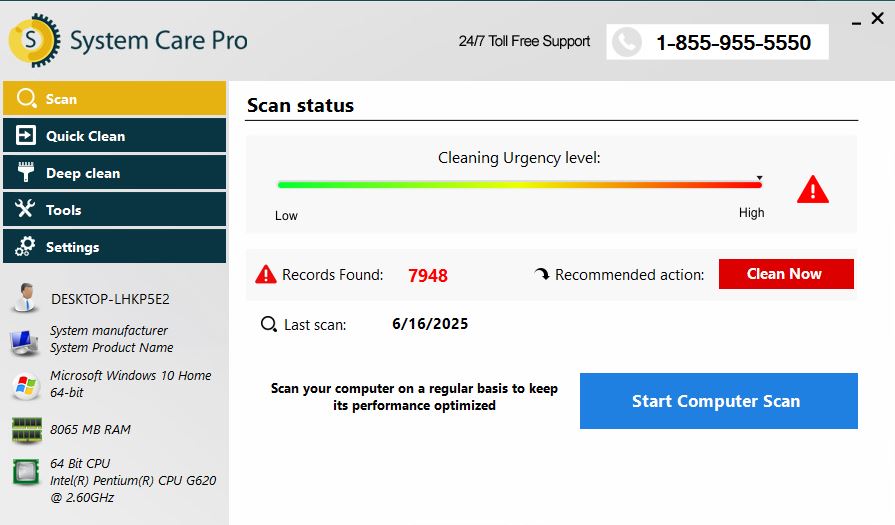
SystemCare Pro Registry Repair

SystemCare Pro is one of the most complete system optimization tools available today. It does more than just clean the registry — it improves overall performance, clears junk files, and enhances security.

Key Features:

  • Deep registry repair and cleanup

  • Real-time system optimization

  • Startup management

  • Registry defragmentation

  • Privacy and browser protection

It’s perfect for Windows 10 and Windows 11 registry repair, delivering noticeable results in just a few scans.

Manual Registry Repair: Should You Try It?

Technically, you can fix the registry manually using Regedit, but it’s risky. One wrong change can make your computer unbootable.

If you still want to try, here’s a simplified process:

  1. Press Win + R, type regedit, and hit Enter.

  2. Back up your registry first by clicking File > Export.

  3. Carefully navigate to the key you need to change.

  4. Edit or delete the invalid entry.

⚠️ Warning: Manual registry repair should only be attempted by advanced users. For most people, using a registry repair software like SystemCare Pro or Registry Reviver is much safer.

Benefits of Regular Registry Maintenance

Cleaning and repairing your registry offers multiple benefits beyond speed:

  • Better system stability: Fewer crashes and errors

  • Faster startup times: Optimized boot entries

  • Cleaner performance: Removes unnecessary or obsolete data

  • Improved reliability: Reduces the risk of file and driver conflicts

  • Extended lifespan: Keeps your Windows system healthy long-term

It’s like getting a tune-up for your computer — a little maintenance goes a long way.

Registry Repair for Different Windows Versions

Windows 7 Registry Repair

Even though Windows 7 is older, it still benefits from cleaning. Tools like  Free Registry Cleaner Windows 7 can refresh the system and improve speed.

Windows 10 Registry Repair

Frequent Windows 10 updates can sometimes create broken entries. Use SystemCare Pro or Wise Registry Cleaner for a safe cleanup.

Windows 11 Registry Repair

Windows 11’s modern interface doesn’t make it immune to registry clutter. Use tools like Registry Reviver or Glary Utilities for easy, reliable maintenance.

Free vs. Paid Registry Repair Tools

Here’s a quick comparison to help you decide:

Feature Free Tools Paid Tools
Basic Cleanup ✅ Yes ✅ Yes
Deep Repair ⚠️ Limited ✅ Full
Scheduled Scans ❌ Rare ✅ Often
Registry Defrag ❌ No ✅ Yes
Technical Support ❌ No ✅ Yes
Malware Protection ❌ No ✅ Yes

If you just need basic fixes, free options work fine. But for deeper optimization and added protection, SystemCare Pro or Registry Reviver are worth considering.

Tips to Keep Your Registry Healthy

You don’t have to clean your registry daily — just maintain it wisely:

  • Always back up your registry before making changes.

  • Avoid installing unknown software from unreliable sources.

  • Use trusted registry cleaners once every few weeks.

  • Keep your Windows and drivers updated.

  • Uninstall programs properly instead of deleting folders manually.

Following these steps ensures your system stays stable and optimized.

How to Install SystemCare Pro Registry Repair Tool: Step-by-Step Guide

Keeping your Windows computer running fast and error-free often depends on one thing — a healthy registry. That’s why many users trust the SystemCare Pro Registry Repair Tool to clean, fix, and optimize their system.

If you’ve just downloaded SystemCare Pro or are planning to install it, this guide will walk you through every step — from download to setup and first scan. It’s easy, safe, and only takes a few minutes.

Why Registry Repair Still Matters in 2026 and Beyond

Even as Windows continues to evolve, the registry remains the backbone of the operating system. Whether you’re using Windows 7, Windows 10, or Windows 11, maintaining a clean registry ensures smoother operation, better performance, and fewer system errors.

Looking ahead, advanced registry repair tools in 2026 are becoming smarter — offering automatic detection, one-click repair, and real-time optimization to keep PCs running at their best without user intervention.

Step-by-Step Installation Guide

Here’s how you can install SystemCare Pro Registry Repair Tool easily on your Windows computer (Windows 7, 10, or 11):

Step 1: Download the Setup File

  1. Visit the official SystemCare Pro website or trusted software distributor.

  2. Locate the Registry Repair Tool section.

  3. Click Download Now or Get Started to save the installation file (usually named SystemCarePro_Setup.exe) on your computer.

💡 Tip: Always download software from official or verified sources to avoid fake or harmful versions.

Step 2: Locate the Installer

  1. Go to the folder where your browser saves downloads — typically Downloads.

  2. Find the file named SystemCarePro_Setup.exe.

  3. Double-click on it to start the installation process.

Step 3: Start the Installation

  1. A User Account Control (UAC) window may appear asking for permission — click Yes to continue.

  2. Choose your preferred language from the list.

  3. Read and accept the License Agreement by checking the box.

  4. Click Next to proceed.

Step 4: Choose Installation Path

  1. The installer will ask where you want to install SystemCare Pro.

  2. By default, it selects C:\Program Files\SystemCarePro\.

  3. You can click Browse to select a different folder if you prefer.

  4. Click Next once you’ve made your choice.

Step 5: Select Components

Some installers let you choose which features to include, such as:

  • Registry Cleaner

  • System Optimizer

  • Junk File Remover

  • Startup Manager

Check or uncheck the boxes based on what you want, then click Next.

Step 6: Begin Installation

  1. Review your settings on the summary page.

  2. Click Install to start the process.

  3. The installation will take a few moments to complete.

  4. Once done, click Finish to exit the setup wizard.

Step 7: Launch SystemCare Pro

After installation:

  1. Double-click the SystemCare Pro icon on your desktop.

  2. When the program opens, you’ll see the main dashboard.

  3. Click Scan Registry or Start Repair to begin.

How to Use SystemCare Pro Registry Repair Tool

1. Perform a Full Registry Scan

  • Click on Registry Repair or Full System Scan.

  • The tool will check for:

    • Invalid entries

    • Broken file paths

    • Unused DLLs

    • Startup errors

After scanning, it will display the total number of issues found.

2. Review Detected Errors

You can view a detailed list of registry problems before fixing them.

  • Check the categories such as Application Paths, System Configuration, or ActiveX Components.

  • If you’re unsure, leave the default selections.

3. Repair Registry

Click Fix All or Repair Selected to let SystemCare Pro automatically repair all issues.
Before making changes, the program automatically creates a backup of your current registry — this ensures you can restore it if anything goes wrong.

4. Optimize System Performance

Besides registry repair, SystemCare Pro may include extra tools like:

  • Startup Optimization – Manage startup apps to speed up boot time.

  • System Tune-Up – Apply tweaks for better system responsiveness.

  • Privacy Sweep – Remove browser and Windows activity traces.

5. Schedule Automatic Maintenance

You can set up automatic cleaning so your registry stays healthy:

  1. Go to Settings → Schedule.

  2. Choose a frequency — daily, weekly, or monthly.

  3. Select “Auto Repair after Scan” for hands-free optimization.

6. Backup and Restore Registry

To keep your system safe:

  • Click Backup & Restore inside the program.

  • You can manually create backups before major repairs.

  • If any issue occurs later, click Restore to revert changes instantly.

System Requirements

To install and use SystemCare Pro smoothly, ensure your PC meets the following:

  • Operating System: Windows 7, 8, 10, or 11 (32-bit or 64-bit)

  • Processor: 1 GHz or higher

  • RAM: Minimum 2 GB (4 GB recommended)

  • Disk Space: At least 200 MB free

  • Internet Connection: Required for updates and activation

Final Thoughts: Keep Your PC Clean, Fast, and Reliable

Your Windows registry might be invisible, but it has a huge impact on your computer’s performance. Over time, registry clutter can slow things down — but a simple repair can bring your PC back to life.

Whether you choose a free registry repair tool or invest in a premium one like SystemCare Pro, the key is regular maintenance. Just a few minutes of cleaning each month can prevent big headaches later.

Take control of your PC’s performance today — repair, clean, and optimize your registry to keep your Windows system running like new.

Free Download

Is 7-Zip Safe: Everything You Need to Know Before You Use It

When it comes to file compression tools, 7-Zip has become one of the most popular names across the world. It is lightweight, easy to use, and offers excellent compression rates. But despite its reputation, many users still wonder one important thing — is 7-Zip safe?

If you have ever downloaded or used 7-Zip, you might have noticed that it is a completely free and open-source software. While that sounds appealing, it can also raise a few concerns. After all, free tools often come with risks such as malware, spyware, or unwanted add-ons.

This blog takes a deep and honest look into the safety, reliability, and trustworthiness of 7-Zip. You will learn what it is, how it works, how safe it really is, and how to use it securely on your computer.

What is 7-Zip

7-Zip is a free file archiver software that helps you compress and extract files easily. It was developed by Igor Pavlov and first released in 1999. Over time, it has become one of the most trusted file compression tools in the world.

Unlike many paid archiving tools, 7-Zip is completely free to use for both personal and commercial purposes. It works on Windows, macOS, and Linux and supports a wide range of file formats such as ZIP, RAR, TAR, ISO, and its own native 7z format.

The main purpose of 7-Zip is to reduce the size of files so that they can be stored more efficiently or shared more quickly. It also allows users to password-protect their archives using AES-256 encryption for added security.

Why People Question the Safety of 7-Zip

Even though 7-Zip is widely respected, some people still hesitate to install it. Here are a few common reasons behind that concern

Open-source nature
Because 7-Zip is open source, anyone can view and modify its code. While this usually increases transparency, it also means that unsafe or modified versions can appear on third-party sites.

Fake download links
Cybercriminals often take advantage of popular software by creating fake websites that distribute harmful versions. If users accidentally download 7-Zip from an unofficial website, they might end up installing malware or adware instead of the real program.

Older versions
Sometimes, users continue using outdated versions that may not include the latest security patches. This can make the system vulnerable to cyber threats.

Lack of understanding
Many people are not aware that 7-Zip itself is secure, but the files you extract might not be. If you open an infected archive file, your computer can get infected.

Is 7-Zip Safe to Use

Yes, 7-Zip is completely safe when downloaded from its official website. The program does not contain any viruses, spyware, or hidden components. It has been tested and verified by cybersecurity experts and trusted software reviewers for years.

Because it is open-source, developers around the world can inspect its code. This helps keep it transparent and free from hidden backdoors or malicious features. 7-Zip does not install unnecessary extras or ads, and it runs quietly without consuming many system resources.

In fact, many IT professionals and system administrators use 7-Zip in their daily work because of its reliability and security. It has also been included in several professional software repositories used by companies and organizations that value safety.

How 7-Zip Protects Your Files

7-Zip is not only safe to install but also helps protect your data. It uses strong encryption to keep your files private and secure. Here are some of the security features that make 7-Zip trustworthy

AES-256 Encryption
This is one of the strongest encryption standards in the world. When you create a password-protected archive in 7-Zip, your files are encrypted using this technology. Even if someone tries to open the file, they cannot see its contents without the correct password.

Encryption of file names
Unlike many other archiving tools, 7-Zip can also encrypt the names of files inside the archive. This means that no one can even see what files are inside until they enter the password.

Open-source transparency
Since its code is public, anyone can examine how it works. This ensures that there are no hidden features or harmful functions.

No background tracking
7-Zip does not collect personal data or monitor your activities. It focuses purely on file compression and extraction.

How to Safely Download and Install 7-Zip

While 7-Zip itself is safe, you must always be careful about where you download it from. Follow these steps to make sure you install a clean and genuine version

  1. Go only to the official 7-Zip website. Avoid third-party download pages.

  2. Choose the version that matches your operating system, whether it is 32-bit or 64-bit.

  3. After downloading, check the digital signature or file hash if possible. This ensures the file has not been modified.

  4. Install it normally using the default settings. 7-Zip does not ask for unnecessary permissions or extra software.

  5. Keep the software updated to the latest version. Updates may include important security patches.

If you follow these steps, there is almost no risk in using 7-Zip on your computer.

Common Myths About 7-Zip

There are a few myths and misunderstandings that often cause confusion among users. Let us clear them up.

Myth 1 7-Zip contains viruses
This is not true when you download it from the official source. However, fake copies from unverified sites may include malware. Always use the official website.

Myth 2 It is unsafe because it is open-source
Actually, open-source software is often safer. Since anyone can review its code, it is less likely to contain hidden threats.

Myth 3 It damages files
7-Zip only compresses or extracts files. It does not modify or harm them in any way. Corruption usually happens due to incomplete downloads or hardware issues, not because of 7-Zip itself.

Myth 4 It cannot handle modern encryption
7-Zip supports AES-256, which is among the strongest encryption methods used today. This ensures your files are well protected.

Advantages of Using 7-Zip

7-Zip offers several benefits beyond just safety. These advantages explain why millions of users prefer it over other paid software.

High compression ratio
The 7z format compresses files more efficiently than ZIP or RAR, which saves a lot of space.

Completely free
There are no hidden fees, subscriptions, or ads. You can use it forever without paying anything.

Fast performance
Despite being lightweight, 7-Zip works quickly even on older computers.

Supports multiple formats
It can open and create many types of archive files, making it versatile.

Strong security
Password protection and file name encryption help secure your data.

Integration with Windows Explorer
You can right-click a file and choose 7-Zip options directly from the menu.

Regular updates
Although 7-Zip does not update frequently, it receives important fixes and improvements when needed.

How to Use 7-Zip Safely

To keep your data safe while using 7-Zip, follow these best practices

Always scan downloaded archives
Before extracting files, use your antivirus program to scan them. This helps prevent malware from entering your system.

Avoid opening unknown attachments
If you receive an archive file from an unknown sender, do not open it immediately. It might contain harmful files.

Use strong passwords
When creating encrypted archives, use a complex password that includes letters and numbers. This makes it difficult for others to guess.

Update regularly
Make sure you are always using the latest version of 7-Zip. Updates may include security improvements.

Backup important files
Even though 7-Zip is reliable, always keep backups of your important data before compressing or extracting.

Comparing 7-Zip with Other Tools

When comparing 7-Zip with other file compression software such as WinRAR and WinZip, several points stand out.

Cost
7-Zip is free, while WinRAR and WinZip are paid.

Compression ratio
7-Zip generally achieves better compression rates, especially with the 7z format.

Encryption
All three support encryption, but 7-Zip’s AES-256 encryption is strong and trustworthy.

Ease of use
7-Zip’s interface is simple and may look basic, but it is functional and efficient.

Safety
When downloaded from official sources, all three are safe. However, 7-Zip’s open-source nature allows anyone to verify its security.

Potential Risks to Be Aware Of

While 7-Zip itself is safe, certain risks exist if you are not careful.

Downloading from the wrong site
Unofficial websites may distribute infected versions.

Opening suspicious files
7-Zip can open many file types, including those that may hide malware.

Using weak passwords
If you use simple passwords, encrypted files may be easier to crack.

Outdated software
Old versions may contain bugs or security vulnerabilities.

Being aware of these risks will help you stay safe and confident while using 7-Zip.

Why 7-Zip Remains a Trusted Choice

For more than two decades, 7-Zip has proven to be a dependable tool used by millions of individuals and organizations worldwide. Its strong encryption, open-source structure, and simplicity make it a reliable option for everyday use.

Users appreciate that it does not try to install extra programs or display advertisements. It respects user privacy and offers performance that matches or exceeds paid competitors.

Whether you need to compress large files, protect sensitive data, or share information efficiently, 7-Zip provides all the essential features in one free package.

Tips to Enhance Your Security with 7-Zip

If you want to take your safety to the next level while using 7-Zip, here are a few helpful tips

Download only from official links
This is the most important rule.

Verify digital signatures
When possible, check the software’s digital signature to ensure authenticity.

Encrypt both files and file names
This prevents others from even knowing what files you have.

Keep your antivirus active
Always use reliable antivirus software while working with downloaded archives.

Store your passwords securely
Use a password manager to remember and protect your encryption keys.

Final Thoughts

So, is 7-Zip safe? Absolutely yes, when used responsibly and downloaded from the right place. It is a secure, efficient, and reliable file compression tool trusted by users around the world.

Its open-source nature ensures transparency, while its AES-256 encryption keeps your files private and protected. 7-Zip does not track, monitor, or install anything unnecessary.

In short, 7-Zip is safe, smart, and dependable. It is the perfect example of how free software can be powerful and trustworthy. Whether you are a casual user or a professional, you can rely on 7-Zip for safe file compression and extraction without worrying about security risks.

If you keep your system updated, stay cautious of unknown files, and always download from the official site, you can enjoy the full benefits of 7-Zip with complete peace of mind.

Top Reasons to Use a PC Cleaner — Why SystemCare Pro Should Be on Your Radar

In today’s fast-paced digital world, your computer is your lifeline — whether it’s for work, gaming, entertainment, or browsing. But as time goes on, even the most powerful PCs start slowing down. Why? Because of unwanted junk files, broken registries, hidden background processes, and digital clutter.

This is where a PC cleaner like Systemcare Pro comes to the rescue. It’s more than just a cleaning tool — it’s your computer’s personal health expert. In this article, we’ll explore the top reasons to use a PC cleaner, and why Systemcare Pro stands out as one of the most powerful optimization tools for Windows users.

What Is a PC Cleaner and Why Do You Need One?

Before diving into the reasons, let’s understand what a PC cleaner actually does.

Over time, every computer accumulates temporary files, cache data, invalid shortcuts, duplicate files, and other unnecessary data that clog up your system. These files not only eat up valuable storage space but also slow down your computer’s performance.

A PC cleaner helps you:

  • Remove junk files safely

  • Optimize your system performance

  • Speed up startup time

  • Protect your privacy by cleaning browser traces

  • Fix hidden registry errors

Using a reliable cleaner like Systemcare Pro ensures your PC remains smooth, fast, and efficient — without the risk of deleting anything important.

1. Boosts System Speed and Performance

Let’s face it — a slow computer can ruin your day. You click to open a file, and it takes forever to load. This delay often happens because your system is overloaded with temporary files and unnecessary background processes.

Systemcare Pro uses smart optimization techniques to scan and remove these unwanted files. Its advanced performance booster cleans up memory and stops non-essential startup programs.

When you use a disk cleanup tool, you free up valuable disk space that your system can use to run faster. After one quick cleanup, you’ll notice:

  • Faster boot-up times

  • Quicker app loading

  • Smooth multitasking

With Systemcare Pro, you don’t have to be tech-savvy. Its one-click optimization makes it simple for anyone to breathe new life into their PC.

2. Frees Up Valuable Storage Space

Ever wonder where all your storage space goes? Hidden cache files, leftover installation data, and system logs can take up gigabytes of space over time.

That’s where Systemcare Pro’s advanced disk cleanup tool shines. It digs deep into your storage to remove useless files you didn’t even know existed. Whether you’ve installed or uninstalled apps, downloaded media, or updated software, this tool clears the unnecessary leftovers without affecting your important files.

By using a disk cleanup tool regularly, you can reclaim lost storage space and ensure your PC never runs out of room for the things that matter.

3. Cleans Registry and Fixes System Errors

The Windows Registry is like your computer’s brain — it stores essential configuration settings for your operating system and applications. But over time, installing and uninstalling software can leave behind broken entries or invalid paths.

These tiny errors can cause:

  • System crashes

  • Blue screen issues

  • Program errors

  • Random slowdowns

Systemcare Pro includes a registry repair feature that scans for these problems and fixes them safely. It’s designed to clean your registry without deleting critical files — ensuring your PC runs smoothly and error-free.

4. Enhances Privacy and Security

Every time you browse the web, your browser collects cookies, temporary files, and browsing history. While these help websites load faster, they also store your personal data — which can be a privacy concern.

Systemcare Pro’s privacy cleaner wipes out all these traces, including:

  • Browsing history

  • Download logs

  • Cookies and trackers

  • Saved form data

It’s like giving your computer a clean slate every time.

Using the best clean master feature, Systemcare Pro ensures that no unwanted eyes can track your online behavior. Plus, it protects sensitive data from potential malware or spyware that might exploit these hidden files.

5. Improves Startup and Shutdown Times

Does your PC take forever to start up? That’s often because multiple programs are set to run automatically during boot-up.

Systemcare Pro solves this with its startup manager, allowing you to disable unnecessary startup applications that slow down your boot time.

After optimization, you’ll notice:

  • Faster Windows startup

  • Quicker shutdown and restart

  • Smooth login performance

This feature is especially useful for older PCs that struggle with multiple startup processes.

6. Keeps Your System Clean with Real-Time Monitoring

One of the most impressive features of Systemcare Pro is its real-time system monitoring. It continuously keeps an eye on your CPU usage, RAM, disk space, and background apps.

When it detects excessive resource consumption, it automatically optimizes performance — without interrupting your work.

You don’t have to schedule regular cleanups manually; Systemcare Pro works silently in the background, ensuring your computer stays optimized 24/7.

7. Easy-to-Use Interface for Everyone

Many PC optimization tools can look intimidating to non-technical users. Systemcare Pro changes that.

With a clean, user-friendly interface, even beginners can:

  • Run a complete scan with one click

  • Review detected issues

  • Optimize their system instantly

You don’t need to understand complex technical terms or dig through system folders. Systemcare Pro does all the hard work for you.

8. Reduces Crashes and Freezes

Unexpected system freezes or crashes are frustrating — especially during important tasks. These issues often result from overloaded memory, registry conflicts, or too many background processes.

Systemcare Pro’s deep-cleaning mechanism identifies and resolves these conflicts. By clearing corrupted system files and optimizing RAM usage, it minimizes crashes and improves overall stability.

So, whether you’re gaming, editing videos, or working on large projects, you can count on your PC to run smoothly.

9. Extends the Life of Your PC

Just like a regular car service extends your vehicle’s lifespan, cleaning and optimizing your computer can extend its life.

When you continuously maintain your system using Systemcare Pro, your hardware doesn’t have to work overtime to handle unnecessary load. This results in:

  • Less overheating

  • Reduced wear on hard drives

  • Longer battery life for laptops

Think of it as preventive care for your PC — helping it stay young and efficient for years to come.

10. Offers Comprehensive All-in-One Protection

Systemcare Pro is not just a cleaner — it’s an all-in-one system optimization suite. It combines several powerful tools in one lightweight package:

  • Disk cleanup tool

  • Registry repair

  • Privacy protection

  • Startup manager

  • Performance booster

  • System monitor

You don’t have to download multiple programs to manage your PC health. Everything you need comes bundled with Systemcare Pro — efficient, secure, and easy to use.

11. The Best Free System Cleaner Tools for Windows PCs

Many free tools claim to clean your PC, but few actually deliver professional-level results.

Systemcare Pro stands out as one of the best free system cleaner tools for Windows PCs because it offers deep cleaning, privacy protection, and optimization features without compromising safety.

It’s designed to work seamlessly on all modern Windows versions — ensuring compatibility and reliability. Plus, with regular updates, you’re always equipped with the latest cleaning technology.

12. Regular Updates and Advanced Algorithms

One of the reasons Systemcare Pro continues to top the list is its continuous improvement. The developers behind it regularly update the software with:

  • Latest scanning algorithms

  • Bug fixes

  • New optimization features

This ensures that Systemcare Pro remains up to date with changing Windows architecture and user needs. You’re not just getting a one-time tool — you’re investing in long-term computer health.

13. Saves You Time and Effort

Manually cleaning your PC can take hours — finding cache folders, deleting temp files, uninstalling unused programs, and clearing registries.

Systemcare Pro automates this entire process. With its one-click optimization, you can perform a full system cleanup within minutes.

It’s perfect for busy professionals, students, and anyone who values time and convenience.

14. Lightweight Yet Powerful

Some system cleaners are so heavy that they slow down the PC while cleaning it — which defeats the purpose.

Systemcare Pro is designed to be lightweight, consuming minimal system resources while performing deep scans and optimizations. You can continue working, streaming, or gaming without interruptions.

15. Trusted by Professionals and Everyday Users Alike

Systemcare Pro has earned the trust of thousands of users worldwide because it’s built for real-life performance. Whether you’re a tech expert or a beginner, you’ll appreciate its simplicity, accuracy, and efficiency.

Its professional-grade features ensure that your system runs like new — without risks or complications.

Why Choose Systemcare Pro Over Other PC Cleaners?

When comparing PC cleaners, you’ll find that many focus on one or two features — but Systemcare Pro gives you everything in one package:

Feature Systemcare Pro Other Cleaners
Deep Disk Cleanup ⚠️ Partial
Registry Fix ⚠️ Limited
Privacy Protection ❌ Often Missing
Startup Optimization ⚠️ Basic
Real-Time Monitoring ❌ Rare
One-Click Optimization
Regular Updates ⚠️ Occasional

This makes Systemcare Pro one of the most comprehensive PC cleaning solutions available today.

Tips to Keep Your PC Running Smoothly

Even with Systemcare Pro, a few good habits will keep your system performing at its best:

  1. Run weekly cleanups: Use Systemcare Pro’s disk cleanup tool to remove temporary files regularly.

  2. Keep your system updated: Install Windows updates and driver updates on time.

  3. Avoid installing unnecessary software: The fewer background apps, the better.

  4. Use the Startup Manager: Disable apps that launch automatically at startup.

  5. Enable real-time monitoring: Let Systemcare Pro detect and optimize performance automatically.

Final Thoughts: Give Your PC the Care It Deserves

Your computer works hard for you every single day. It deserves regular care and attention to stay in top shape. Using Systemcare Pro ensures that your PC stays fast, clean, and protected — no matter how old or new it is.

With features like advanced disk cleanup tool, best clean master, and the best free system cleaner tools for Windows PCs, Systemcare Pro gives you professional-grade optimization that’s easy for anyone to use.

So, if you want a faster, cleaner, and more reliable computer — it’s time to take the next step.

👉 Visit Systemcare Pro today and give your PC the performance boost it deserves!

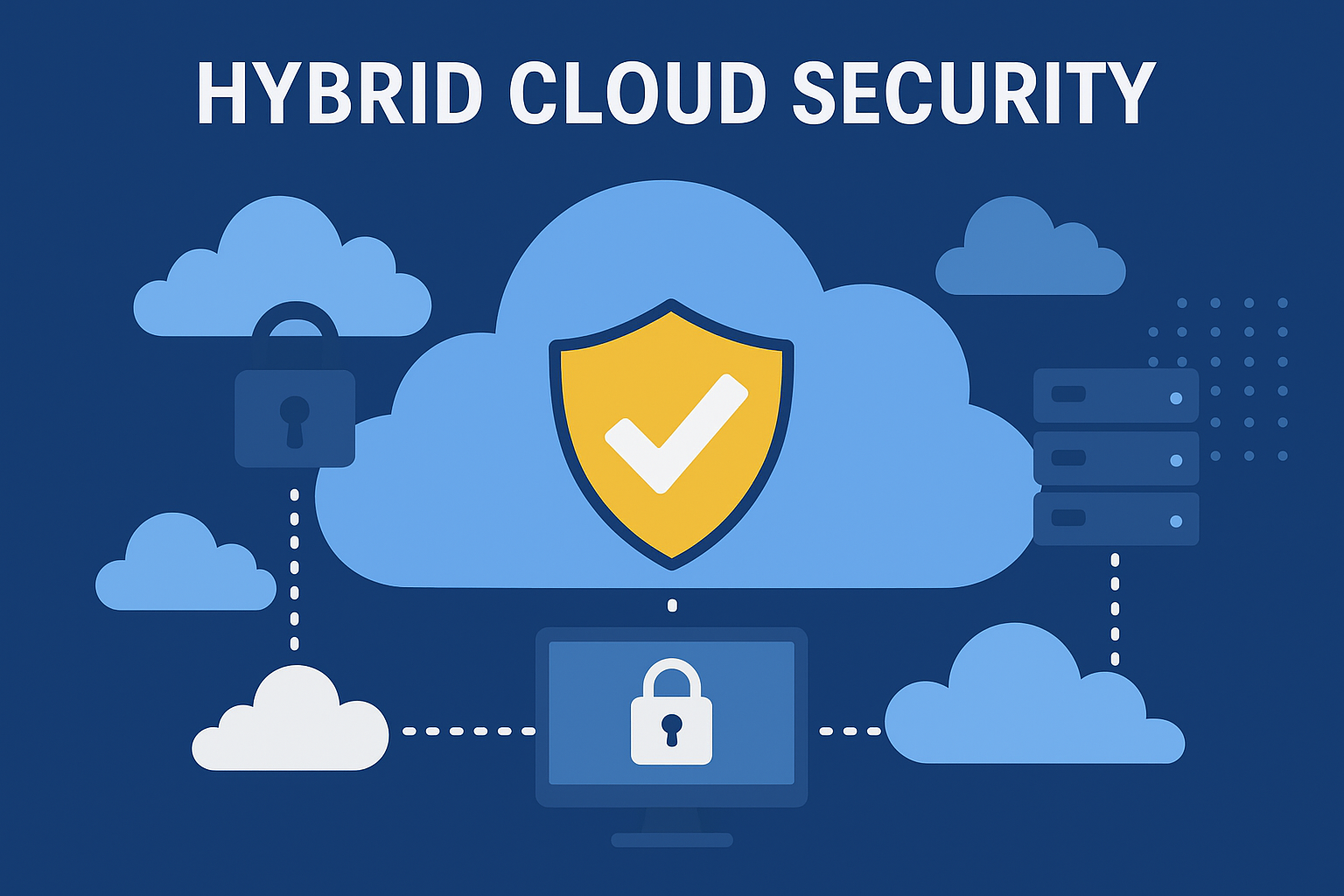
Hybrid Cloud Security: Protecting Data in a Connected World

In today’s fast-paced digital world, businesses are moving toward cloud solutions more than ever before. Cloud computing offers scalability, cost efficiency, and flexibility, but it also introduces new challenges in terms of data security. Among the various cloud models, hybrid cloud has emerged as a popular choice, combining the best of both private and public clouds.

While hybrid cloud environments bring agility and cost savings, they also raise one critical question: How secure is the hybrid cloud? This is where hybrid cloud security comes in, ensuring that sensitive business data is protected while maintaining performance and accessibility.

In this blog, we’ll dive deep into what hybrid cloud security is, why it matters, its key challenges, and the strategies businesses can use to keep their data safe.

What is Hybrid Cloud Security?

A hybrid cloud is a computing environment that blends private cloud infrastructure with public cloud services. This allows organizations to store sensitive workloads on the private cloud while leveraging the public cloud for less critical operations.

Hybrid cloud security refers to the policies, technologies, and practices designed to protect this dual environment. It ensures that data moving between private and public systems is secure, that workloads remain compliant with regulations, and that cyber threats are minimized.

In simple terms, hybrid cloud security is all about keeping your digital assets safe across multiple environments without compromising performance or flexibility.

Why is Hybrid Cloud Security Important?

The hybrid cloud model has become essential for modern businesses because it provides the best of both worlds—control over sensitive data and the cost efficiency of public cloud services. But this dual structure also means organizations face a broader attack surface.

Here are some reasons why hybrid cloud security is crucial:

  1. Data Protection – Sensitive information such as customer details, financial records, or intellectual property must remain safe, whether stored privately or on a public cloud.

  2. Regulatory Compliance – Industries such as healthcare, finance, and government must meet strict compliance requirements like GDPR, HIPAA, or PCI DSS. Hybrid cloud security ensures these rules are followed.

  3. Business Continuity – A security breach can disrupt operations, damage reputation, and lead to financial loss. Strong hybrid cloud security ensures resilience and uptime.

  4. Growing Cyber Threats – Cybercriminals are becoming more sophisticated. With hybrid cloud environments expanding, attackers see multiple entry points. Security measures must evolve to stay ahead.

Key Challenges in Hybrid Cloud Security

Securing a hybrid cloud is more complex than protecting a single cloud environment. Here are the major challenges businesses face:

1. Data Visibility and Control

When data is spread across private and public clouds, IT teams may struggle to maintain visibility. This lack of oversight increases the risk of unauthorized access or misconfigurations.

2. Identity and Access Management

Who has access to what? Without strong access controls, hybrid clouds can expose sensitive data to employees, third parties, or even hackers who should not have it.

3. Compliance Across Multiple Platforms

Different cloud providers have different security policies. Ensuring consistent compliance across private and public environments can be complicated.

4. Data Transfer Risks

Data moving between private and public clouds can be intercepted if not properly encrypted, making it a prime target for cybercriminals.

5. Shadow IT

Employees may use unauthorized cloud apps to increase productivity. This “shadow IT” introduces vulnerabilities outside official security controls.

Best Practices for Hybrid Cloud Security

Securing a hybrid cloud doesn’t have to be overwhelming. With the right strategies, businesses can protect their assets while enjoying the benefits of hybrid cloud infrastructure.

1. Implement Strong Identity and Access Management (IAM)

Controlling who has access to your cloud resources is the first step. Use multi-factor authentication (MFA), single sign-on (SSO), and role-based access controls (RBAC) to ensure only authorized users can access sensitive data.

2. Encrypt Data Everywhere

Encryption should be applied to data at rest, in transit, and even in use. This ensures that even if data is intercepted, it remains unreadable to unauthorized users.

3. Centralize Security Policies

Develop a unified security policy that covers both private and public cloud systems. Consistency is key to preventing gaps that hackers could exploit.

4. Monitor and Audit Continuously

Use real-time monitoring tools and log management systems to detect suspicious activity. Regular audits also help identify vulnerabilities before they become serious threats.

5. Train Employees

Human error is still one of the biggest security risks. Educating employees about phishing attacks, password hygiene, and safe cloud usage can reduce risks dramatically.

6. Use Cloud-Native Security Tools

Most cloud providers offer built-in security tools like firewalls, intrusion detection systems, and compliance monitoring. Take advantage of these to strengthen your hybrid cloud defenses.

7. Embrace Zero-Trust Security

A zero-trust model assumes that no one—inside or outside the organization—should be trusted automatically. Every access request must be verified before granting entry.

Benefits of a Strong Hybrid Cloud Security Strategy

When businesses invest in hybrid cloud security, the benefits go beyond simple protection. Some of the biggest advantages include:

  • Improved Trust and Reputation – Customers and partners feel safer working with organizations that prioritize security.

  • Operational Flexibility – With strong security in place, businesses can move workloads freely between private and public clouds.

  • Reduced Downtime – Security measures such as backup and disaster recovery ensure business continuity.

  • Cost Savings – Preventing breaches is far cheaper than dealing with data loss, lawsuits, and compliance penalties.

  • Competitive Edge – Companies that can assure clients of secure cloud environments gain a strong market advantage.

Future of Hybrid Cloud Security

The hybrid cloud is not a passing trend—it’s the future of enterprise IT. As businesses continue to embrace this model, security will play a central role. Emerging technologies such as AI-driven threat detection, machine learning-based analytics, and automated compliance tools will shape the next generation of hybrid cloud security.

Moreover, as regulations evolve globally, organizations will need to invest in adaptive security solutions that meet both present and future compliance requirements.

Final Thoughts

The move to hybrid cloud is a smart step for businesses that want flexibility, scalability, and cost efficiency. However, without a robust hybrid cloud security strategy, organizations risk exposing their most valuable data to cyber threats.

The key lies in balancing security with performance—protecting sensitive workloads while leveraging the scalability of public cloud platforms. With the right mix of policies, tools, and employee training, companies can confidently embrace the hybrid cloud model.

In the end, hybrid cloud security isn’t just about technology—it’s about building trust, ensuring compliance, and safeguarding the future of digital business.

Disk Cleanup Tool: Your Fast Track to a Healthier, Faster PC

In the current digital era, maintaining your computer in optimal shape is not just a luxury, but an essential requirement. A slow computer not only consumes time but also hinders productivity and may result in expensive repairs. Introducing System Care Pro, an easy-to-use disk cleaning application and PC optimizer aimed at enhancing your computer’s efficiency, boosting security, and ensuring your device operates seamlessly. If you’re looking for easy solutions such as a disk cleanup tool, PC cleaning software, or registry repair utility, System Care Pro meets all the criteria.

The Importance of PC Cleaning in 2025

With time, every computer accumulates a heap of unnecessary files: temporary documents, cached information, remnants of outdated programs, disorganized registry entries, and fragmented disks. This accumulation may lead to:

– Delayed startup durations

– System malfunctions and freezes

– Slow program starts

– Low storage capacity

– Vulnerability to security risks

Disk cleanup tools such as System Care Pro tackle these issues head-on, merging efficiency with ease of use and enhanced security functionalities.

What is System Care Pro?

System Care Pro is an all-encompassing PC upkeep software with a user-friendly, lively interface. It is intended for users seeking straightforward access to high-quality cleaning and optimization, no technical skills needed. If your aim is to increase speed, clear disk space, or extend your computer’s lifespan, System Care Pro offers all the tools you require in a single application.

Main Features:

– Single-Click PC Scanning & Cleaning: Choose particular sections to scan and clean, or conduct a thorough scan of your entire system.

– Acceleration & Productivity: Enhances background tasks, removes unnecessary files, and arranges data for seamless operation.

– Storage Optimizer: Defragment your drive and free up essential storage capacity.

– Expert Support 24/7: Contact skilled technicians at any time for prompt assistance through chat, phone, or email.

Disk Cleanup Tool: The Core of Computer Optimization 

The disk cleanup tool in System Care Pro prioritizes user ease of use. Users can start scanning and cleaning processes with just a click that:

– Remove temporary files, cached data, and unnecessary information.

– Remove outdated logs, thumbnails, and browser remnants.

– Defragment the hard drive to organize disordered files.

– Fix or eliminate defective registry settings

– Erase confidential files securely to ensure no remnants remain.

Focusing on these issues, System Care Pro provides better speed, increased stability, and longer lifespan for users of both HDD and SSD.

How System Care Pro Functions

Step 1: Easy, Fast Setup

System Care Pro sets up in minutes, providing an easy, hassle-free installation experience. Simple setup, just download, select where to install, and begin.

Step 2: Scan & Clean with One Click

Upon starting, the tool displays a main dashboard offering choices to scan designated folders, system locations, or perform an entire system scan. You decide what gets cleaned—giving you the power to manage every phase.

Step 3: Defragment and Optimize

The defragmentation function of System Care Pro consolidates fragmented data, enhancing file retrieval and application startup speeds. This is essential for conventional HDDs and still advantageous for certain SSDs.

Step 4: Repairing the Registry

Defective or obsolete registry entries can impair your PC, resulting in crashes or software malfunctions. System Care Pro seamlessly fixes or eliminates these problems, bringing your system back to peak performance.

Step 5: Ensure File Deletion

Sensitive files require appropriate deletion to avoid digital spying. System Care Pro reliably deletes sensitive files, guaranteeing they cannot be retrieved by unauthorized individuals.

Real Advantages: Feedback & Results 

Users consistently commend System Care Pro for revitalizing their computers:

“My computer operates quicker, more seamlessly, and with greater efficiency.” “I hardly encounter any challenges at work now.”

“I suggested this item to numerous friends.” “It resolved all my issues and my computer operates as if it’s brand new!”

Utilizing the disk cleanup tool, both personal and professional users experience reduced downtime, increased storage, and fewer technical issues.

Safety and Reliability

System Care Pro incorporates security features, offering effective file deletion, a small system footprint, and no harmful bloatware. Assistance from skilled technicians ensures you have support available for any problems or uncertainties.

Effortless Support & Knowledge

In contrast to numerous software platforms, System Care Pro’s team provides genuine 24×7 assistance. Contact us via call, chat, or email at any time for tailored assistance or recommendations, whether for setup, problem-solving, or advanced enhancement support.

Reasons to Choose System Care Pro Instead of Other Disk Cleanup Tools?

System Care Pro distinguishes itself through its combination of user orientation and technical prowess.

– User-Friendly Design: Vibrant, contemporary interface that streamlines challenging activities.

– Quick Outcomes: Instant cleaning and fixing, no delays or searching through complicated menus.

– All-in-One Tools: Expands past cleaning with disk defragmentation, registry repair, and privacy protections.

– Professional Assistance Offered: Genuine technicians, not merely automated systems or discussion boards.

– No Complications: Simplified setup, no unnecessary software, no tech obstacles.

Ideal For:

– Learners overseeing communal or older computers

– Owners of small businesses managing various devices

– Home users organizing years of accumulated clutter on family PCs

– Workflow experts requiring optimal uptime and effectiveness

Ways to Optimize PC Health with System Care Pro

– Perform routine disk cleanup to avoid slow performance.

– Perform defragmentation each month to ensure optimal data retrieval.

– Identify and correct registry issues to prevent crashes and abnormal behavior.

– Delete sensitive documents prior to recycling or donating your computer.

– Utilize 24/7 support for all technical inquiries, as the team is constantly accessible!

FAQs

1. What is the Disk Cleanup Tool?
The Disk Cleanup Tool is a software that removes unnecessary files, junk data, and temporary items from your computer to improve speed and performance.

2. How does the Disk Cleanup Tool make my PC faster?
By clearing cache, temporary files, and unused data, the tool frees up storage space and reduces the load on your system, which helps your PC run faster.

3. Is Disk Cleanup Tool safe to use?
Yes, it is completely safe. The tool only deletes unnecessary files and does not harm your important personal data or system files.

4. How often should I use the Disk Cleanup Tool?
It’s best to run the tool once a week or at least once a month, depending on how much you use your PC.

5. Can the Disk Cleanup Tool improve gaming performance?
Yes. By freeing up memory and disk space, it can improve overall system responsiveness, which may also benefit gaming performance.

6. Does Disk Cleanup Tool remove viruses?
No, the tool is designed for cleaning junk files, not malware. For virus protection, you should use a trusted antivirus program alongside it.

7. Can it help extend the life of my computer?
Yes. Regular cleaning reduces unnecessary strain on your hard drive and improves efficiency, which helps extend your PC’s lifespan.

8. Will I lose important files while using the Disk Cleanup Tool?
No. The tool only removes safe-to-delete files like cache, temp files, and log files. Your documents, photos, and apps remain untouched.

9. Is Disk Cleanup Tool better than manually deleting files?
Yes. Manual cleanup can miss hidden junk files. This tool scans deeply and cleans areas that are hard to find manually.

10. Does the Disk Cleanup Tool work on both laptops and desktops?
Yes. It works on all Windows-based laptops and desktop PCs, making them run smoother and healthier.

Final Thoughts 

The condition of your computer affects your productivity, entertainment, and communication. Using a reliable disk cleanup tool such as System Care Pro provides immediate access to effective optimization, genuine security, and seamless speed. Install now, scan your computer, and feel the change, a more seamless, secure, and efficient online experience.


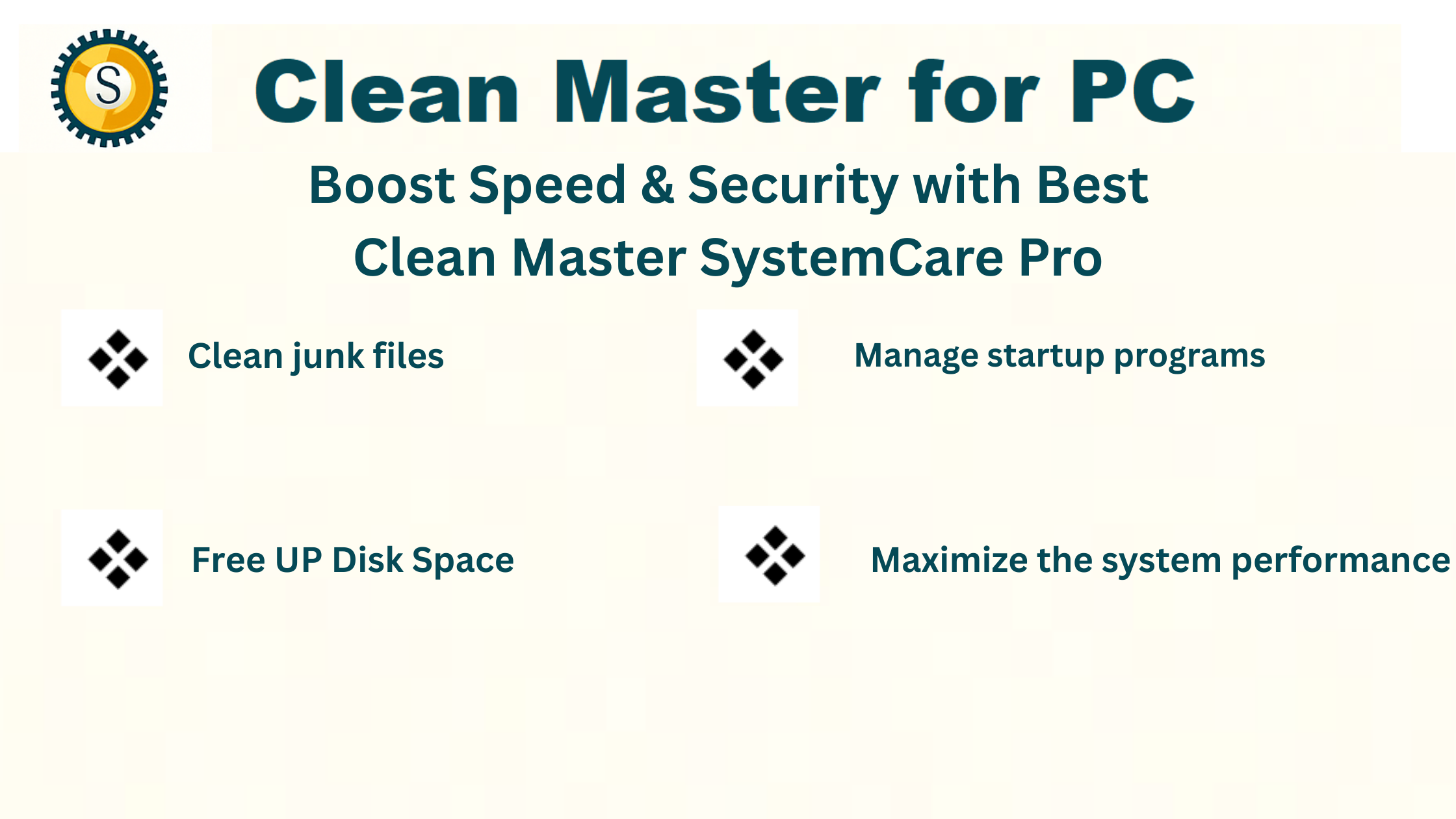
Best Clean Master for PC SystemCare Pro: Keep Your Computer Fast and Optimized

In today’s digital age, your PC is your productivity hub, entertainment center, and storage vault. Over time, even the most powerful computers can slow down due to junk files, unnecessary programs, and system clutter. A reliable Clean Master for PC like SystemCare Pro can help maintain your system, improve speed, and free up valuable storage. Whether you are searching for “clean master pc,” “pc cleaner,” or “hard drive cleaner,” this guide will help you understand why SystemCare Pro is a top choice and how it can optimize your PC efficiently.

What Is a Clean Master PC SystemCare Pro?

SystemCare Pro is a comprehensive Clean Master for PC that specializes in cleaning, optimizing, and maintaining your Windows computer. It automatically scans for junk files, temporary data, cache, and redundant registry entries. The software goes beyond simple cleanup by offering privacy protection, startup optimization, and real-time system monitoring.

Commonly referred to as cleanmaster, cleaner pc, or clean master para pc, SystemCare Pro is designed for users of all levels—whether you are a casual PC user or a professional needing high-performance computing.

Features of SystemCare Pro

  • Junk File Removal: Clears temporary files, cache, and unnecessary system data.

  • Registry Optimization: Repairs and removes redundant entries to prevent crashes and slowdowns.

  • Startup Management: Reduces unnecessary programs that load during startup.

  • Privacy Protection: Deletes browser history, cookies, and sensitive information.

  • Disk Optimization: Includes defragmentation to improve hard drive performance.

  • Real-Time Monitoring: Monitors CPU, RAM, and disk usage for optimal performance.

Benefits of Using Clean Master PC SystemCare Pro

Using SystemCare Pro as your pc cleaner has several advantages:

1. Boosts System Performance

Over time, a cluttered system can slow your PC. SystemCare Pro removes junk files and optimizes system resources, making your computer faster and smoother.

2. Frees Up Storage Space

Temporary files, cache, and duplicates can take up significant storage. A reliable hard drive cleaner like SystemCare Pro can help you reclaim valuable disk space.

3. Improves Boot Time

Startup optimization reduces the number of programs that run during boot, leading to faster startup times.

4. Protects Your Privacy

By cleaning browser history, cookies, and other sensitive files, SystemCare Pro ensures your personal information remains safe.

5. Reduces System Errors

Registry and system file cleaning minimizes crashes, freezes, and error messages, enhancing system stability.

6. Saves Money

Instead of investing in hardware upgrades, clean master pc software can enhance your system performance purely through software optimization.

Challenges and Considerations

While SystemCare Pro is highly effective, it’s important to understand potential challenges:

  • False Positives: The software may sometimes flag important files as unnecessary. Always review scan results.

  • Over-Optimization: Excessive registry cleaning can cause instability if not handled carefully.

  • Paid Features: Some advanced tools, such as real-time monitoring and deep registry cleaning, may require a premium subscription.

  • Compatibility: Ensure your PC meets the minimum system requirements for smooth operation.

Step-by-Step Guide: How to Use Clean Master Para PC SystemCare Pro

Here’s how you can maximize your PC’s performance using SystemCare Pro:

Step 1: Download and Install

Download SystemCare Pro from the official website or trusted sources. Follow the installation prompts and complete the setup.

Step 2: Launch the Software

Open the application. The dashboard typically includes categories like Junk Files, Registry, Privacy, and Performance.

Step 3: Perform a Full System Scan

Click “Scan” to let SystemCare Pro identify unnecessary files, cache, duplicates, and registry issues.

Step 4: Review Scan Results

Check the scan results carefully. Avoid deleting any files marked as critical or essential by the software.

Step 5: Clean and Optimize

Click “Clean” or “Fix” to remove junk files, repair registry issues, and optimize your system. Some versions also offer disk defragmentation for HDD optimization.

Step 6: Manage Startup Programs

Go to the Startup Manager and disable unnecessary programs to speed up boot time.

Step 7: Enable Real-Time Monitoring

Activate real-time monitoring features to track CPU, RAM, and disk usage, ensuring consistent performance.

Tips for Using Clean Master PC SystemCare Pro Effectively

  1. Schedule Regular Scans: Set weekly or monthly scans to maintain a clutter-free system.

  2. Backup Important Data: Always back up critical files before running registry cleaning or deep system optimizations.

  3. Keep Software Updated: Updates ensure compatibility with the latest Windows versions and security improvements.

  4. Uninstall Unused Programs: Combine SystemCare Pro cleanup with manual removal of unused applications.

  5. Defragment Your Hard Drive: For traditional HDDs, defragmentation improves read/write speeds.

  6. Avoid Multiple Cleaners: Using several PC cleaning tools simultaneously may cause conflicts or system instability.

Best Practices for PC Cleaning

  • Create a Restore Point: Before making significant changes, create a system restore point to revert changes if necessary.

  • Prioritize Critical Files: Focus on junk files and cache first, then consider deeper registry cleaning.

  • Monitor System Performance: Use the performance dashboard to identify bottlenecks and track improvements.

  • Download from Trusted Sources: Avoid unofficial downloads to prevent malware risks.

FAQs About Clean Master for PC SystemCare Pro

Q1: Is SystemCare Pro safe for Windows PCs?
Yes, the official version is safe and trusted. Always download from the official website to avoid malware.

Q2: Can SystemCare Pro speed up my old computer?
Absolutely. Cleaning junk files, optimizing startup programs, and fixing registry errors can significantly improve performance.

Q3: How often should I use Clean Master for PC?
It’s recommended to perform scans at least once a week or schedule automatic scans for consistent performance.

Q4: Does SystemCare Pro have a free version?
Yes, the free version offers basic cleanup, while the premium version unlocks advanced features like real-time monitoring and deep optimization.

Q5: Will it delete personal files?
No. SystemCare Pro targets junk and unnecessary system files. Always review scan results before cleaning.

Q6: Is it compatible with Windows 11?
Yes, SystemCare Pro supports Windows 10 and 11.

Q7: Can I replace manual PC maintenance with SystemCare Pro?
It automates many tasks, but periodic manual checks for large files, backups, and unused applications are still recommended.

Conclusion

A Clean Master for PC like SystemCare Pro is an essential tool for anyone looking to maintain a fast, optimized, and secure computer. Whether you’re searching for “clean master pc,” “pc cleaner,” or “hard drive cleaner,” SystemCare Pro offers comprehensive cleaning, system optimization, and privacy protection in one powerful package.

By removing junk files, repairing registry issues, optimizing startup programs, and monitoring system performance, you can ensure your computer runs at peak efficiency. Remember to schedule regular scans, back up important data, and follow best practices to maximize performance.

Investing in a trusted clean master para pc solution like SystemCare Pro is a smart choice for a faster, cleaner, and more reliable computing experience. Don’t let clutter slow you down—optimize your PC today!

How to Keep Your Computer Safe: A Complete Guide

In today’s digital world, our computers are more than just machines. They are the place where we store important documents, connect with family and friends, manage our finances, and even run businesses. With so much of our lives stored inside them, keeping computers safe has become more important than ever. Unfortunately, many people still overlook basic security practices, leaving their systems vulnerable to viruses, hackers, and data loss.

If you are wondering how to protect your computer, this guide will walk you through simple yet effective ways to keep your device secure. From software tools to smart habits, you will learn everything needed to stay safe in the digital age.

Why Computer Safety Matters

Before we jump into the solutions, let’s understand why computer security is so critical.

  1. Protection from hackers – Hackers often target computers to steal sensitive data such as banking details, passwords, and personal information.

  2. Prevention of malware attacks – Viruses, spyware, and ransomware can damage files, slow down your computer, and even lock you out of your data.

  3. Data safety – Important files like work documents, family photos, and personal projects can be lost forever if your system is compromised.

  4. Privacy concerns – Without proper security, unauthorized people can track your online activity and invade your privacy.

In short, an unsafe computer puts your personal, professional, and financial life at risk.

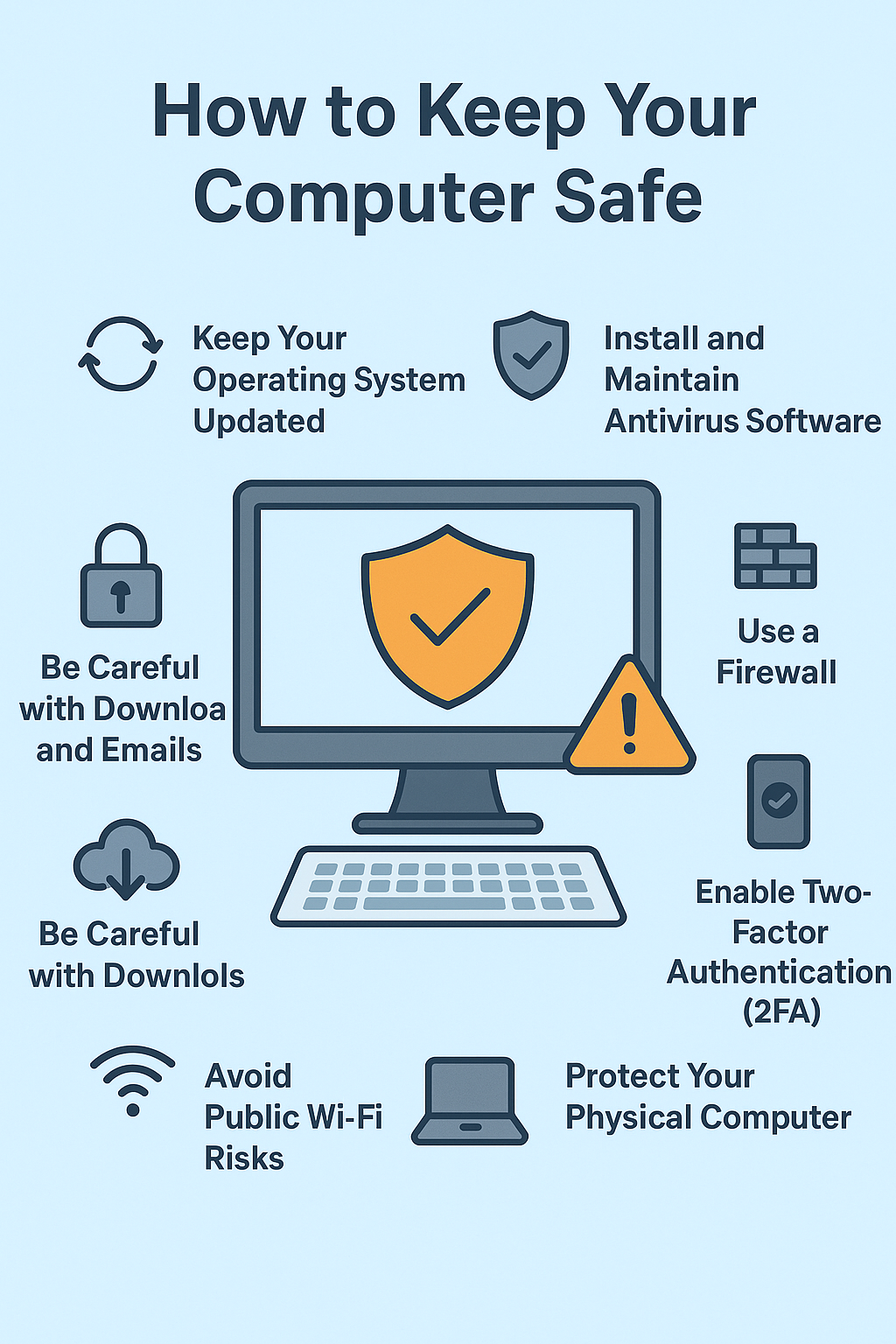
1. Keep Your Operating System Updated

One of the easiest ways to protect your computer is by keeping your operating system (Windows, macOS, or Linux) updated. Software companies regularly release updates to fix security loopholes. If you ignore them, you leave the door open for hackers to exploit.

  • Turn on automatic updates so your system always stays current.

  • Restart your computer when updates are installed to apply changes properly.

  • Do not use outdated operating systems, as they no longer receive security patches.

Think of updates as a lock upgrade for your home. Without it, burglars can walk right in.

2. Install and Maintain Antivirus Software

Antivirus software acts like a guard dog for your computer. It scans files, blocks suspicious programs, and alerts you when there’s a threat.

Tips for using antivirus effectively:

  • Choose a trusted antivirus program (like Bitdefender, Norton, or Windows Defender).

  • Keep the antivirus updated to recognize the latest threats.

  • Schedule regular scans, even if everything seems fine.

  • Avoid using cracked or free “unknown” antivirus versions, as they may contain malware themselves.

With a good antivirus, you greatly reduce the risk of viruses or spyware sneaking into your system.

3. Use a Firewall

A firewall is like a security gate between your computer and the internet. It filters incoming and outgoing traffic, blocking harmful connections.

  • Most operating systems come with a built-in firewall (Windows Firewall, for example). Make sure it is turned on.

  • For extra safety, some security suites include advanced firewalls with more control.

  • Avoid turning it off unless absolutely necessary.

A firewall adds an extra barrier that hackers need to cross, making your system harder to attack.

4. Be Careful with Downloads and Emails

One of the biggest ways computers get infected is through careless downloads or phishing emails. Hackers often trick people into clicking unsafe links or opening infected attachments.

Here’s how to stay safe:

  • Only download software from official websites or trusted app stores.

  • Avoid clicking on suspicious email links or attachments, even if they look like they’re from your bank or a friend.

  • Hover over links before clicking to see where they actually lead.

  • Be wary of offers that sound “too good to be true.”

Remember: If you wouldn’t accept a random USB stick from a stranger, don’t download files from unknown sources online.

5. Use Strong and Unique Passwords

Passwords are the first line of defense for your accounts and computer. Weak passwords make it easy for hackers to break in.

Good password practices include:

  • Use a mix of uppercase, lowercase, numbers, and symbols.

  • Avoid using your name, birthday, or simple words like “password123.”

  • Do not reuse the same password across multiple accounts.

  • Use a password manager (like LastPass, Bitwarden, or 1Password) to store and generate secure passwords.

If your computer is stolen or hacked, strong passwords ensure that criminals can’t easily access your files and accounts.

6. Enable Two-Factor Authentication (2FA)

Even with strong passwords, there is still a chance hackers might guess or steal them. That’s why two-factor authentication is so useful.

With 2FA, logging into your account requires not only your password but also a second form of verification, such as:

  • A code sent to your phone

  • An authentication app

  • A fingerprint or face scan

This extra step makes it nearly impossible for intruders to break in, even if they know your password.

7. Backup Your Data Regularly

What if your computer gets hacked or your hard drive fails tomorrow? Would you lose all your important files? That’s where backups come in.

Ways to back up safely:

  • Use an external hard drive to create offline backups.

  • Store files in cloud services like Google Drive, Dropbox, or OneDrive.

  • Set up automatic backup schedules to avoid forgetting.

By keeping copies of your data in different places, you can recover quickly if something goes wrong.

8. Avoid Public Wi-Fi Risks

Free Wi-Fi in cafes, airports, or hotels is convenient but dangerous. Hackers often use these networks to steal information.

If you must use public Wi-Fi:

  • Do not access banking or sensitive accounts.

  • Use a Virtual Private Network (VPN) to encrypt your connection.

  • Turn off file sharing on your computer.

Better yet, use your phone’s mobile hotspot when handling sensitive work.

9. Protect Your Physical Computer

Computer safety isn’t just about the internet—it also involves protecting the actual device.

  • Do not leave your laptop unattended in public places.

  • Use a strong password or PIN to lock your computer.

  • Enable device encryption so that even if your laptop is stolen, the thief cannot access your files.

  • Keep your device clean and dust-free to avoid hardware issues.

Physical security is just as important as digital security.

10. Practice Safe Browsing Habits

Your online behavior plays a big role in computer safety. Unsafe websites, pirated downloads, and fake ads are major sources of malware.

Tips for safe browsing:

  • Look for “https://” in the URL before entering sensitive information.

  • Avoid illegal streaming or torrent sites.

  • Do not click on pop-up ads claiming you won a prize.

  • Use browser extensions that block ads and trackers.

Smart browsing reduces the chances of falling into a hacker’s trap.

Conclusion

Keeping your computer safe may sound complicated, but it really comes down to a mix of smart habits and reliable tools. By updating your system, using antivirus and firewalls, practicing safe browsing, creating strong passwords, and backing up your files, you can protect yourself from most online threats.

Think of your computer like your home. You lock the doors, close the windows, and keep valuables secure. In the same way, by taking simple precautions, you make it much harder for intruders to break in digitally.

In today’s connected world, computer safety is not optional—it’s a necessity. The good news is that you don’t need to be a tech expert to stay protected. Just follow these steps, and your computer will remain safe, secure, and reliable for years to come.

Systecare Pro

SystemCare PRO License Keys-Full Guide for Activation and Benefits

SystemCare PRO License Keys: If your computer is running slow, freezing, or displaying error messages, you’re not alone. Over time, every PC accumulates junk files, broken registries, and background apps that slow things down. That’s where SystemCare PRO comes in—an all-in-one system optimization solution by DigitalBulls, designed to boost performance, clean your system, and keep your PC running like new.

In this guide, we’ll walk you through everything you need to know about SystemCare PRO License Keys, including how to download the software, activate your license, key benefits, and where to get safe and legal license keys for free or at discounted prices.

What Is SystemCare PRO?

SystemCare PRO is a professional-grade system optimization tool developed by DigitalBulls. Unlike free cleaners that provide limited features, SystemCare PRO offers a comprehensive set of utilities for:

  • Cleaning temporary and junk files

  • Fixing registry errors

  • Managing startup items

  • Boosting overall system speed

  • Enhancing privacy protection

The software is user-friendly, safe, and optimized for both beginners and experienced PC users. It’s perfect for anyone looking to speed up their PC with just a few clicks.

Why You Need a SystemCare PRO License Key

A SystemCare PRO license key is your ticket to unlocking all the powerful features of the software. The free version offers basic scanning and limited cleanup, but to enjoy full optimization, real-time protection, and premium support, you need a valid license key.

Here’s what you unlock with a SystemCare PRO key:

  • ✅ Full system scan and automatic repair

  • ✅ Advanced PC cleaning and performance boosting

  • ✅ Smart registry fixing and optimization

  • ✅ Browser and privacy protection

  • ✅ Real-time monitoring and alerts

  • ✅ Lifetime access or yearly renewal (depending on the plan)

🔗 Ready to activate now? Visit the official license page:
Get SystemCare PRO License Key from DigitalBulls

SystemCare PRO Free Download

Before you activate the software, you can try it out with a free download from the official site.

📥 How to Download:

  1. Go to SystemCare PRO Download Page

  2. Click on the Download Now button

  3. Run the installer and follow on-screen instructions

The installation is quick and hassle-free. Once installed, you can begin a free system scan to see how many issues your PC has.

How to Activate SystemCare PRO with a License Key

Once you’ve downloaded the software, activating it is simple. Here’s how to use your license key:

✅ Step-by-Step Activation:

  1. Open the installed SystemCare PRO software.

  2. Click on “Activate Now” in the dashboard or menu.

  3. Enter the license key you received via email or from your purchase.

  4. Click Submit or Activate.

  5. Restart the software to unlock full features.

You’re now ready to enjoy the full benefits of SystemCare PRO.

Where to Get SystemCare PRO License Keys

There are a few trusted ways to get SystemCare PRO license keys, including free keys (for trial use) and paid keys for full access.

🔒 Official Source (Recommended)

For safety, security, and legal use, we strongly recommend getting your license from the official source:

Buy or Claim SystemCare PRO License Key Here

🎁 Promotional Free License Keys (Limited-Time)

Occasionally, DigitalBulls offers limited-time promo codes or free trial keys. These keys usually unlock premium features for 7–30 days.

Example (subject to availability):

  • SCPRO-7DAY-FREE-TRIAL-KEY

  • SCPRO-30D-TRIAL-KEY2025

👉 To check for latest offers and promotions, visit the official SystemCare PRO page.

Key Features of SystemCare PRO

Let’s take a look at the powerful tools you get with your license key:

1. PC Optimization

Cleans junk files, temp folders, and unused caches to boost system speed.

2. Registry Repair

Fixes broken registry entries, helping reduce crashes and improve performance.

3. Startup Manager

Control which programs run when your PC starts. Boot faster and run smoother.

4. Browser Cleaner

Removes unwanted toolbars, adware, and browser clutter.

5. Privacy Shield

Protects your data by clearing cookies, history, and usage logs.

6. One-Click Maintenance

A single click runs all optimization tools and provides a full health report.

7. Real-Time Monitoring

Keeps an eye on system health and alerts you of potential threats or issues.

Who Should Use SystemCare PRO?

  • Home users who want faster performance

  • Students who rely on their laptops for work and study

  • Office workers handling large files and applications

  • Gamers who want lag-free gameplay

  • Senior citizens needing simple tools to keep PCs running smoothly

No technical skills required. Just install, activate, and let SystemCare PRO handle the rest.

System Requirements

  • Operating System: Windows 11, 10, 8.1, 8, 7

  • RAM: 512MB minimum

  • Disk Space: 100MB free space

  • Internet: Required for activation and updates

Benefits of a Genuine SystemCare PRO License

  • 🛡️ Secure software – No malware, spyware, or shady scripts.

  • Performance boost – Faster boot times and smoother multitasking.

  • 🔧 Complete system fix – One tool for all your PC issues.

  • 🔄 Automatic updates – Stay current without manual downloads.

  • 📩 Premium support – Get help when you need it.

Common Activation Errors and Fixes

Invalid Key

License Already Used

  • If you’ve changed PCs, contact support for a license reset.

Network Error

  • Ensure you’re connected to the internet during activation.

For more support, contact the DigitalBulls Support Team via their website.

FAQs – SystemCare PRO License Key

Q1: Is there a free version of SystemCare PRO?

Yes, you can download a free version with limited features, or try a 7-day free trial with full access.

Q2: Can I use one key on multiple devices?

Usually, each license is valid for one PC unless stated otherwise during purchase.

Q3: Is the software safe?

Yes. SystemCare PRO by DigitalBulls is 100% safe and does not contain malware or tracking tools.

Q4: How long is the license valid?

Depending on your purchase, it can be a 1-year license or a lifetime license.

Q5: Can I renew my license?

Yes, you can renew it easily through the official renewal page.

Final Thoughts

If you’re tired of your PC slowing down or crashing, SystemCare PRO is a smart investment. It cleans, protects, and boosts your system with minimal effort. And with a valid SystemCare PRO license key, you unlock its full power and enjoy a faster, cleaner, more secure PC.

Don’t fall for cracked versions or unsafe downloads. For the best experience:

👉 Download and activate SystemCare PRO here

Is Your PC Running Slow? Try These Expert Optimization Strategies

Summary: In today’s fast-paced world, technology is at the heart of everything we do. From work and communication to entertainment and socializing, our computers have become indispensable tools. But what happens when your trusty PC starts running slow? Suddenly, tasks that once took seconds can drag on for minutes, and a once-smooth experience becomes a frustrating series of delays.

Is Your PC Running Slow? If you’ve been dealing with a sluggish computer, don’t panic. There are numerous reasons your PC might be underperforming, but the good news is that there are several expert strategies you can use to restore its speed and efficiency. Whether you’re working on a desktop, laptop, or even a brand-new system that’s already showing signs of lag, this blog will guide you through proven optimization techniques that can help your computer run like new again.

Why Is My Computer Running So Slow? 

Before diving into solutions, it’s important to understand why your computer is slowing down in the first place. Here are a few common culprits:

Too Many Background Processes: Every application you run on your PC consumes system resources such as RAM and CPU. Over time, background programs accumulate, slowing down your computer.

Low Disk Space: When your hard drive is nearly full, the system struggles to find space for new data, causing performance issues.

Outdated Software or Drivers: If your operating system or drivers are outdated, your computer may run inefficiently, causing lag.

Malware and Viruses: Malicious software can significantly slow down your computer by consuming resources and damaging system files.

Aging Hardware: Old hardware components, like hard drives or RAM, can no longer keep up with modern software demands, making your PC sluggish.

Now that you know the causes, let’s explore expert strategies to get your PC running faster.

Is Your PC Running Slow? Try These Expert Optimization Strategies

1. Free Up Disk Space

One of the most common reasons a PC slows down is a lack of available disk space. A cluttered hard drive can drastically reduce the speed of your system. To fix this, start by:

  • Running Disk Cleanup: This built-in tool removes unnecessary files, like temporary files and system logs, that are just taking up space. You can access it by typing “Disk Cleanup” into the Start menu.

  • Uninstalling Unnecessary Programs: Over time, you may accumulate programs that you no longer use. Go to the Control Panel and uninstall anything that’s not essential.

  • Moving Files to an External Drive or Cloud Storage: If your hard drive is full of media files (photos, videos, music), consider moving them to an external drive or cloud storage to free up space.

2. Upgrade to an SSD

If your computer still uses a traditional hard disk drive (HDD), upgrading to a solid-state drive (SSD) can make a huge difference in performance. SSDs are faster, more reliable, and significantly quicker at accessing data.

Switching to an SSD can drastically reduce boot times and load applications faster, making your computer feel snappier overall.

3. Remove Unwanted Startup Programs

When you start your PC, several programs may automatically launch, eating up valuable system resources and slowing down your computer. Disabling unnecessary startup programs is a quick way to improve performance.

Here’s how to do it:

  1. Press Ctrl + Shift + Esc to open the Task Manager.

  2. Navigate to the Startup tab.

  3. Disable any programs you don’t need running as soon as your computer starts.

Be cautious about which programs you disable — some are necessary for the proper functioning of your system.

4. Increase RAM

Random Access Memory (RAM) is the temporary memory your computer uses to store data while it’s running. If you frequently use memory-intensive programs like video editors, games, or even web browsers with multiple tabs open, upgrading your RAM can help speed things up.

Most modern computers allow for RAM upgrades, and this is one of the best ways to improve overall performance. If you’re unsure how to check if your system can be upgraded, check your computer’s specifications or consult a professional.

5. Keep Your Software Updated

Keeping your operating system, software, and drivers up to date is crucial for optimal performance. Developers regularly release updates that address bugs, enhance security, and improve the overall functionality of your system.

To ensure your computer is always running the latest updates, turn on automatic updates in your system settings. This way, you won’t have to worry about missing crucial patches that could boost performance.

6. Clean Up Malware and Viruses

Malware and viruses are notorious for slowing down your computer. These malicious programs can consume valuable system resources, causing lag, crashes, and other issues.

Use a reliable antivirus program to run a full system scan. If you don’t have antivirus software, some good options include:

  • Windows Defender (built into Windows 10 and 11)

  • Avast

  • Bitdefender

  • Malwarebytes

Make sure your antivirus program is up to date and set it to run regular scans to keep your system clean.

7. Defragment Your Hard Drive

If you’re using a traditional HDD, fragmentation can lead to slower performance. Over time, files can become fragmented, meaning they’re split across different parts of the drive, which takes longer to access.

Running a disk defragmentation tool can help reorganize your files and speed up your system. On Windows, this tool is built into the system:

  1. Open the Start menu and type “Defragment and Optimize Drives.”

  2. Select the drive you want to defrag (usually your C: drive).

  3. Click Optimize.

Note: If you’re using an SSD, defragmentation is not necessary and could even reduce the lifespan of the drive.

8. Manage System Power Settings

When your PC is set to power-saving mode, it can throttle your CPU speed, which can cause noticeable lag. To change your power settings:

  1. Go to Control Panel > Power Options.

  2. Select High Performance or create a custom power plan that doesn’t throttle your CPU.

This setting ensures your computer runs at full speed when plugged in, though it might consume more energy.

9. Address Overheating and Dust

Overheating can cause your computer to throttle its performance to avoid damage. This is especially common in laptops. If your computer feels hot to the touch, it might be overheating due to dust buildup in the cooling system.

Here’s what you can do:

  • Clean the vents and fans: Use compressed air to blow out any dust from the fans and cooling vents.

  • Use your laptop on hard surfaces: Avoid soft surfaces like beds or couches, which can obstruct airflow.

10. Optimize for Large File Editing

When editing large video files, images, or other media, your computer may slow down due to the high demands these tasks place on your system. Here’s how to optimize for heavy editing:

  • Use Proxy Files: Some video editing software allows you to create lower-resolution copies of video files (proxy files), which can be used for editing. This reduces the load on your system.

  • Close Unnecessary Programs: Ensure only the software you’re using for editing is open to maximize available resources.

Final Thoughts

A slow computer can be frustrating, but it doesn’t have to be the end of the world. By following the expert optimization strategies listed above, you can breathe new life into your PC and restore its performance. Whether you’re dealing with a desktop, laptop, or brand-new machine, these tips will help keep your system running smoothly for years to come.

Remember, regular maintenance — like cleaning up files, updating software, and scanning for malware — can prevent future slowdowns. With a bit of effort, your computer will run like new, and you can get back to doing what you do best without any delays.

FAQ: Is Your PC Running Slow? Try These Expert Optimization Strategies

1. Why is my computer running so slow?
A slow computer can be caused by various factors such as too many background programs, insufficient storage space, outdated software, malware or viruses, and aging hardware. Identifying the specific cause can help you apply the right solution.

2. How do I free up disk space on my computer?
To free up disk space:

  • Run Disk Cleanup to delete temporary files, system logs, and other unnecessary files.

  • Uninstall unused programs via the Control Panel.

  • Move large files like videos, photos, and documents to an external drive or cloud storage.

3. How can I improve my PC’s startup speed?
You can speed up your PC’s startup by:

  • Disabling unnecessary startup programs in the Task Manager.

  • Running Disk Cleanup to remove temporary files.

  • Upgrading to an SSD if you’re still using a traditional hard drive.

4. Should I upgrade my hard drive to an SSD?
Yes! Upgrading to a Solid-State Drive (SSD) will significantly improve boot times, application load times, and overall system responsiveness compared to traditional hard drives (HDDs).

5. What is CPU throttling, and why does my laptop use it?
CPU throttling is a technique used to reduce a processor’s speed when the system gets too hot. Laptops often use this to prevent overheating. If your laptop is slowing down during intense tasks, this could be due to thermal throttling.

6. How do I remove malware and viruses from my computer?
To remove malware or viruses:

  • Use antivirus software to run a full system scan.

  • Ensure your antivirus is up to date before running the scan.

  • Consider using Malwarebytes for deep scans if you suspect more complex malware.

7. Can cookies slow down my computer?
Yes, browser cookies and cache can accumulate over time and impact your browser’s performance. Regularly clear your browser’s cookies and cache to maintain smooth browsing.

8. How do I know if my PC needs more RAM?
If your computer is running slow while running multiple applications or heavy software (like video editors or games), you may need more RAM. You can check your system’s memory usage in the Task Manager to see if it’s maxing out during these tasks.

9. My PC is still slow despite cleaning it up, what should I do?
If your PC is still slow, consider:

  • Checking for hardware issues such as a failing hard drive or overheating components.

  • Upgrading your RAM or replacing an old hard drive with an SSD.

  • Running a system diagnostic tool to identify deeper issues.

10. What is the best way to handle large files, like video editing, on my PC?
When working with large files (e.g., video editing), your system might struggle. To optimize:

  • Use proxy files for video editing to reduce the load on your system.

  • Ensure you have sufficient RAM and storage for handling large media files.

  • Close unnecessary programs to maximize available resources.

Select Color: