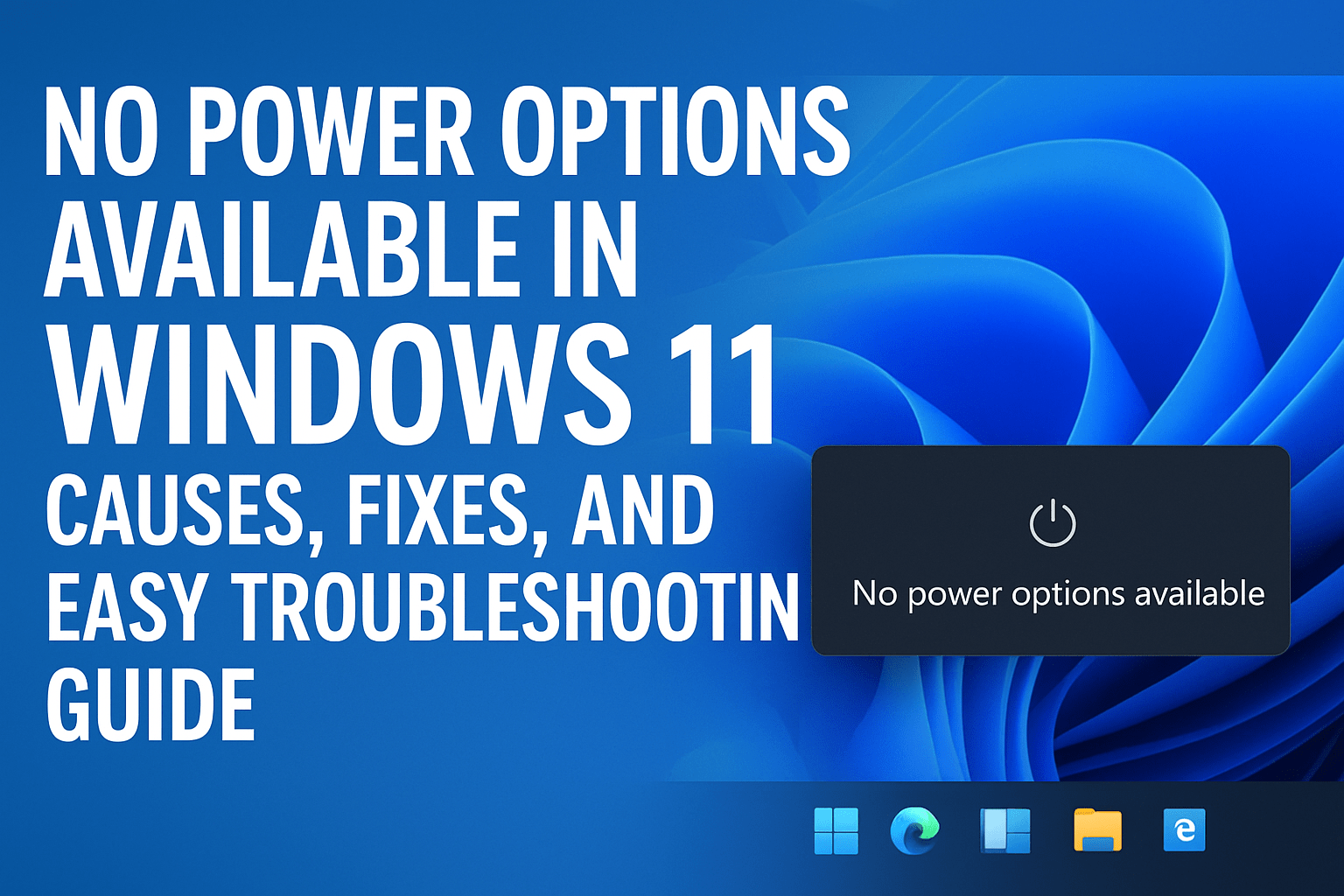
No Power Options Available in Windows 11 Fix: Have you ever tried to shut down, restart, or put your Windows 11 computer to sleep, only to see a message that says “There are currently no power options available”?
If that sounds familiar, you are not alone. Many users run into this issue after an update, system change, or even out of nowhere. It can feel confusing and frustrating when simple options like shut down or restart suddenly disappear.
The good news is, this problem can usually be fixed with a few simple steps. In this friendly and easy-to-follow guide, we’ll help you understand what causes the “No Power Options Available” issue in Windows 11 and how to fix it quickly. You don’t need to be a tech expert—just follow along carefully.
What Does “No Power Options Available in Windows 11” Mean
When Windows 11 says “There are currently no power options available,” it means your computer is unable to access the power management settings that control shutting down, restarting, or sleeping.
This message usually appears on the Start menu, Lock screen, or Ctrl + Alt + Delete screen. You might notice that the power button icon is missing or greyed out.
Windows uses power plans—like Balanced, High Performance, and Power Saver—to control how it manages power. When these settings are missing or corrupted, Windows loses the ability to perform basic power actions, leading to the error.
Common Situations When This Error Appears
This issue can happen on laptops, desktops, and even hybrid tablets running Windows 11. Here are some common scenarios where users report this message:
- After a recent Windows update or upgrade
- When user account permissions are damaged or limited
- If the power plan configuration files are missing or corrupted
- When Group Policy or Registry settings block access to power options
- If system files become damaged
- When the Power service is stopped or disabled
It might also appear if you’re using a company-managed computer with restrictions applied by an administrator.
Why Windows 11 Shows “No Power Options Available”
There are several possible causes, but most fall into one of these categories:
1. Corrupted System Files
Sometimes, a system crash, improper shutdown, or interrupted update can damage important Windows files that manage power settings.
2. Missing or Disabled Power Plans
If the default Windows power plans—like Balanced, High Performance, or Power Saver—are deleted or corrupted, the system cannot show or use any power options.
3. Power Service Not Running
Windows uses a background service called Power Service (PowerSvc) to handle all power-related features. If it’s not running, power options will disappear.
4. Account or Permission Issues
Your current user account might not have the proper privileges to access power options. This is common if the account type changes or if you’re using a restricted profile.
5. Registry or Group Policy Changes
Sometimes, a Group Policy setting or registry value disables access to shutdown or restart buttons, especially on managed or shared computers.
6. Driver or Update Conflicts
A faulty driver installation or a bad Windows update can also cause this issue. The power configuration may get reset or blocked.
Step-by-Step Fixes for “No Power Options Available” in Windows 11
Below are several proven solutions. Start with the easiest and work your way through. You may not need all of them—just one or two often solve the problem.
Step 1: Run the Power Troubleshooter
Windows 11 includes a built-in Power Troubleshooter designed to automatically find and fix common power-related problems.
Here’s how to run it:
- Press Windows + I to open Settings.
- Go to System → Troubleshoot → Other troubleshooters.
- Scroll down and find Power.
- Click Run next to it.
Windows will check your power settings and attempt to repair any issues automatically. Once done, restart your computer and check if the power options return.
Step 2: Check Power Service Status
If the Power service isn’t running, Windows can’t manage power settings properly.
To check and start the service:
- Press Windows + R, type services.msc, and press Enter.
- Scroll down and look for Power.
- Make sure the Startup type is set to Automatic.
- If it’s stopped, right-click it and choose Start.
- Then, click Apply and OK.
Restart your PC and see if the issue is fixed.
Step 3: Restore Default Power Plans
If the power plans were deleted or corrupted, you can restore them using Command Prompt.
Follow these steps:
- Type cmd in the search box.
- Right-click on Command Prompt and choose Run as administrator.
- Type the following command and press Enter:
powercfg -restoredefaultschemes
This command restores the default Balanced, Power Saver, and High Performance plans.
After running it, restart your computer and check if the options are back.
Step 4: Enable Power Options via Registry Editor
Sometimes, the power button options get disabled in the Windows registry.
Here’s how to check and fix that:
- Press Windows + R, type regedit, and hit Enter.
- Navigate to this path:
HKEY_LOCAL_MACHINE\SOFTWARE\Microsoft\PolicyManager\default\Start\HidePowerOptions
- If you see a value named value, double-click it and set it to 0.
- Close the Registry Editor and restart your computer.
Setting the value to 0 re-enables the Power Options in your Start menu.
Step 5: Check Group Policy Settings (For Windows Pro Users)
If you’re using Windows 11 Pro or Enterprise, the Group Policy Editor can control power button access.
To fix it:
- Press Windows + R, type gpedit.msc, and hit Enter.
- Go to User Configuration → Administrative Templates → Start Menu and Taskbar.
- Find Remove and prevent access to the Shut Down, Restart, Sleep, and Hibernate commands.
- Double-click it and set it to Not Configured or Disabled.
- Click Apply and OK.
Restart your computer and the power options should reappear.
Step 6: Create a New User Account
If your user profile is damaged, it might not load power options properly.
Creating a new account helps check if that’s the cause.
To create a new user:
- Open Settings → Accounts → Family & other users.
- Click Add account and follow the prompts to create a new local or Microsoft account.
- Sign in with the new account and check if power options are available.
If they are, your old account may be corrupted. You can transfer your files to the new one.
Step 7: Scan for Corrupted Files
Windows has built-in tools to repair system file corruption.
Run System File Checker (SFC):
- Open Command Prompt as administrator.
- Type the following command and press Enter:
sfc /scannow
Wait until it completes, then restart your computer.
Run DISM (Deployment Image Servicing and Management):
If the issue persists, run these commands one by one:
DISM /Online /Cleanup-Image /CheckHealth
DISM /Online /Cleanup-Image /ScanHealth
DISM /Online /Cleanup-Image /RestoreHealth
Once done, restart your system and check if power options return.
Step 8: Reinstall or Update Windows
If none of the above methods work, you may be dealing with a deeper system problem.
Updating or reinstalling Windows 11 can fix missing system components.
To update Windows:
- Open Settings → Windows Update.
- Click Check for updates.
- Install any available updates and restart your PC.
If the problem continues, use Windows 11 Reset this PC option to reinstall the OS without losing your files.
Preventing the “No Power Options Available” Error
Once your power options are back, it’s good to prevent this issue from happening again. Here are a few tips:
Keep Windows Updated
Regular updates help patch bugs and prevent missing features.
Avoid Force Shutdowns
Always use proper shutdown procedures instead of forcing power off.
Create System Restore Points
Set up restore points so you can easily roll back if something goes wrong.
Don’t Delete Power Plans
Avoid using third-party software that modifies or deletes power settings.
Regularly Check Services
Make sure Power Service is running automatically in the background.
Fixing “High Performance Power Plan Missing” in Windows 11
Another common issue related to this topic is the High Performance power plan missing.
Even if your computer works fine, you might notice that only the Balanced plan is available.
Here’s how to bring back the High Performance plan:
- Open Command Prompt as administrator.
- Type this command and press Enter:
powercfg -duplicatescheme 8c5e7fda-e8bf-4a96-9a85-a6e23a8c635c
This duplicates the High Performance plan using its unique identifier.
- Go to Control Panel → Hardware and Sound → Power Options.
- You should now see High Performance listed again.
If you prefer, you can also enable the Ultimate Performance plan (available on some systems) using this command:
powercfg -duplicatescheme e9a42b02-d5df-448d-aa00-03f14749eb61
What If Power Troubleshooter Is Missing in Windows 11
Some users report that the Power Troubleshooter itself is missing from the list of troubleshooters.
If that happens, you can run it manually using a command.
- Press Windows + R.
- Type this command and press Enter:
msdt.exe /id PowerDiagnostic
This opens the Power Troubleshooter directly, even if it doesn’t appear in Settings.
Fixing “There Are Currently No Power Options Available” from the Lock Screen
If this error appears on your lock screen or sign-in screen, it may mean your user account doesn’t have permission to use the power button.
Here’s a quick fix:
- Open Registry Editor.
- Navigate to:
HKEY_LOCAL_MACHINE\SOFTWARE\Microsoft\Windows\CurrentVersion\Policies\System
- Look for a value named shutdownwithoutlogon.
- Double-click it and set its value to 1.
- Restart your computer.
This restores the power button on the lock screen, allowing you to shut down or restart from there.
Troubleshooting “No Power Options Available” After Windows Update
If this problem started right after a Windows update, it may be due to a bug in the update itself.
Try these steps:
- Go to Settings → Windows Update → Update History → Uninstall updates.
- Remove the most recent update.
- Restart and see if the power options come back.
If it does, wait for Microsoft to release a fixed version before reinstalling that update.
When to Seek Professional Help
If you’ve tried all these fixes and your computer still says “There are currently no power options available,” it could be a deeper hardware or system management issue.
At that point, consider contacting Microsoft support or a professional technician. They can check for motherboard power management firmware issues or system-level restrictions that might not be visible in regular settings.
Final Thoughts
The “No Power Options Available” error in Windows 11 may seem alarming, but it’s often a software-level problem that can be fixed with patience and the right approach. Whether the cause is a corrupted power plan, a disabled service, or a registry misconfiguration, the steps above can help you bring your shutdown and restart options back in no time.
Here’s a quick summary of what to try:
- Run the Power Troubleshooter
- Restart the Power Service
- Restore default power plans
- Check registry and Group Policy settings
- Scan for system file corruption
- Update or reinstall Windows if needed
Keeping your Windows 11 installation healthy and up to date will prevent most of these problems in the future.
Remember, power management is a critical part of how your computer functions. By learning how to fix and maintain these settings, you’re not just solving one error—you’re helping your system run smoothly for the long term.
FAQ: No Power Options Available in Windows 11
Q1. What does “No Power Options Available in Windows 11” mean?
This message appears when Windows 11 cannot access the system’s power management settings. It means your computer is unable to show options like Shut Down, Restart, or Sleep in the Start menu or on the lock screen. This usually happens because the power plans are missing, the Power service is stopped, or some system settings are misconfigured.
Q2. Why does my computer say “No Power Options Available in Windows 11”?
It often happens after a Windows update, user account corruption, or registry changes that disable the power buttons. Sometimes, it can also be caused by damaged system files or missing default power plans.
Q3. How can I fix “No Power Options Available in Windows 11”?
You can fix it by running the Power Troubleshooter, restarting the Power service, restoring default power plans using a command, checking the registry settings, or scanning for corrupted files. These simple steps usually restore all power options.
Q4. Can I restore power plans if they are missing in Windows 11?
Yes. Open Command Prompt as Administrator and run the command:
powercfg -restoredefaultschemes
This will bring back the Balanced, Power Saver, and High Performance power plans.
Q5. Is this problem permanent or dangerous?
No, it’s not dangerous. The message only means Windows can’t access power settings temporarily. With the right troubleshooting steps, it can be fixed easily.
Q6. How do I prevent “No Power Options Available in Windows 11” from happening again?
Keep your Windows updated, avoid deleting power plans, and don’t use third-party tools that modify system settings. Also, make sure the Power service always starts automatically.