

June 19, 2026
Fixing the “Outlook OST File Cannot Be Opened” Error


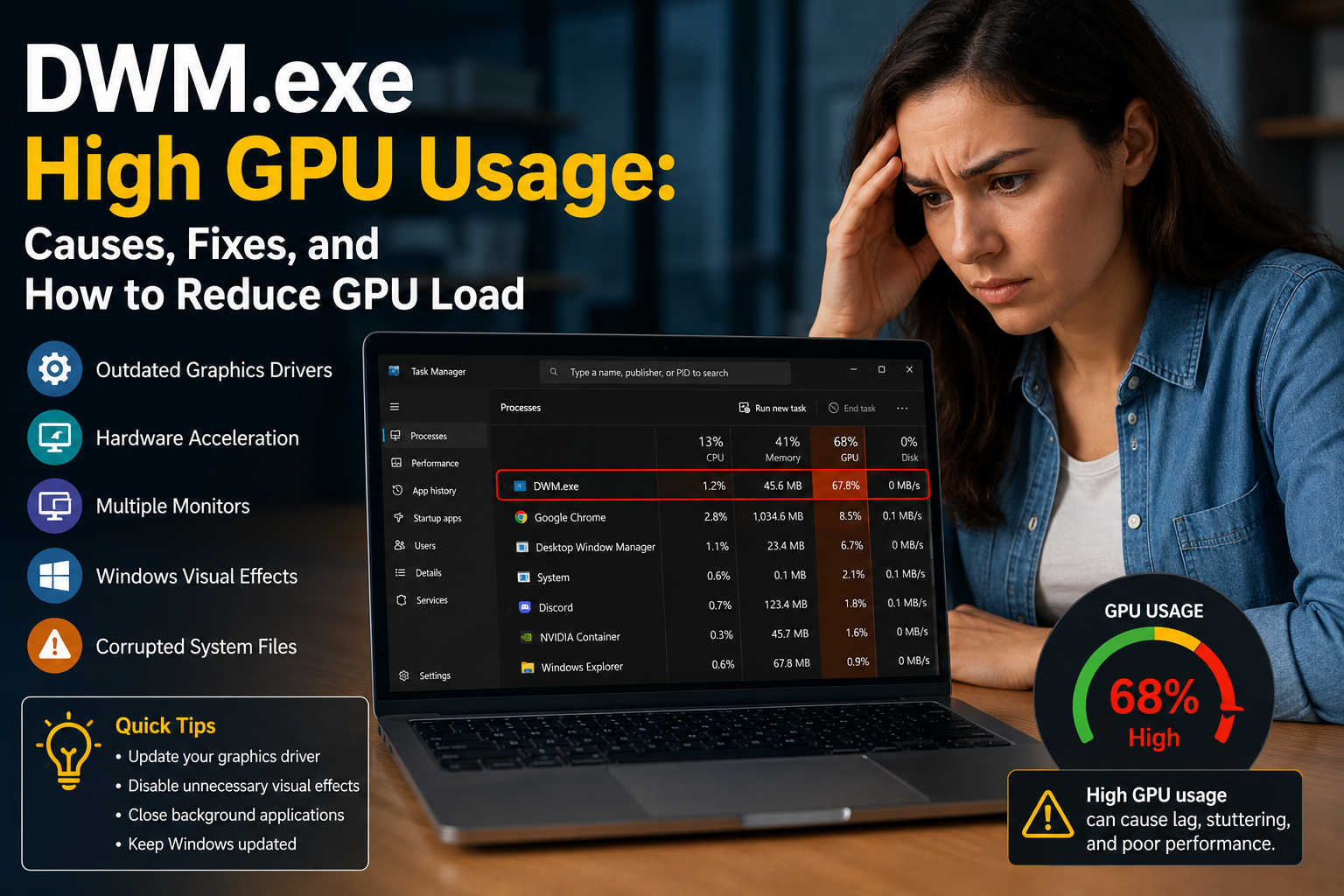
If you recently opened Task Manager and noticed DWM.exe using a large percentage of your GPU, you’re probably wondering whether something is wrong with your computer. High GPU usage by the Desktop Window Manager (DWM.exe) can make your PC feel sluggish, increase fan noise, reduce battery life, and even cause stuttering while gaming or watching videos.
The good news is that DWM.exe is a legitimate Windows process. In most cases, high GPU usage is caused by outdated graphics drivers, Windows display settings, multiple monitors, hardware acceleration, or visual effects—not by malware.
In this guide, you’ll learn what DWM.exe does, why it may use excessive GPU resources, and the best ways to fix the problem safely.
Desktop Window Manager (DWM.exe) is a built-in Windows process responsible for rendering your desktop. It manages visual effects such as:
Every modern Windows computer relies on DWM.exe to display graphics smoothly. Normally, it uses only a small amount of GPU resources.
Yes. DWM.exe is an official Microsoft Windows process.
Its default location is:
C:\Windows\System32\dwm.exe
If you find DWM.exe running from another folder, especially Downloads, Temp, or AppData, scan your PC with Windows Security because it could be malware pretending to be a Windows process.
Old or corrupted NVIDIA, AMD, or Intel graphics drivers are among the most common causes of high GPU usage.
Applications like Chrome, Edge, Discord, Spotify, Microsoft Teams, and Adobe software use GPU acceleration. When several of these apps are open, DWM.exe may show increased GPU activity.
Running two or more displays, especially with different refresh rates or resolutions, increases the workload handled by Desktop Window Manager.
Features such as HDR, Auto HDR, and Dynamic Refresh Rate can increase GPU usage on some systems.
Animations, transparency, shadows, and acrylic effects all require GPU rendering.
Damaged Windows files may cause DWM.exe to consume more GPU resources than normal.
Restart your computer. In many cases, this clears temporary GPU spikes caused by Windows Explorer or background apps.
Download the latest graphics driver directly from your GPU manufacturer’s official website.
Avoid downloading drivers from unknown websites.
Many users notice a small reduction in GPU usage after disabling this feature.
Apps that commonly increase GPU usage include:
Open Command Prompt as Administrator and run:
sfc /scannow
After it completes, run:
DISM /Online /Cleanup-Image /RestoreHealth
Restart your computer after both scans finish.
Microsoft frequently releases updates that improve graphics stability and resolve Desktop Window Manager issues.
“I noticed DWM.exe using nearly 40% of my GPU whenever I opened multiple Chrome tabs and Discord. Updating my NVIDIA driver and disabling Transparency Effects reduced GPU usage to around 3–5%. My laptop also became noticeably quieter.”
“After upgrading to Windows 11, DWM.exe constantly stayed above 20% GPU. I rebuilt my graphics driver with a clean installation and disabled Hardware-Accelerated GPU Scheduling. The issue disappeared after restarting.”
“My dual-monitor setup was causing DWM.exe spikes. Matching both monitors to the same refresh rate solved the problem completely.”
No. DWM.exe is a legitimate Microsoft Windows process located in C:\Windows\System32.
No. Desktop Window Manager is a core Windows component. Ending or disabling it can cause display problems or Windows may automatically restart it.
DWM continues to manage the Windows desktop, overlays, notifications, and visual rendering while games are running. Some GPU usage is normal.
On an idle desktop, DWM.exe typically uses between 0% and 5% GPU. Higher usage while opening windows, watching videos, or using multiple displays is expected.
In many cases, yes. Driver updates often resolve compatibility issues and improve GPU performance.
DWM.exe is an essential part of Windows and is responsible for rendering your desktop and visual effects. While temporary increases in GPU usage are normal, consistently high GPU usage usually points to outdated graphics drivers, display settings, hardware acceleration, or graphics-related software conflicts.
Start by updating your graphics driver, reducing unnecessary visual effects, checking Windows updates, and limiting background applications. These simple steps resolve the issue for most users without requiring advanced troubleshooting.
If DWM.exe continues to consume excessive GPU resources after trying all the fixes above, consider performing a clean graphics driver installation or contacting your PC or GPU manufacturer’s support team for further assistance.