June 19, 2026
Fixing the “Outlook OST File Cannot Be Opened” Error


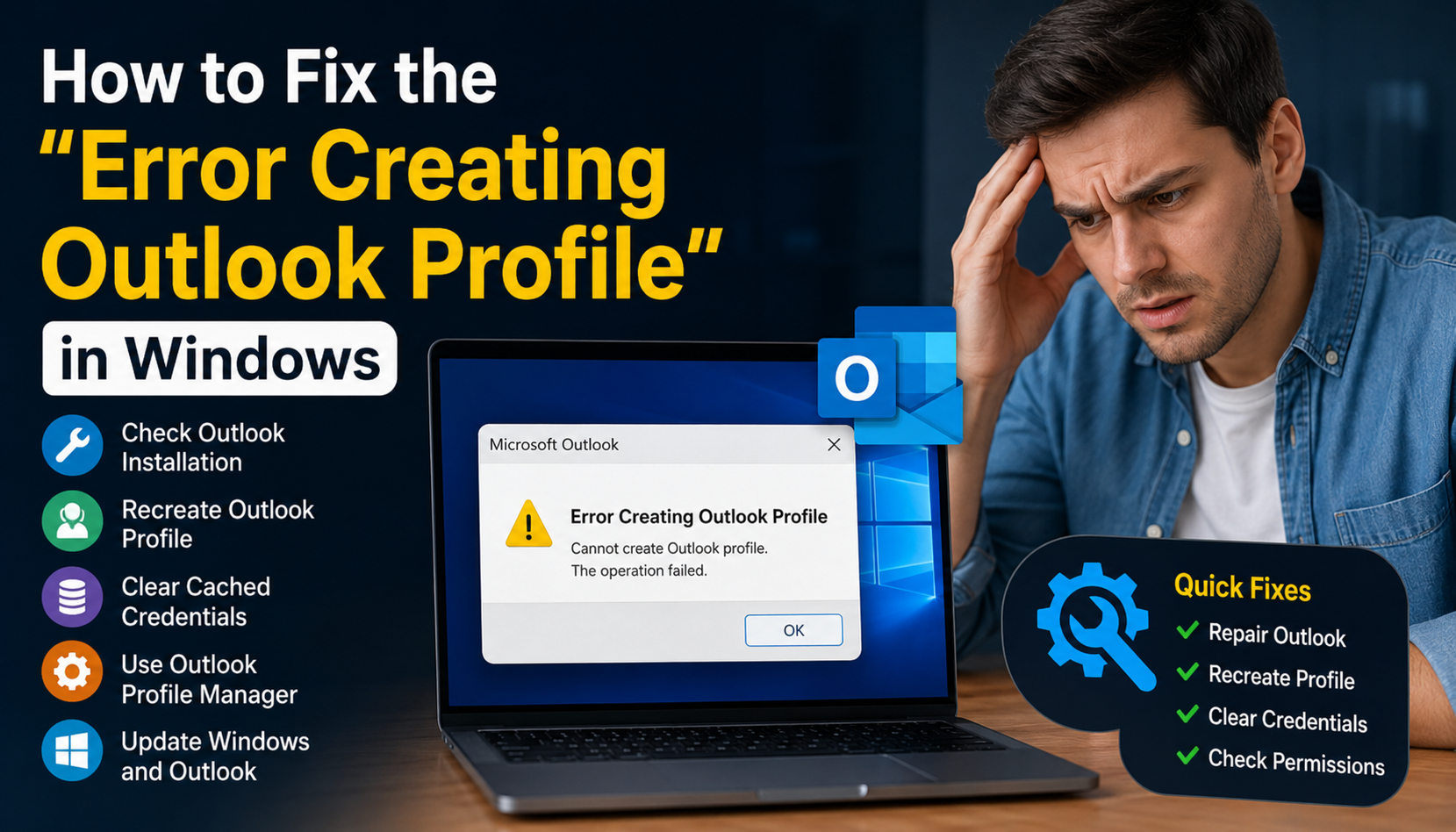
Few things disrupt a productive workday faster than a broken email client. If you are trying to set up Microsoft Outlook and are repeatedly blocked by an “Error creating Outlook profile“ or a frozen loading screen, you are dealing with a common but incredibly frustrating configuration glitch.
Because email access directly impacts your day-to-day business operations and communication, solving this efficiently is critical. This comprehensive guide details the exact, proven steps to bypass this error and restore your workflow.
An Outlook profile contains your accounts, data files (like .ost or .pst), and the critical settings that dictate where your email is stored. When a profile creation fails, it is rarely a problem with your physical computer. Instead, it is almost always caused by one of three things:
Modern Authentication Conflicts: The classic Windows Control Panel “Mail” applet often fails to communicate properly with modern multi-factor authentication (MFA) or Microsoft Entra ID (formerly Azure AD).
Corrupted Data Files: Hidden configuration files left behind by older versions of Office can conflict with current setups.
Autodiscover Overrides: Incorrect Domain Name System (DNS) records or outdated local credential caches can prevent Outlook from communicating with the Microsoft 365 Exchange servers.
For over a decade, IT experts routinely went straight to the Windows Control Panel to build new mail profiles. However, Microsoft has officially updated its guidance: The Control Panel Mail applet does not fully support modern security protocols.
If your organization uses single sign-on (SSO) or security keys, creating a profile through the old panel will frequently throw an error or loop infinitely.
Instead, use the modern Profile Picker interface by following the exact sequence below.
1.Force-close background processes:Prerequisite.
If the modern Profile Picker method fails to resolve the issue, a deep-seated cache or system conflict is likely occurring. Work through these verified secondary fixes:
Outdated login tokens can cause an endless loop during profile creation.
Press the Windows Key + R to open the Run box.
Type control cmdkey and press Enter to open the Credential Manager.
Look under Generic Credentials.
Find any entries containing MicrosoftOffice16 or IdentityCache, click them, and select Remove.
Restart your computer and try creating the profile again.
If your local core application files are corrupted, Windows cannot compile a clean registry entry for your profile.
| Step | Action Required | Expected Outcome |
| 1 | Open Windows Settings -> Installed Apps. | Displays all desktop software. |
| 2 | Scroll down to Microsoft 365 or Office, and click the three dots. | Opens modification options. |
| 3 | Select Modify, then choose Online Repair. | Completely reinstalls core files without losing user data. |
Note: Always select Online Repair over Quick Repair. Quick Repair only scans for missing file signatures; Online Repair completely replaces corrupted components.
For enterprise or business managed accounts, Microsoft provides a dedicated diagnostic tool. Download and install the official Microsoft Support and Recovery Assistant. Run the application, select Outlook, and choose the specific option: “I’m having problems setting up my Microsoft 365 email in Outlook.” The utility will automatically run diagnostic tests on your local machine and your tenant’s Autodiscover records to pinpoint and fix hidden system conflicts.
Ans: No. If you are using Microsoft 365, Exchange, IMAP, or Gmail, your emails are securely stored on the cloud server. When you create a new profile, Outlook will automatically re-download a fresh copy of your mail. However, if you are using an older POP3 setup, ensure you back up your local .pst file before making major changes.
Ans: The classic Control Panel applet was built for older legacy authentication methods. Modern business email accounts require Multi-Factor Authentication (MFA) and Modern Auth (OAuth 2.0). The old interface struggles to launch modern web-sign-in pop-ups, leading to an endless loading wheel or profile creation errors.
Ans: This usually means Outlook is stuck trying to access a corrupted local .ost data cache. Force-close Outlook via Task Manager, use the Shift + Double Click method to open the Profile Picker, and create a brand new profile to bypass the corrupted file.
Ans: Yes. Tools like Advanced SystemCare Pro safely scan for corrupted application paths and leftover configuration keys from older Microsoft Office installations. Cleaning these broken paths clears out the internal registry blocks that prevent Windows from creating a new mail profile structure.
Need help fixing a specific Outlook error code or Autodiscover issue?