If your PC keeps restarting, it can be incredibly frustrating. Whether it’s a desktop or a laptop, unexpected restarts interrupt your work, gaming, or streaming, and can even risk data loss. Many users ask, “Why does my PC keep restarting?” or “Why does my computer randomly restart?” In this guide, we’ll explore the common reasons behind this problem, practical fixes, and ways to prevent your computer from constantly restarting in the future.
Understanding the Problem: Why Does My PC Keep Restarting?
When your computer keeps restarting, it’s usually a sign of hardware issues, software conflicts, or system errors. Sometimes, your PC keeps rebooting itself after updates, or it could be a more serious problem like overheating or a failing component.
Common symptoms include:
-
Laptop keeps restarting randomly during use.
-
Windows PC keeps restarting after booting.
-
PC constantly restarting in a loop, sometimes called a computer restart loop.
-
Sudden computer just randomly restarted without warning.
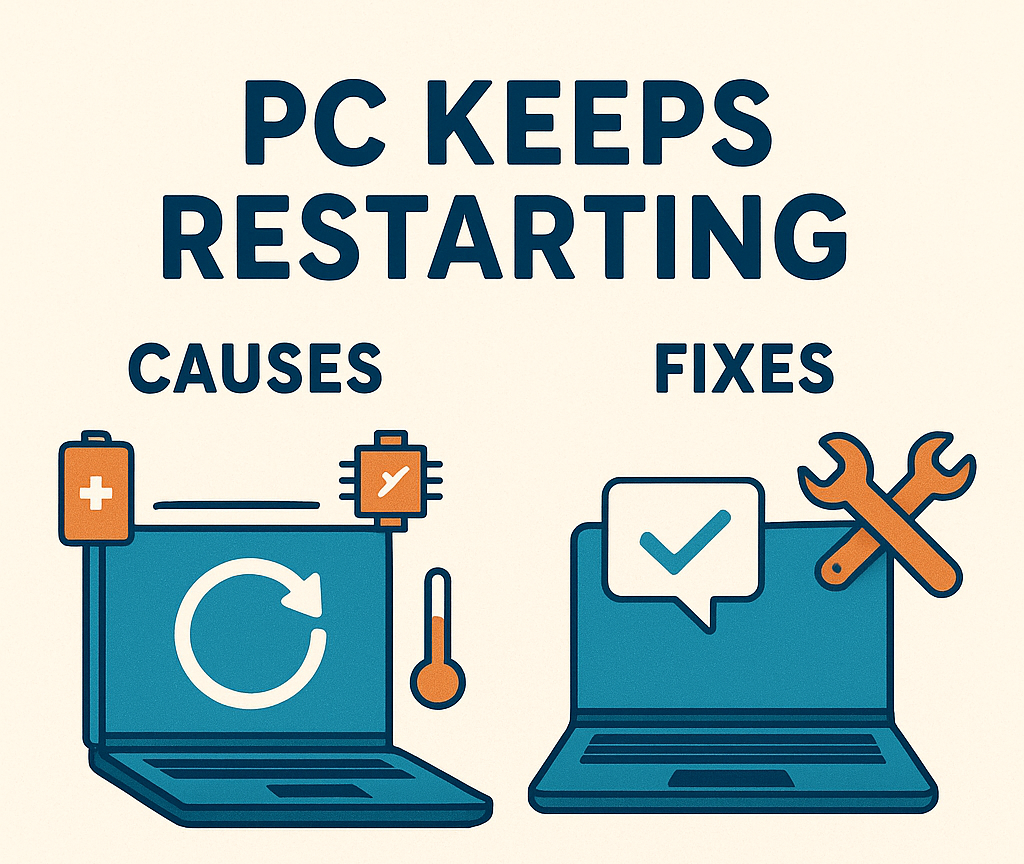
Common Causes of a PC That Keeps Restarting
-
Windows Updates or Software Glitches
Often, your PC keeps restarting on its own due to incomplete Windows updates or software conflicts. This is especially common with Windows 10 PC keeps restarting issues.
-
Overheating
If your gaming PC keeps restarting, overheating could be the culprit. CPUs and GPUs have thermal limits, and exceeding them can trigger a safety shutdown.
-
Faulty Hardware
-
RAM errors can cause your computer randomly restarting.
-
Failing power supply units (PSUs) may cause your PC suddenly restarts.
-
Hard drive or SSD issues can lead to computer restarting before Windows loads.
-
Driver Issues
Outdated or incompatible drivers can make your laptop randomly restart or a desktop keep restarting.
-
Virus or Malware
Malicious software can force your PC to restart randomly or create automatic restart PC loops.
-
BIOS or Firmware Problems
A misconfigured BIOS can make your new PC keep restarting immediately after startup.
How to Fix a PC That Keeps Restarting
If your computer keeps restarting, don’t worry. You can try these easy steps to fix it. Follow them one by one, and you’ll often find the solution.
1. Check for Windows Updates
Sometimes, your PC keeps restarting because Windows needs updates. Here’s how to check:
-
Click Start, then go to Settings.
-
Select Update & Security, then Windows Update.
-
Click Check for updates.
-
Install any updates that appear and restart your PC manually.
Updating Windows can fix bugs that cause your computer to restart unexpectedly.
2. Turn Off Automatic Restart
Windows sometimes restarts automatically when it finds an error, which can make it hard to see what’s wrong. You can stop this:
-
Right-click This PC on your desktop, then click Properties.
-
Click Advanced system settings.
-
Under Startup and Recovery, click Settings.
-
Uncheck Automatically restart under System failure.
-
Click OK to save.
Now, if an error happens, your PC will show an error message instead of restarting right away, which helps in finding the cause.
3. Scan for Viruses and Malware
Malware or viruses can make your PC keep restarting randomly. To check:
-
Open your antivirus software (Windows Defender works too).
-
Run a full system scan.
-
Remove any threats it finds.
Cleaning your PC from malware often stops unexpected restarts.
4. Test Your Hardware
Sometimes, your computer restarts because a part inside is failing. You can check:
-
RAM (Memory): Use a free tool like MemTest86 to test your RAM. Faulty RAM can cause random restarts.
-
Overheating: Make sure your CPU and graphics card aren’t too hot. Clean dust from fans and check that your PC is properly ventilated.
-
Hard Drive: Open Command Prompt and type chkdsk /f to check your hard drive for errors.
Fixing or replacing faulty hardware can stop the constant restarts.
5. Update Drivers
Drivers are programs that help your PC talk to hardware. Old or broken drivers can cause your PC to keep restarting.
-
Press Windows + X and choose Device Manager.
-
Look for graphics cards, network adapters, and other devices.
-
Right-click → Update driver → Search automatically for updates.
Keeping drivers up to date improves stability and stops crashes.
6. Perform a Clean Boot
A clean boot starts Windows with only the essential programs. This helps find if software is causing your computer to restart:
-
Press Windows + R, type msconfig, and press Enter.
-
Under Selective startup, uncheck Load startup items.
-
Go to the Services tab, check Hide all Microsoft services, then click Disable all.
-
Click OK and restart your PC.
If your PC stops restarting, you know a program or service was causing the problem. You can then enable items one by one to find the culprit.
7. Use System Restore
If your PC keeps restarting after recent changes, restoring it to an earlier point can fix it:
-
Press Windows + S and type System Restore.
-
Select Create a restore point, then click System Restore.
-
Choose a date when your PC was working fine.
-
Follow the instructions to restore.
This can fix software problems without affecting your personal files.
Benefits of Fixing a PC That Keeps Restarting
-
Prevents data loss and file corruption.
-
Improves overall system stability and performance.
-
Ensures a smooth gaming or work experience.
-
Reduces frustration from repeated unexpected shutdowns.
Specifications to Check on Your PC
If your desktop keeps restarting, verify the following:
-
Operating System: Windows 10 or 11, fully updated.
-
RAM: Minimum 4GB; 8GB recommended for gaming or heavy tasks.
-
Processor: Intel i3/i5/i7 or AMD equivalent.
-
Storage: SSD recommended for faster boot times.
-
Power Supply Unit (PSU): Sufficient wattage for your components.
-
Cooling System: Proper CPU/GPU cooling to prevent overheating.
What’s in the Box
When you buy a new PC or laptop and it keeps restarting, ensure all components are included:
-
Desktop tower or laptop.
-
Power cable and adapter.
-
User manual and warranty card.
-
Accessories like keyboard, mouse, or cooling pads.
Uses of a Stable PC
A PC that doesn’t restart randomly can be used for:
-
Gaming without crashes.
-
Office work and productivity.
-
Video editing or streaming.
-
Safe online browsing.
-
Learning, coding, and professional work.
FAQs
Q: Why does my computer restart every time I close it?
A: This may be due to power settings or driver issues. Adjust shutdown settings and update drivers.
Q: How to stop computer restarting randomly?
A: Check for overheating, scan for malware, update drivers, and disable automatic restart.
Q: My PC keeps restarting after Windows update. What should I do?
A: Boot in safe mode, uninstall the update, and reinstall it carefully.
Q: Why does my laptop keep restarting on boot?
A: Often caused by BIOS settings, hardware failure, or corrupted Windows installation.
Q: Is it normal for a new PC to keep restarting?
A: No. If a new PC keeps restarting, check hardware installation, BIOS, and power supply.
Q: How can I stop my PC from constantly restarting?
A: Check for Windows updates, scan for viruses, update drivers, and clean your system using Disk Cleanup or a PC Cleaner.
Q: Can a PC Cleaner fix my laptop that keeps restarting?
A: Yes, a reliable PC cleaner can remove junk files and optimize startup programs, which often stops random restarts.
Q: Why does my computer keep restarting after Windows updates?
A: Sometimes updates cause conflicts. Try uninstalling recent updates, performing a clean boot, or using System Restore.
Q: Will Disk Cleanup help if my computer keeps restarting?
A: Yes. Removing temporary files and system cache can prevent errors that cause your PC to keep restarting on its own.
Q: My gaming PC keeps restarting. Can cleaning help?
A: Absolutely. Overloaded cache and temporary files can stress the system. Use Disk Cleanup, optimize startup programs, and check drivers.
Conclusion
Experiencing a PC that keeps restarting can be stressful, but most issues have clear solutions. From software glitches to hardware failures, identifying the root cause is key. Always keep your Windows PC updated, maintain proper cooling, and check your hardware regularly. By following the tips above, you can prevent your computer from constantly restarting, ensure stability, and enjoy a smooth computing experience. Remember, whether your laptop keeps rebooting, your desktop keeps restarting, or your gaming PC keeps restarting, careful troubleshooting will usually solve the problem and prevent future issues.