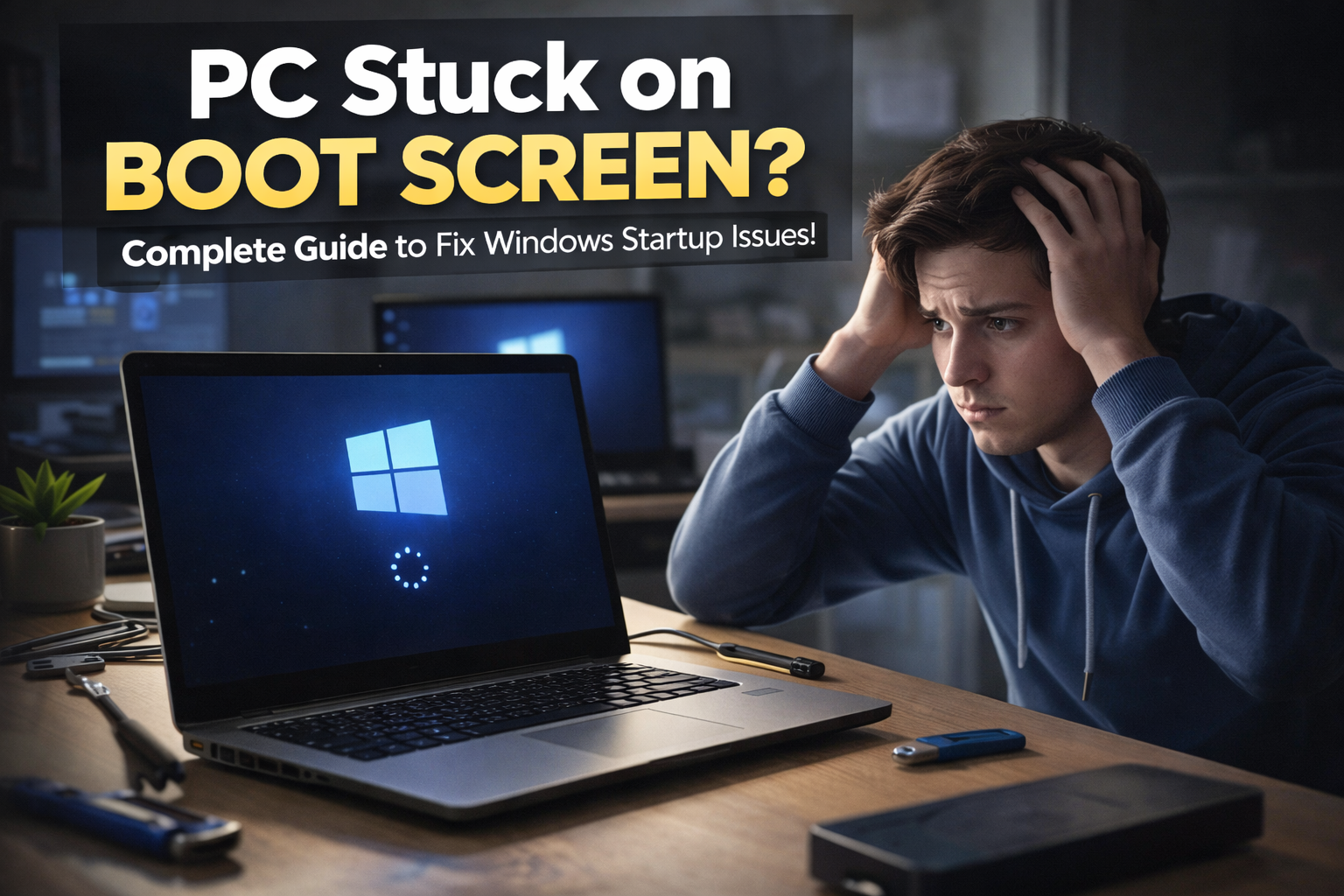
There’s nothing more frustrating than turning on your computer only to see it stuck on the boot screen or stuck on startup. Whether it’s a laptop stuck on boot screen, a PC frozen on startup, or a Windows 11 stuck on boot screen, these issues can disrupt your workflow and cause unnecessary stress. This guide will walk you through why your computer or PC won’t get past boot screen and how to fix it effectively.
Why is My Computer Stuck on Restarting or Boot Screen?
Computers can get stuck on boot screens or restarting screens due to hardware conflicts, corrupted system files, or software updates. Some common causes include:
- Corrupted Windows files: Windows updates sometimes fail, causing the system to freeze on Windows loading screen or Windows 10 stuck on boot screen.
- Hardware issues: Faulty RAM, hard drives, or motherboard problems can make a PC stuck on motherboard screen or prevent it from booting.
- Boot loop errors: A PC stuck in boot loop keeps restarting without completing the startup.
- Software conflicts: Newly installed programs or drivers can cause your computer stuck on restarting screen or Windows stuck on welcome screen.
- External devices: USB drives, printers, or external hard drives sometimes interfere with startup, making your PC freeze on boot.
Symptoms of a Computer Stuck on Boot or Startup Screen
You might be experiencing one or more of these common issues:
- Windows 10 or Windows 11 stuck on boot screen with spinning circles or black screen.
- PC stuck restarting indefinitely.
- Laptop stuck on startup screen or stuck on restarting screen.
- Windows 10 please wait spinning circle shows forever without progress.
- PC boots to black screen or computer taking forever to restart.
- PC infinite boot loop repeating restart cycles.
How to Fix a PC Stuck on Boot Screen
When your computer stuck on boot screen or laptop stuck on startup screen, it can feel like your PC will never start again. Fortunately, most issues are repairable using simple steps. Let’s dive into each method in detail:
1. Force Restart Your Computer
The first step when facing a PC stuck restarting or a Windows 11 stuck on boot screen is to perform a force restart. This is one of the simplest yet effective solutions because it clears temporary glitches in the system.
- Hold the power button: Press and hold the power button for about 10–15 seconds. This forces your computer to shut down completely, even if it’s frozen on a Windows loading screen or PC stuck on Windows loading screen.
- Wait briefly: After the computer is off, wait 5–10 seconds to allow residual power to drain. This helps reset hardware connections and can resolve minor startup errors.
- Turn it back on: Press the power button again to restart your PC. Check if Windows boots normally. If the computer still freezes on startup or shows a black screen on boot, proceed to the next step.
This method is particularly useful for PC stuck on restarting loops or Windows 10 stuck on welcome screen after a failed update.
2. Disconnect External Devices
Sometimes, your PC frozen on startup is not caused by Windows itself but by hardware conflicts. External devices like USB drives, printers, or external hard drives can interfere with booting.
- Disconnect all peripherals connected to your PC, including keyboards, mice, USB drives, and external hard drives.
- Restart the computer to see if it can pass the boot screen successfully.
- If Windows starts normally, reconnect devices one by one to identify which peripheral was causing the issue.
This step often resolves cases where the laptop stuck on restarting screen or Windows 10 stuck on boot screen occurs due to external hardware conflicts.
3. Boot into Safe Mode
Safe Mode is a special Windows startup environment that loads only essential files and drivers. Booting into Safe Mode can help fix software or driver conflicts that may be causing a PC stuck on boot screen or Windows 11 freezing on startup.
- Access Safe Mode: Restart your PC. For Windows 10 or 11, repeatedly press F8 or Shift + F8 during startup. This opens the Advanced Boot Options menu.
- Select Safe Mode: From the options, choose “Safe Mode” or “Safe Mode with Networking.” This ensures Windows loads only critical system files.
- Fix conflicts: Once in Safe Mode, uninstall recently installed programs, drivers, or updates that could be causing your PC not booting issue.
Booting into Safe Mode is a reliable solution when your computer stuck on restarting screen or a PC infinite boot loop prevents normal startup.
4. Repair Windows Startup
If Safe Mode does not fix your Windows 10 stuck on welcome screen or PC stuck on Windows loading screen, the next step is to use the Windows Recovery Environment (WinRE) to repair startup files.
- Enter WinRE: On the boot screen, press Shift + Restart. This launches the Windows Recovery Environment.
- Navigate to Startup Repair: Select Troubleshoot → Advanced Options → Startup Repair. This built-in tool scans for corrupted system files and attempts to fix them automatically.
- Follow instructions: Windows will provide on-screen instructions. Allow the process to complete without interruption, as it may take some time to repair Windows not booting or PC stuck in boot loop.
This method is highly effective for Windows 10 will not boot errors or computer stuck on restarting due to corrupted system files.
5. Check for Hard Drive or RAM Issues
Sometimes, a PC stuck on motherboard screen or laptop stuck on boot screen is caused by hardware problems rather than software. Faulty hard drives or RAM modules can prevent Windows from loading properly.
- Check hard drive: Run the CHKDSK utility to scan and repair disk errors. This can resolve issues like computer stuck loading on startup.
- Test RAM: Use the Windows Memory Diagnostic Tool to detect memory problems. Bad RAM can lead to a PC frozen on startup or a boot loop PC.
- Reseat components: Ensure RAM, hard drive, and other internal components are properly seated. Replace any faulty hardware if necessary.
Hardware checks are essential when facing persistent issues such as PC black screen on boot or Windows 10 will not boot.
6. Reset or Reinstall Windows
If all else fails and your Windows 11 PC freezes on startup or PC stuck in boot loop persists, a Windows reset or clean installation may be necessary. This is often the last resort but can resolve even the most stubborn boot issues.
- Backup important files: Use Safe Mode or a bootable USB drive to save essential data.
- Reset Windows: In the Windows Recovery Environment, select Reset this PC. You can choose to keep files or remove everything for a fresh start.
- Clean installation: If resetting doesn’t work, reinstall Windows 10 or 11 using a bootable USB. This removes all corrupted files and ensures a fresh, stable installation.
Resetting or reinstalling Windows is especially useful for PC stuck on Windows loading screen, Windows 10 stuck on just a moment, or computer taking forever to restart issues.
Tips to Prevent Future Boot Screen Issues
- Keep Windows and drivers updated.
- Run antivirus and malware scans regularly.
- Avoid forced shutdowns unless necessary.
- Check hardware components periodically.
- Limit installation of untrusted software.
Frequently Asked Questions (FAQ)
Q1. Why is my computer stuck on restarting?
Usually due to Windows update errors, driver conflicts, or corrupted system files. Boot into Safe Mode and uninstall recent updates.
Q2. My laptop is stuck on the boot screen. What should I do?
Force restart the laptop, disconnect peripherals, and try Safe Mode. If it persists, use Startup Repair or reinstall Windows.
Q3. How do I fix a PC stuck in a boot loop?
Boot into Safe Mode, uninstall problematic drivers or software, and run Windows Startup Repair. If necessary, reset Windows.
Q4. Can hardware issues cause Windows 10 stuck on boot screen?
Yes, faulty RAM, hard drive issues, or motherboard problems can freeze Windows during startup.
Q5. My Windows 11 PC freezes on startup. Is it safe to force restart?
Yes, but avoid repeated forced restarts. Use Safe Mode and repair tools for a permanent fix.
By following these steps, you can fix most issues related to computer stuck on boot screen, PC stuck restarting, or Windows not booting. Whether it’s Windows 10 stuck on welcome screen or laptop stuck on startup screen, these solutions will get your system back on track efficiently.